
 electronics
Similar presentations:








Download Firmware Guide for MTK Multiple Download Tool(only F11)
1.
Download Firmware Guide--On MTK Multiple Download Tool
2.
Summary• Install USB driver
• Multiple Download Tool
• Set Multiple Download Tool
• Download Software to Phone
Download with format & without backup
3.
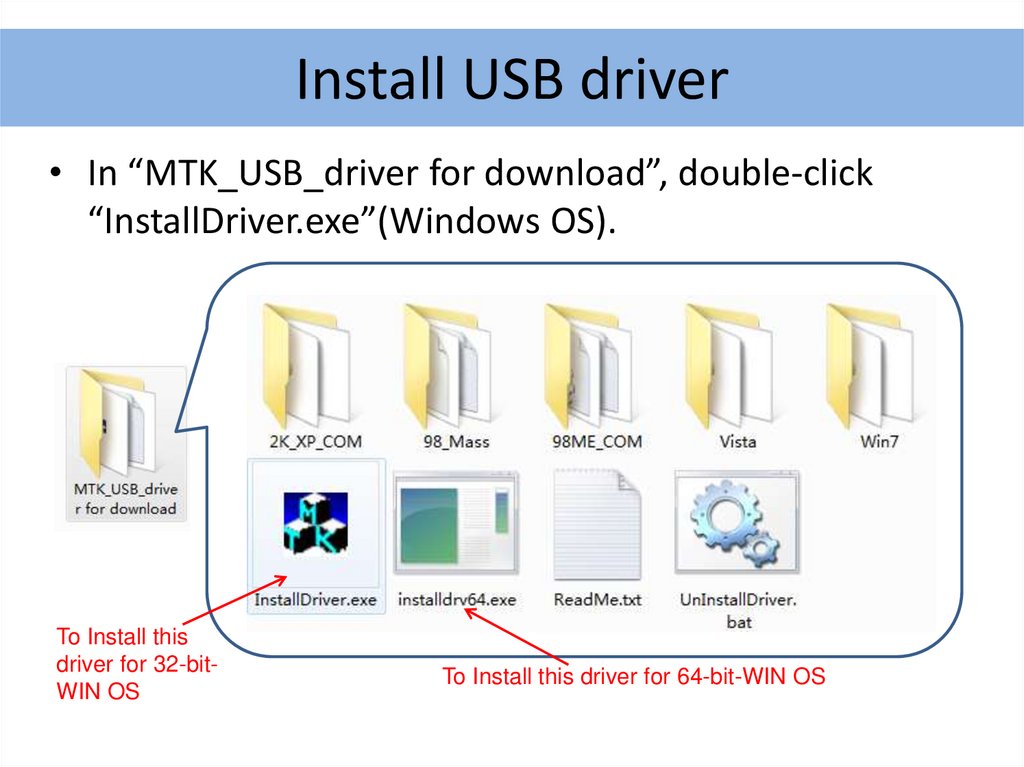
Install USB driver• In “MTK_USB_driver for download”, double-click
“InstallDriver.exe”(Windows OS).
To Install this
driver for 32-bitWIN OS
To Install this driver for 64-bit-WIN OS
4.
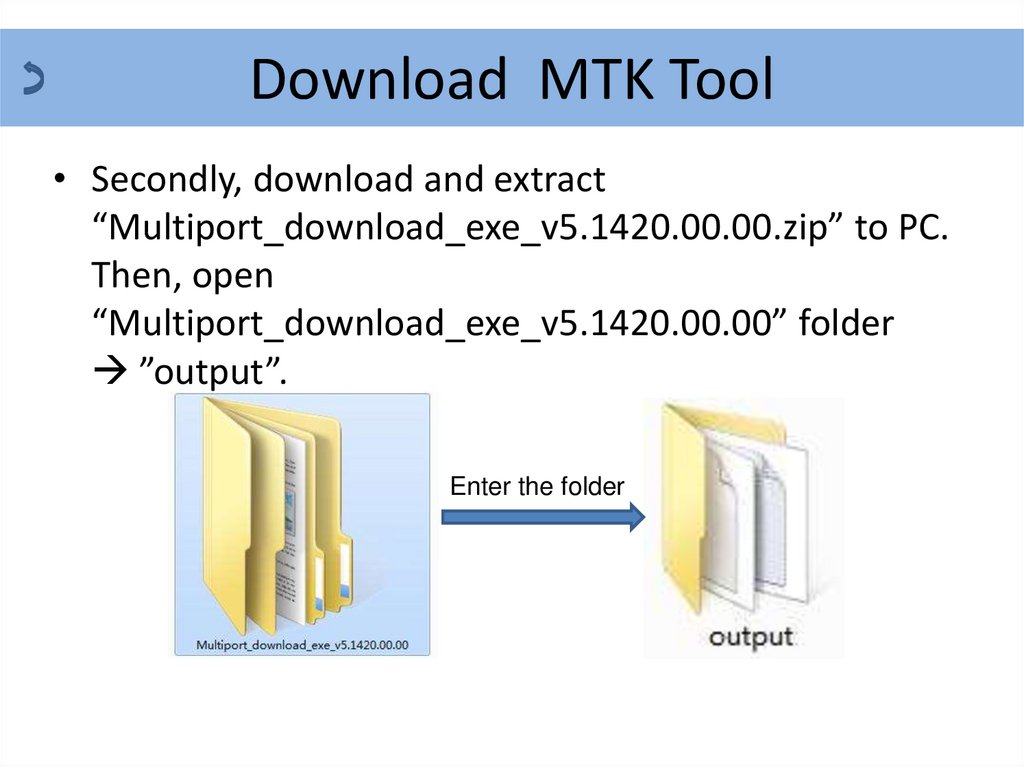
Download MTK Tool• Secondly, download and extract
“Multiport_download_exe_v5.1420.00.00.zip” to PC.
Then, open
“Multiport_download_exe_v5.1420.00.00” folder
”output”.
Enter the folder
5.
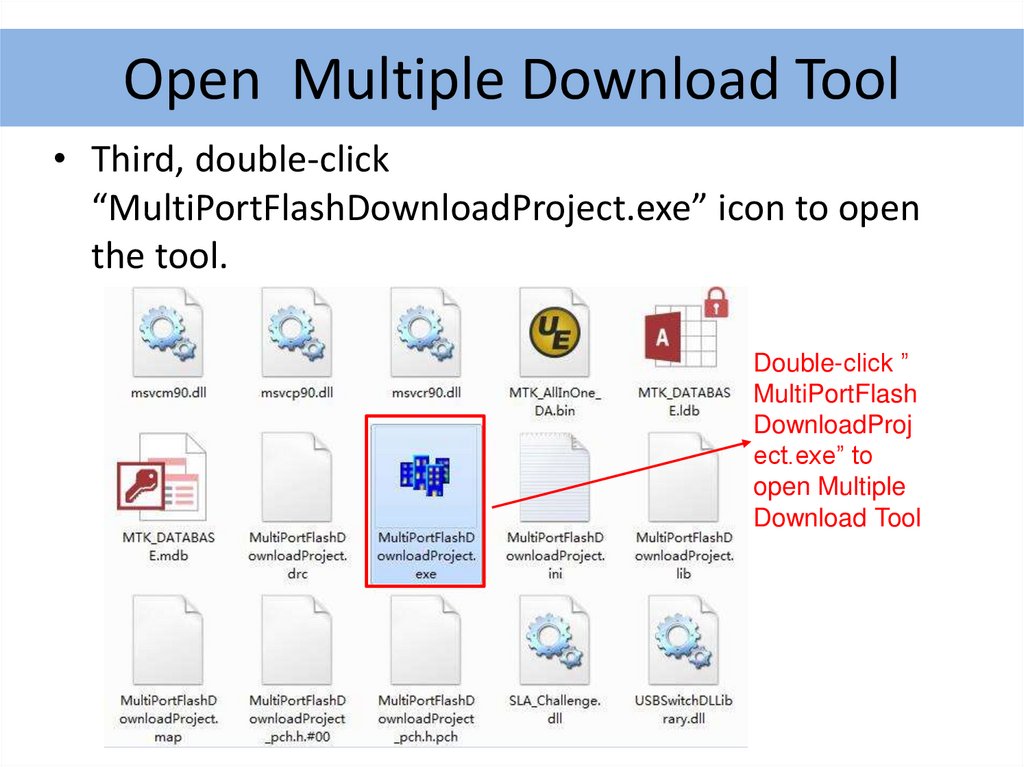
Open Multiple Download Tool• Third, double-click
“MultiPortFlashDownloadProject.exe” icon to open
the tool.
Double-click ”
MultiPortFlash
DownloadProj
ect.exe” to
open Multiple
Download Tool
6.
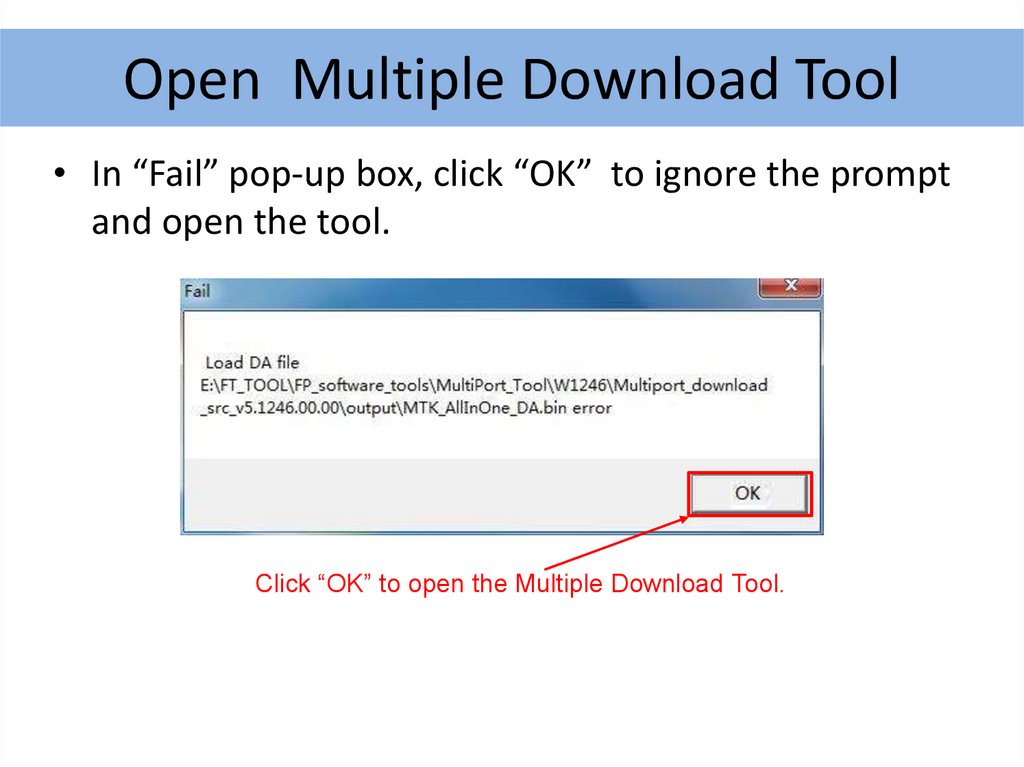
Open Multiple Download Tool• In “Fail” pop-up box, click “OK” to ignore the prompt
and open the tool.
Click “OK” to open the Multiple Download Tool.
7.
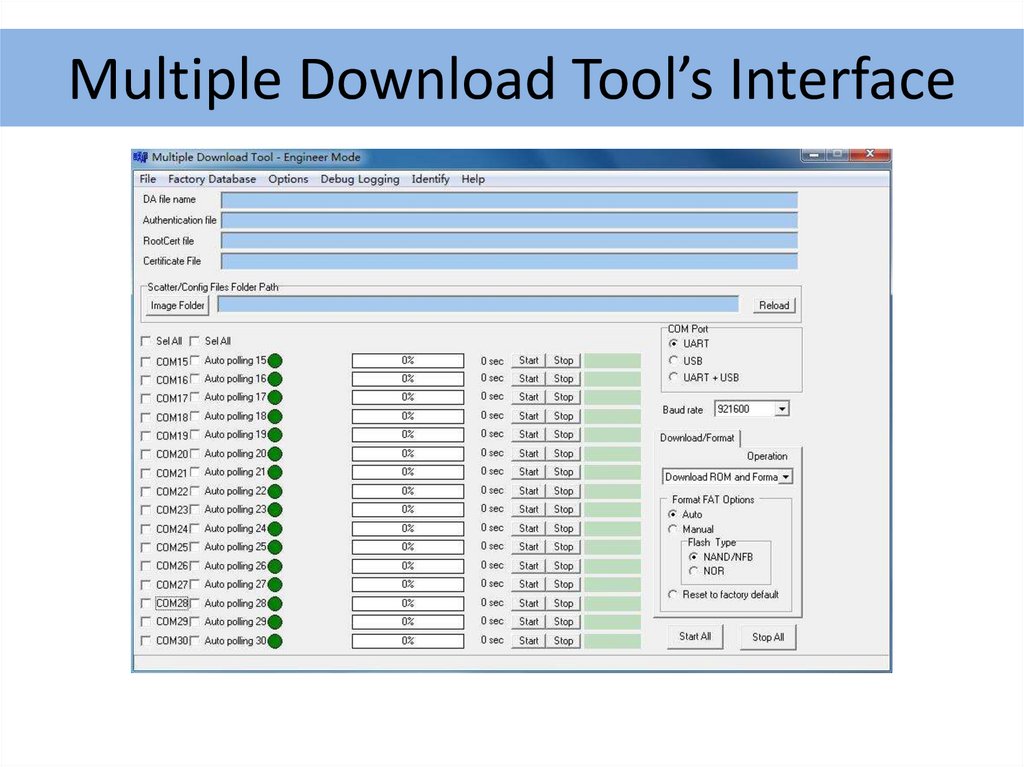
Multiple Download Tool’s Interface8.
Set Multiple Download Tool• Some configuration should be set up before
downloading.
9.
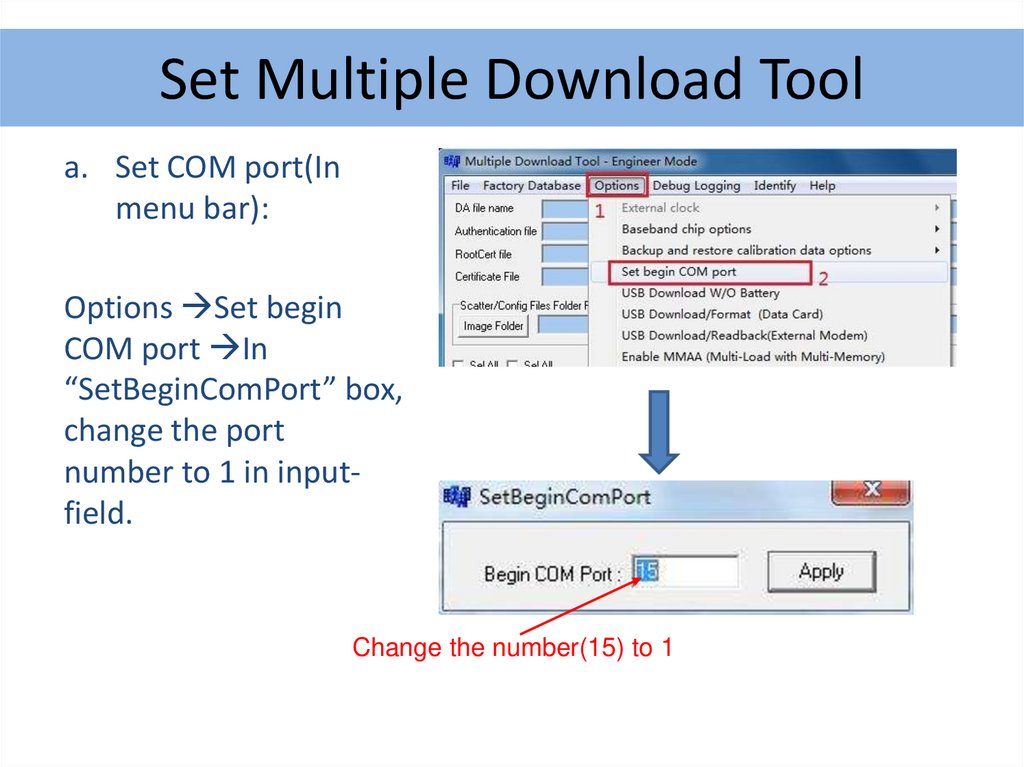
Set Multiple Download Toola. Set COM port(In
menu bar):
Options Set begin
COM port In
“SetBeginComPort” box,
change the port
number to 1 in inputfield.
Change the number(15) to 1
10.
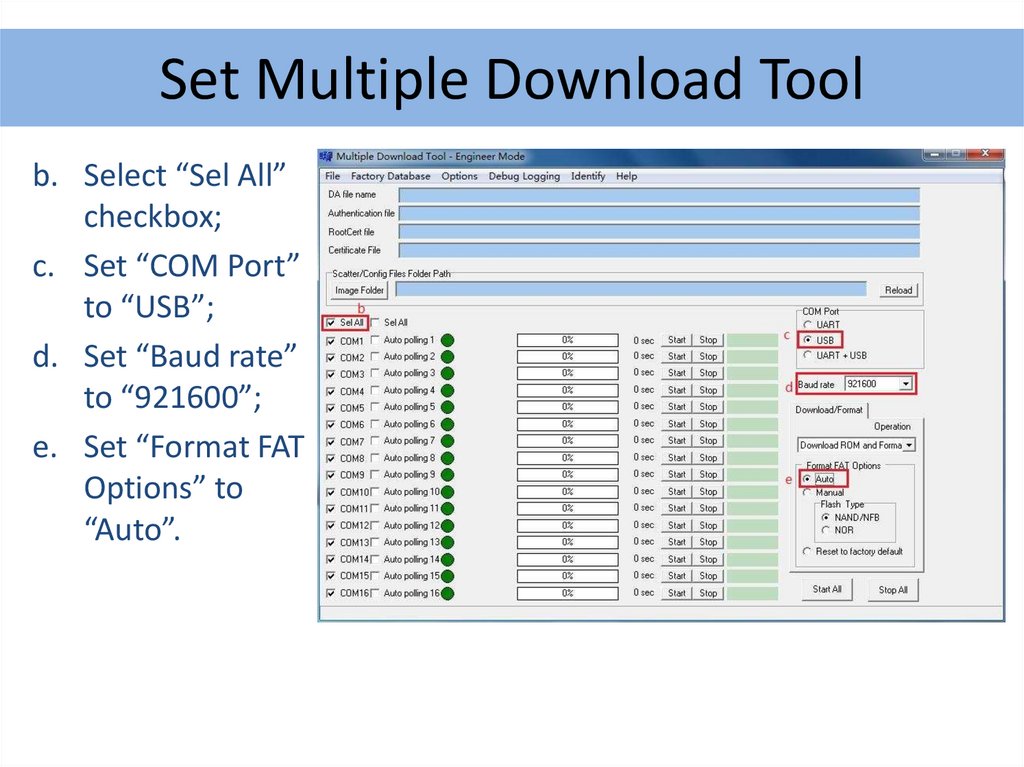
Set Multiple Download Toolb. Select “Sel All”
checkbox;
c. Set “COM Port”
to “USB”;
d. Set “Baud rate”
to “921600”;
e. Set “Format FAT
Options” to
“Auto”.
11.
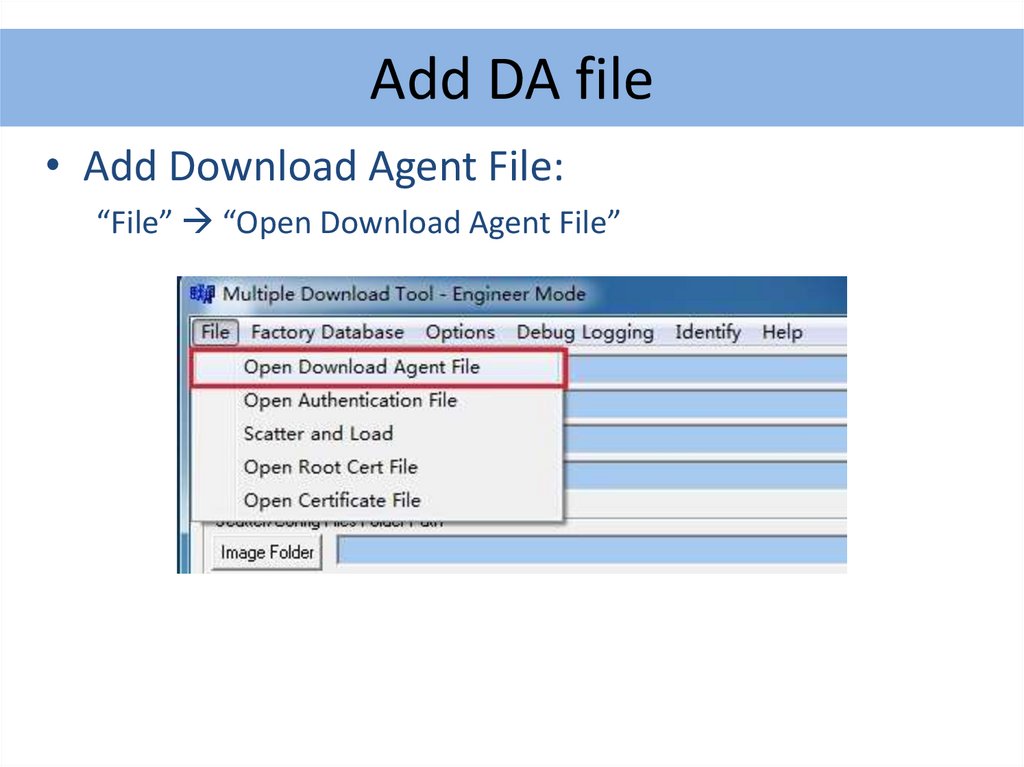
Add DA file• Add Download Agent File:
“File” “Open Download Agent File”
12.
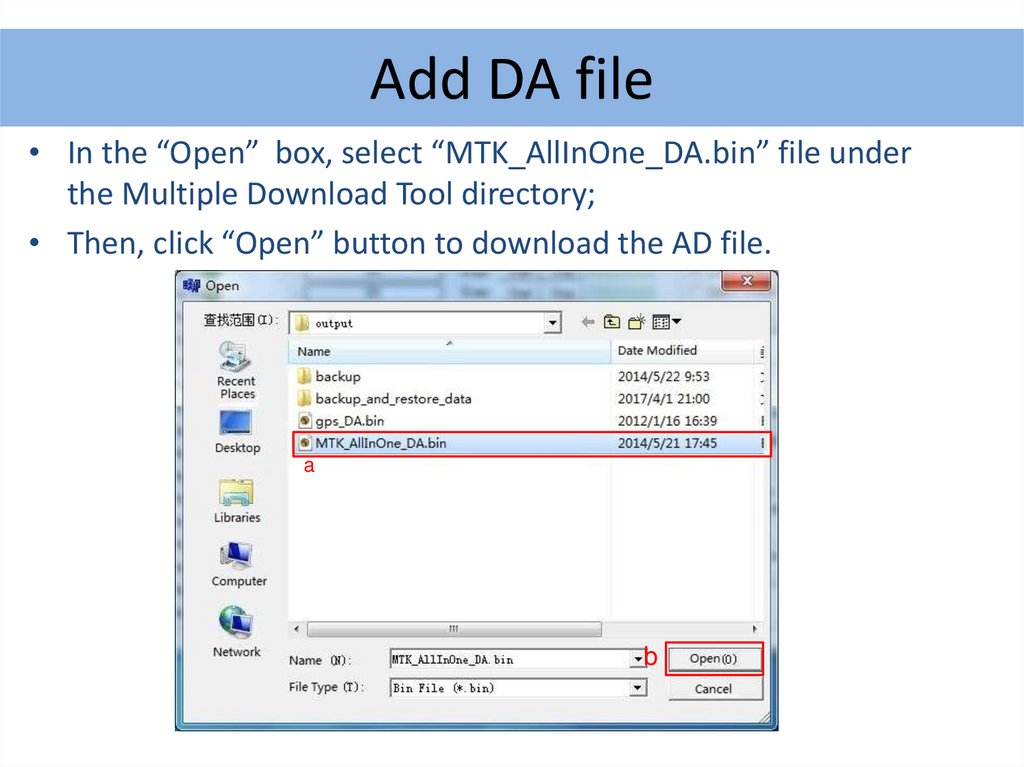
Add DA file• In the “Open” box, select “MTK_AllInOne_DA.bin” file under
the Multiple Download Tool directory;
• Then, click “Open” button to download the AD file.
a
b
13.
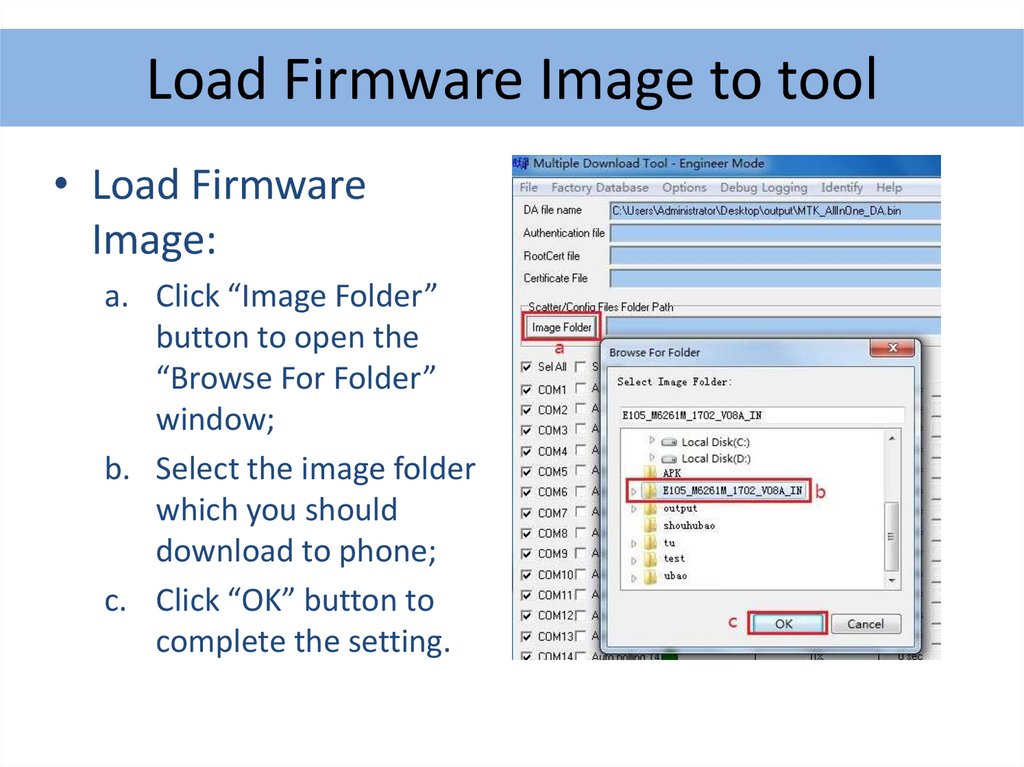
Load Firmware Image to tool• Load Firmware
Image:
a. Click “Image Folder”
button to open the
“Browse For Folder”
window;
b. Select the image folder
which you should
download to phone;
c. Click “OK” button to
complete the setting.
14.
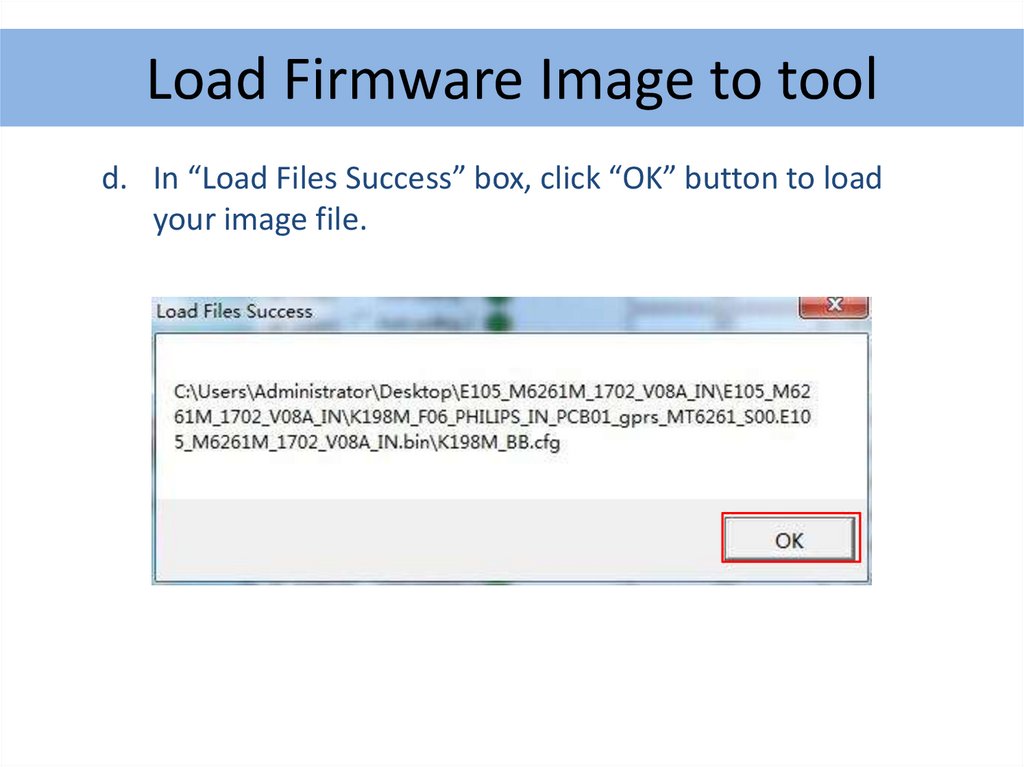
Load Firmware Image to toold. In “Load Files Success” box, click “OK” button to load
your image file.
15.
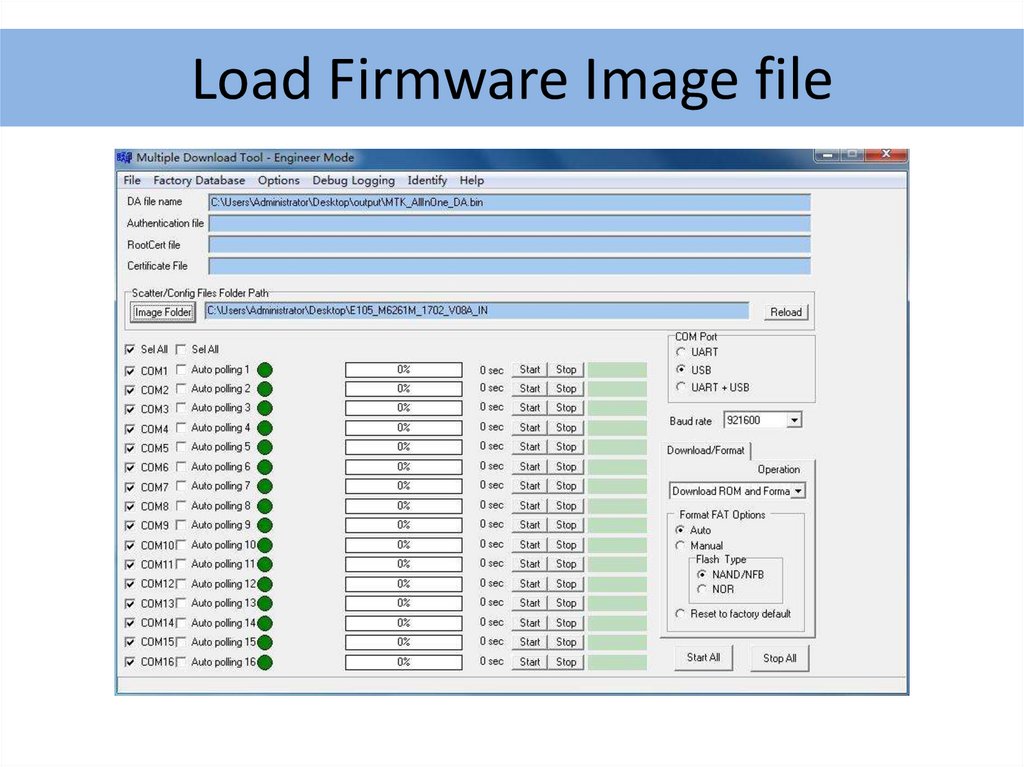
Load Firmware Image file16.
Download Software to PhoneNext, we show how to download software to phone.
(Download with format & without backup.)
17.
Format and Download ROM• Third, Format and Download ROM(download
software to phone with format & no backup):
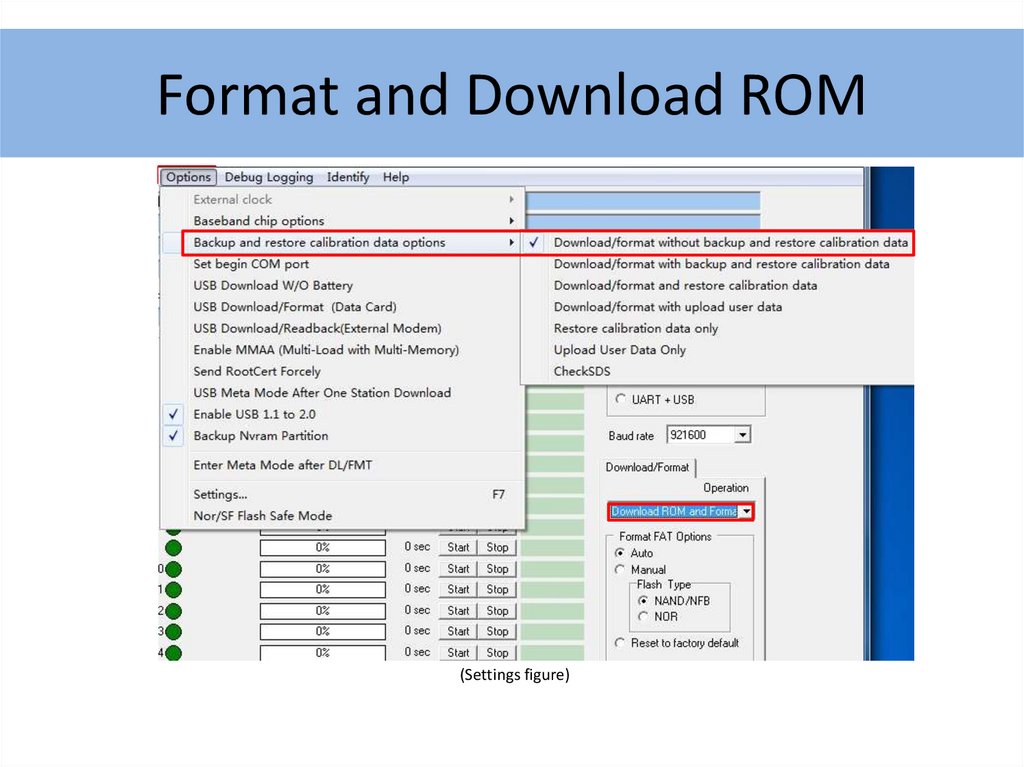
a. In download tool, click ”Options” on MENU bar
select “Backup and restore calibration data
options” select ”Download/format without
18.
Format and Download ROMbackup and restore calibration data”.
b. Unfold “Operation” drop-down list, on the right
of tool select “Download ROM and Format”.
(see next page figure)
19.
Format and Download ROM(Settings figure)
20.
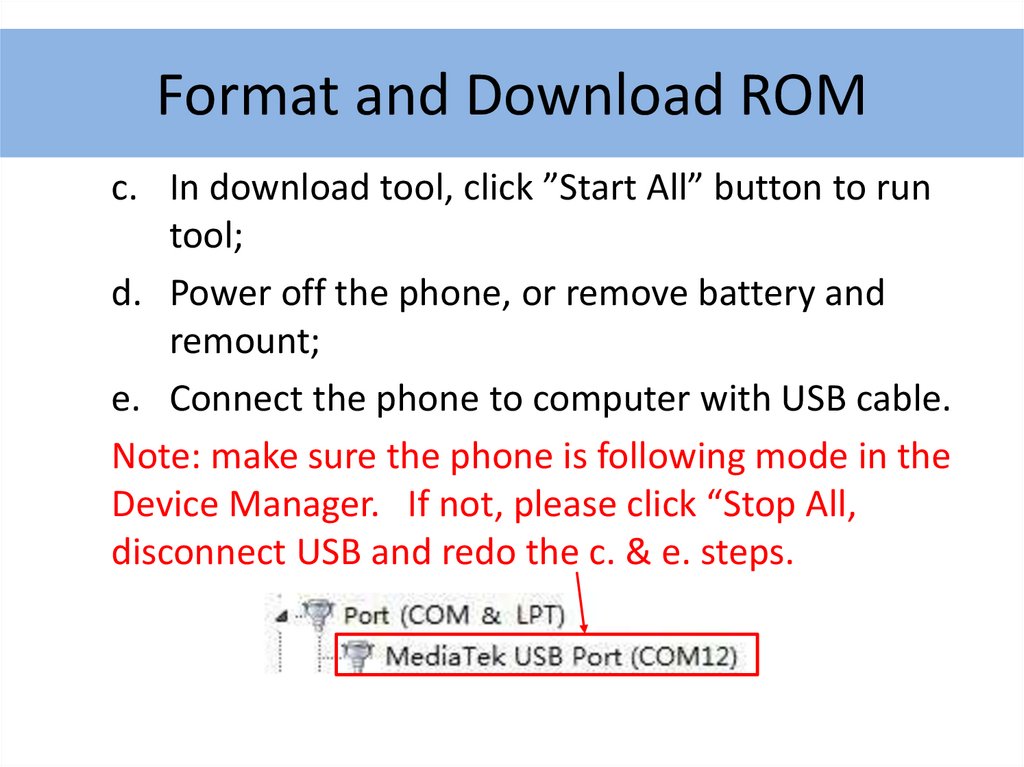
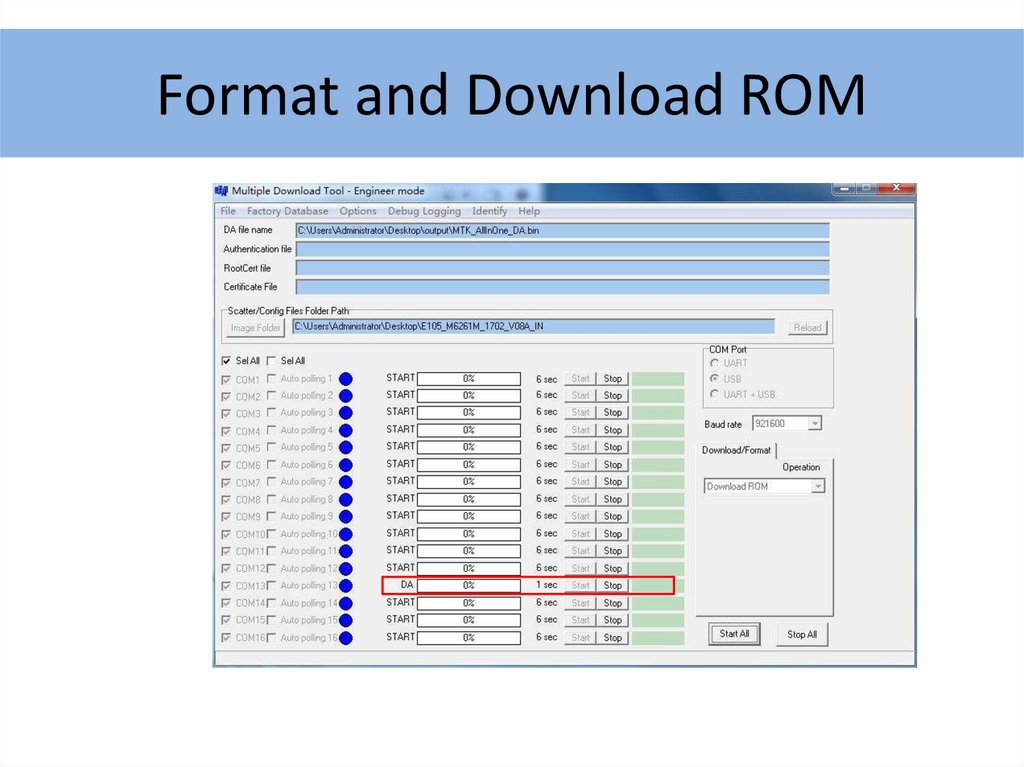
Format and Download ROMc. In download tool, click ”Start All” button to run
tool;
d. Power off the phone, or remove battery and
remount;
e. Connect the phone to computer with USB cable.
Note: make sure the phone is following mode in the
Device Manager. If not, please click “Stop All,
disconnect USB and redo the c. & e. steps.
21.
Format and Download ROM22.
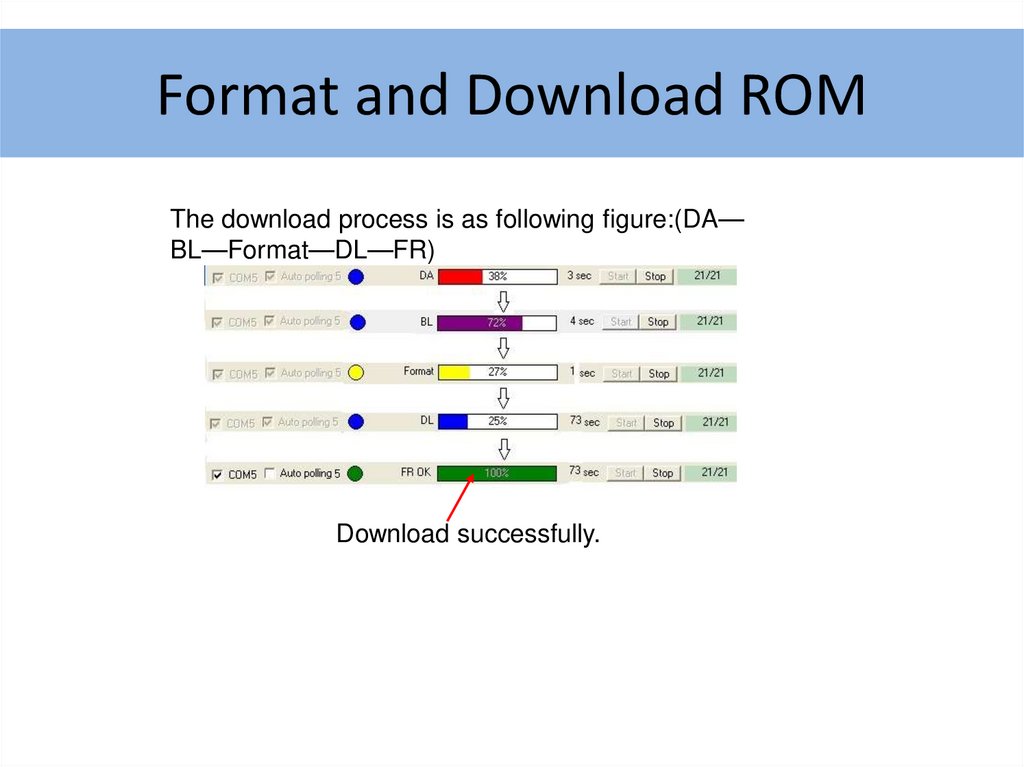
Format and Download ROMThe download process is as following figure:(DA—
BL—Format—DL—FR)
Download successfully.