

 internet
Similar presentations:










How to use Softros LAN?
1.
How to use Softros LANMessenger
Guide
2026
2.
01Intro & Install
02
Setup & Chat
03
Files & Admin
04
Troubleshoot & Tips
3.
PART 01Intro & Install
4.
Softros LAN Messenger is a powerful instant-messaging clientdesigned for local networks. It operates without a server, utilizing AES256 encryption to ensure security.
By functioning entirely within your LAN, it eliminates Internet
bandwidth use and external security risks, offering a comprehensive
suite of features including text chat, file transfer, broadcast, group
Softros LAN Messenger chat, offline messaging, and remote desktop with zero administrative
overhead.
Server-less & Secure
5.
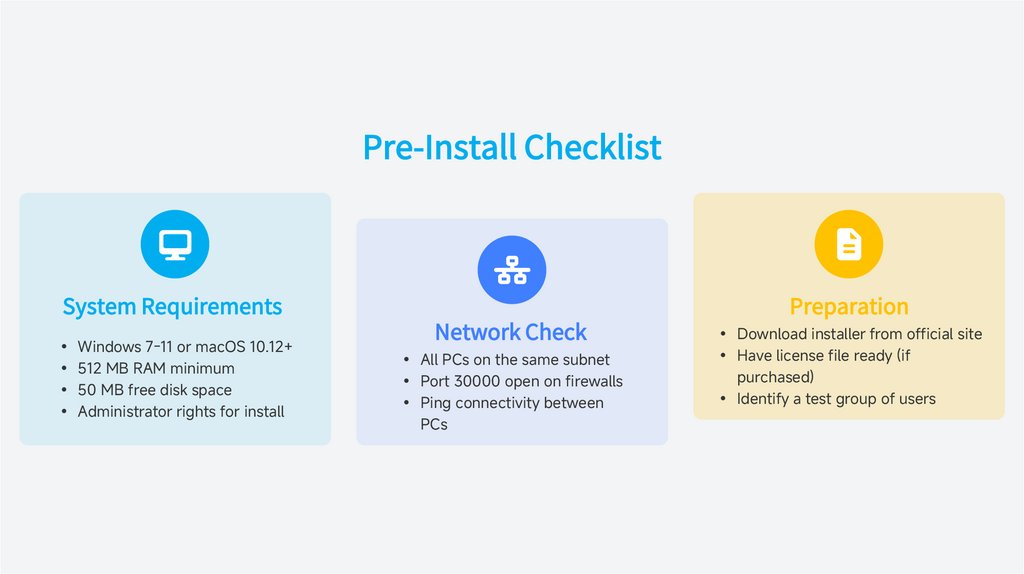
Pre-Install ChecklistSystem Requirements
• Windows 7-11 or macOS 10.12+
• 512 MB RAM minimum
• 50 MB free disk space
• Administrator rights for install
Network Check
• All PCs on the same subnet
• Port 30000 open on firewalls
• Ping connectivity between
PCs
Preparation
• Download installer from official site
• Have license file ready (if
purchased)
• Identify a test group of users
6.
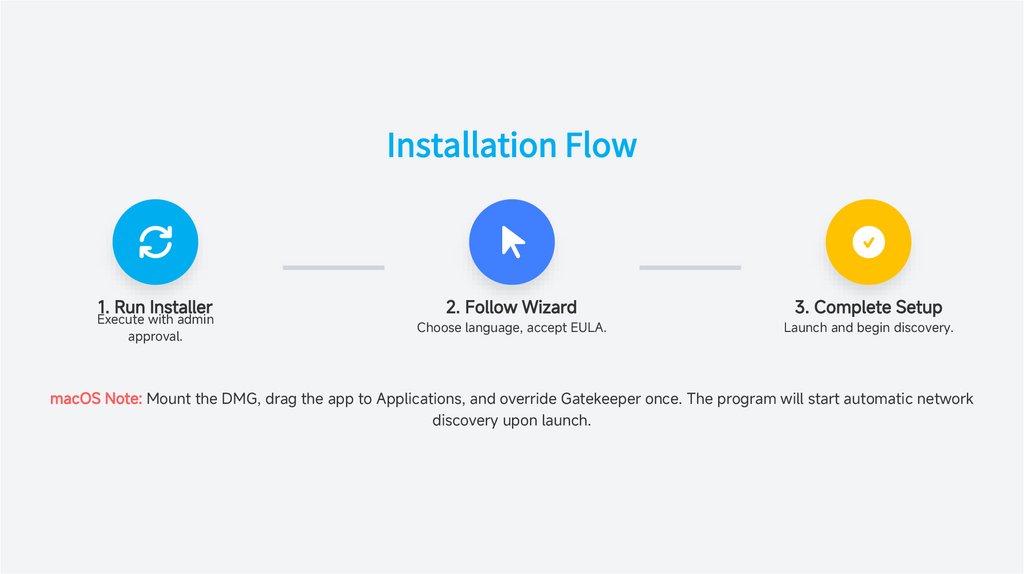
Installation Flow1. Run Installer
Execute with admin
approval.
2. Follow Wizard
3. Complete Setup
Choose language, accept EULA.
Launch and begin discovery.
macOS Note: Mount the DMG, drag the app to Applications, and override Gatekeeper once. The program will start automatic network
discovery upon launch.
7.
PART 02Setup & Chat
8.
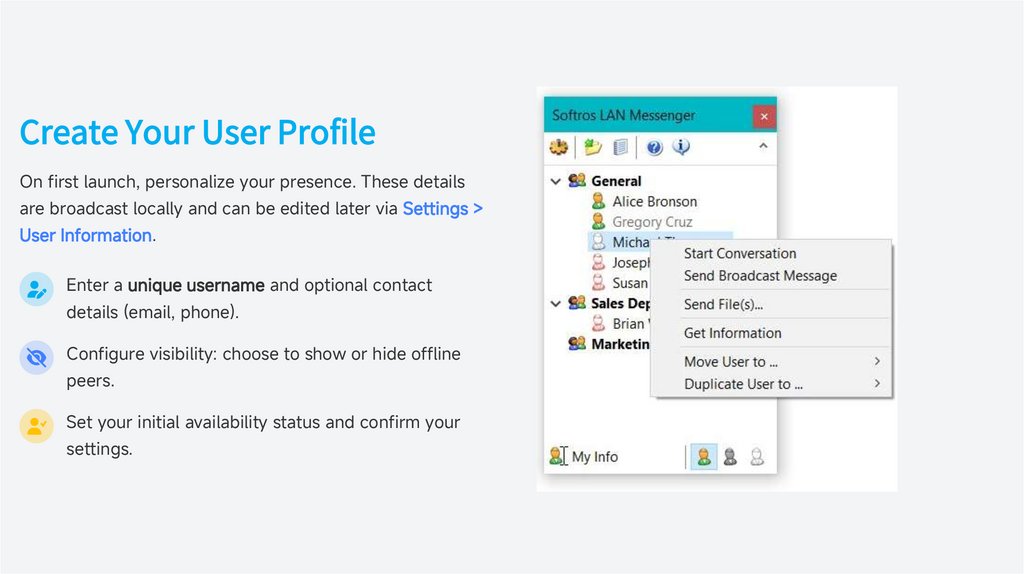
Create Your User ProfileOn first launch, personalize your presence. These details
are broadcast locally and can be edited later via Settings >
User Information.
Enter a unique username and optional contact
details (email, phone).
Configure visibility: choose to show or hide offline
peers.
Set your initial availability status and confirm your
settings.
9.
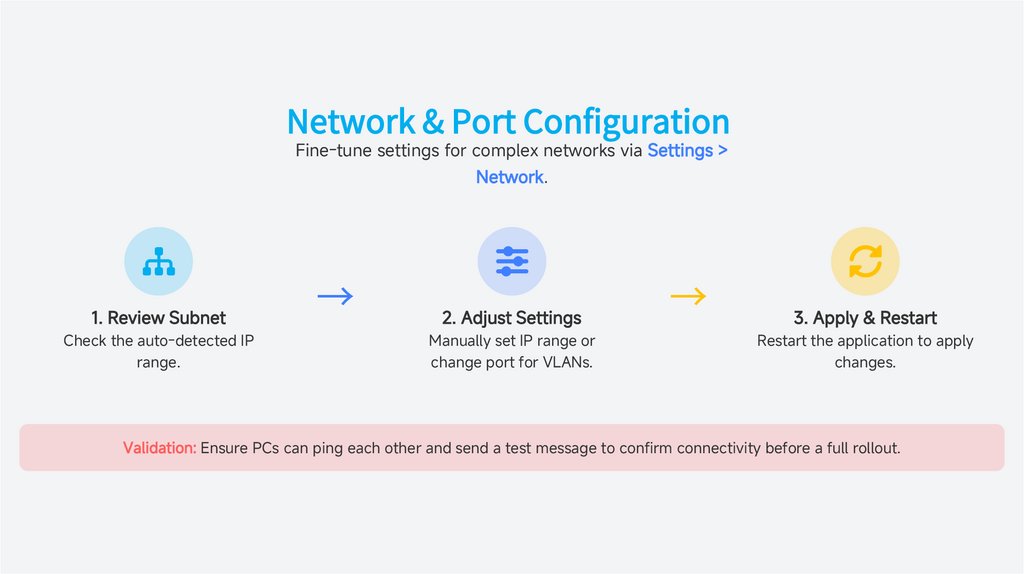
Network & Port ConfigurationFine-tune settings for complex networks via Settings >
Network.
1. Review Subnet
Check the auto-detected IP
range.
→
2. Adjust Settings
Manually set IP range or
change port for VLANs.
→
3. Apply & Restart
Restart the application to apply
changes.
Validation: Ensure PCs can ping each other and send a test message to confirm connectivity before a full rollout.
10.
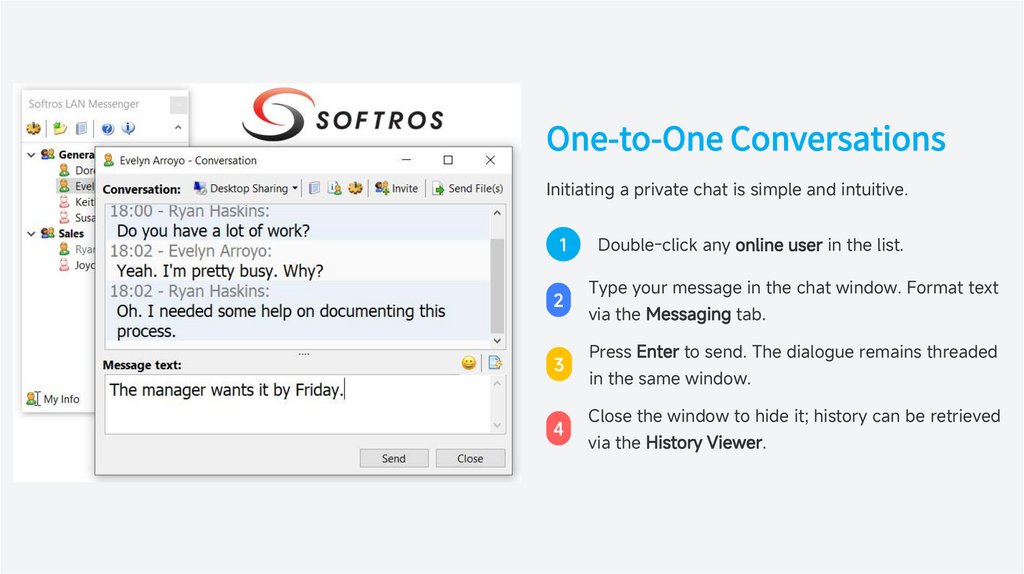
One-to-One ConversationsInitiating a private chat is simple and intuitive.
1
2
3
4
Double-click any online user in the list.
Type your message in the chat window. Format text
via the Messaging tab.
Press Enter to send. The dialogue remains threaded
in the same window.
Close the window to hide it; history can be retrieved
via the History Viewer.
11.
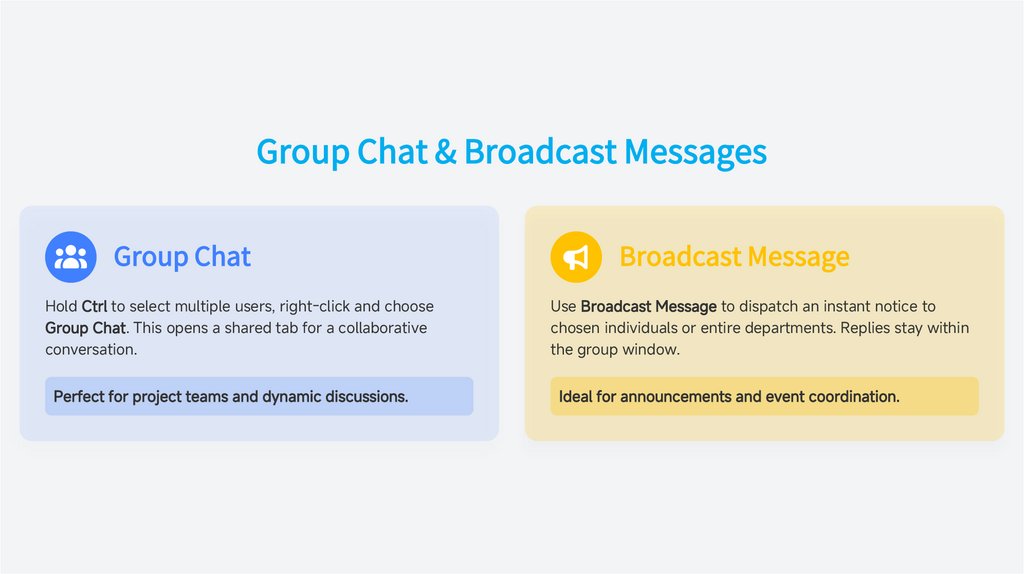
Group Chat & Broadcast MessagesGroup Chat
Broadcast Message
Hold Ctrl to select multiple users, right-click and choose
Group Chat. This opens a shared tab for a collaborative
conversation.
Use Broadcast Message to dispatch an instant notice to
chosen individuals or entire departments. Replies stay within
the group window.
Perfect for project teams and dynamic discussions.
Ideal for announcements and event coordination.
12.
PART 03Files & Admin
13.
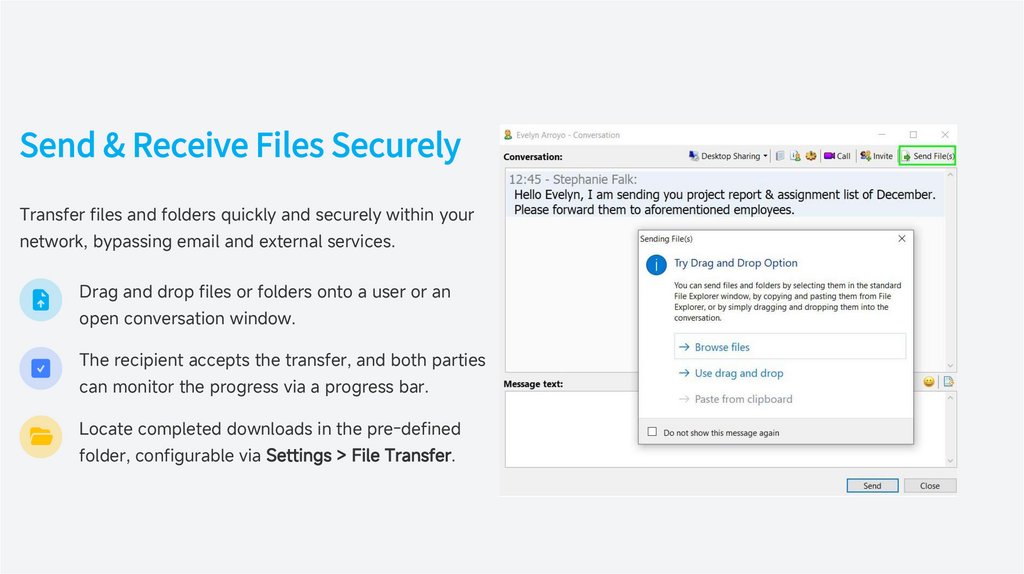
Send & Receive Files SecurelyTransfer files and folders quickly and securely within your
network, bypassing email and external services.
Drag and drop files or folders onto a user or an
open conversation window.
The recipient accepts the transfer, and both parties
can monitor the progress via a progress bar.
Locate completed downloads in the pre-defined
folder, configurable via Settings > File Transfer.
14.
Message History & LoggingEnable logging for compliance, reference, or personal record-keeping.
1. Enable Logging
2. Choose Storage
3. Access History
Go to Settings > Logging and activate
the feature.
Opt for individual XML files or a
centralized network share. Set a
retention period.
Use the built-in History Viewer to
search, filter, export, or print past
conversations.
15.
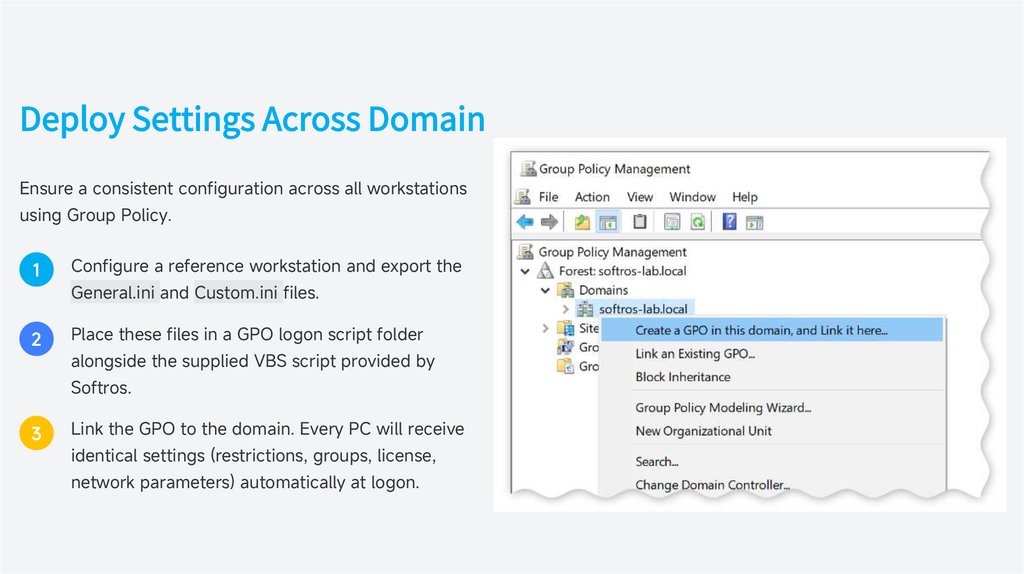
Deploy Settings Across DomainEnsure a consistent configuration across all workstations
using Group Policy.
1
Configure a reference workstation and export the
General.ini and Custom.ini files.
2
Place these files in a GPO logon script folder
alongside the supplied VBS script provided by
Softros.
3
Link the GPO to the domain. Every PC will receive
identical settings (restrictions, groups, license,
network parameters) automatically at logon.
16.
PART 04Troubleshoot & Tips
17.
Troubleshooting Connection IssuesCommon Problems
• Users disappear from the list.
• Messages fail to send or receive.
• Duplicate user names appear.
Quick Solutions
• Confirm all PCs are on the same subnet and can ping each
other.
• Verify firewall port 30000 is open and not blocked by AV.
• Clear duplicate user names and restart the Softros service.
Pro Tip: Use the built-in Ping and Ipconfig buttons under the Help menu to diagnose network issues without leaving the application.
18.
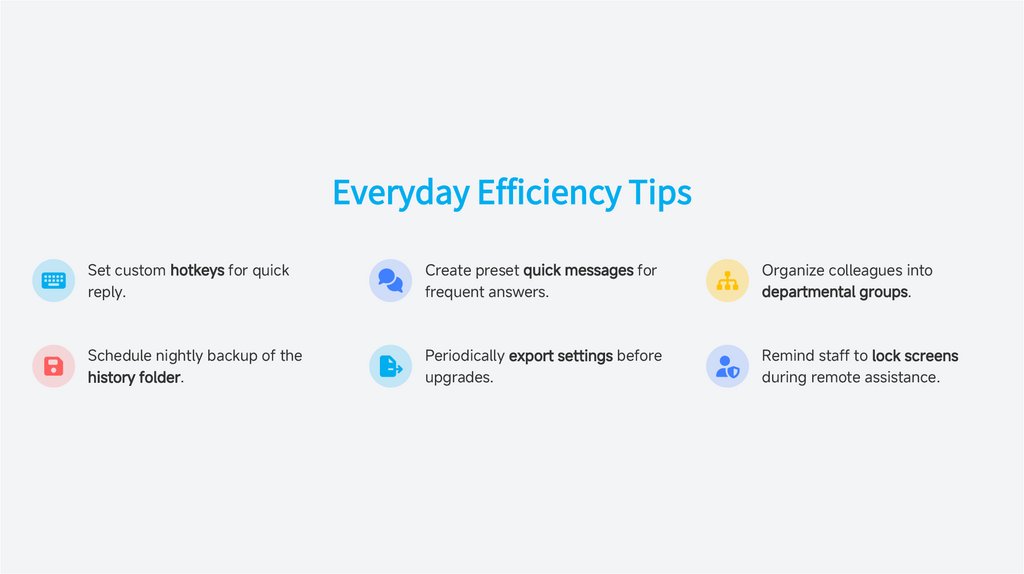
Everyday Efficiency TipsSet custom hotkeys for quick
reply.
Create preset quick messages for
frequent answers.
Organize colleagues into
departmental groups.
Schedule nightly backup of the
history folder.
Periodically export settings before
upgrades.
Remind staff to lock screens
during remote assistance.
19.
THANKS!Softros Guide
2026