



 software
Similar presentations:










Game Objects and Components
1.
Game Objects and Components2.
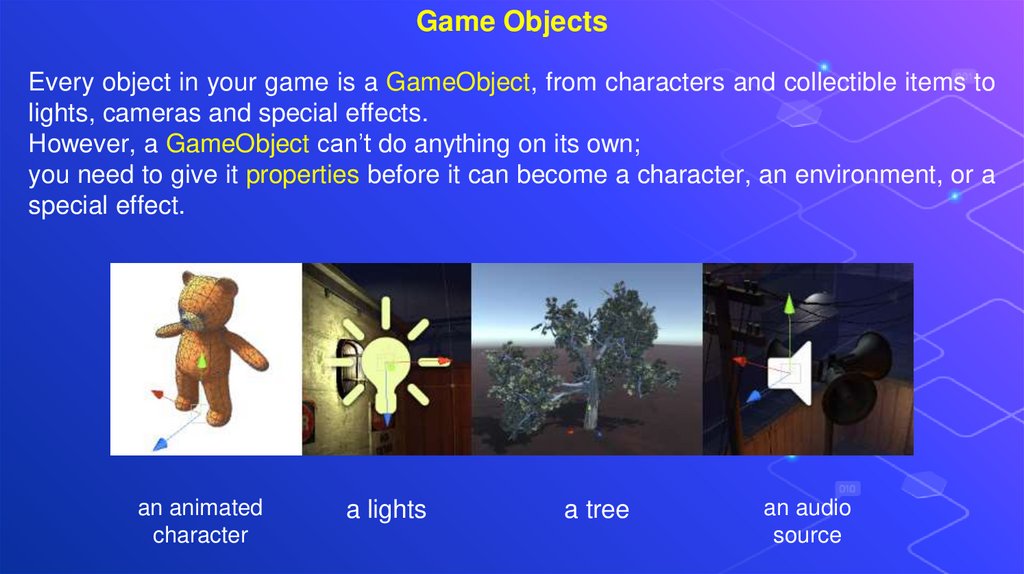
Game ObjectsEvery object in your game is a GameObject, from characters and collectible items to
lights, cameras and special effects.
However, a GameObject can’t do anything on its own;
you need to give it properties before it can become a character, an environment, or a
special effect.
an animated
character
a lights
a tree
an audio
source
3.
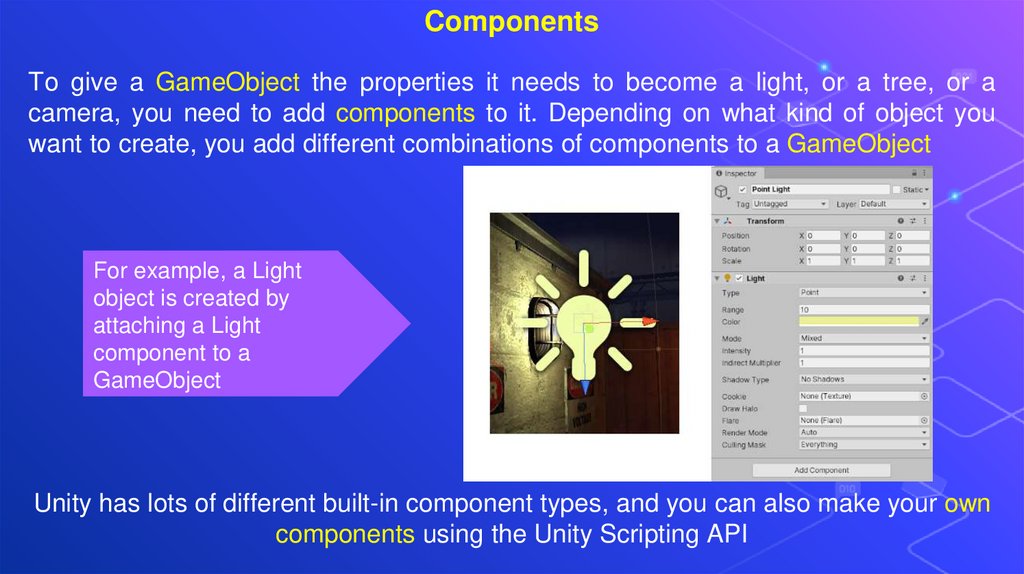
ComponentsTo give a GameObject the properties it needs to become a light, or a tree, or a
camera, you need to add components to it. Depending on what kind of object you
want to create, you add different combinations of components to a GameObject
For example, a Light
object is created by
attaching a Light
component to a
GameObject
Unity has lots of different built-in component types, and you can also make your own
components using the Unity Scripting API
4.
GameObject fundamentalsTransforms
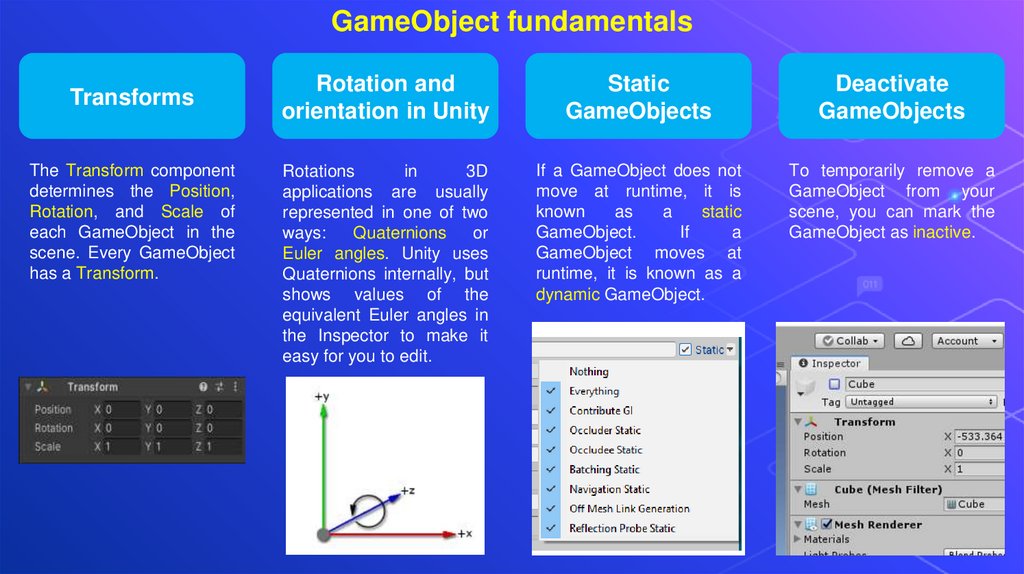
The Transform component
determines the Position,
Rotation, and Scale of
each GameObject in the
scene. Every GameObject
has a Transform.
Rotation and
orientation in Unity
Static
GameObjects
Deactivate
GameObjects
Rotations
in
3D
applications are usually
represented in one of two
ways:
Quaternions
or
Euler angles. Unity uses
Quaternions internally, but
shows values of the
equivalent Euler angles in
the Inspector to make it
easy for you to edit.
If a GameObject does not
move at runtime, it is
known
as
a
static
GameObject.
If
a
GameObject moves at
runtime, it is known as a
dynamic GameObject.
To temporarily remove a
GameObject from your
scene, you can mark the
GameObject as inactive.
5.
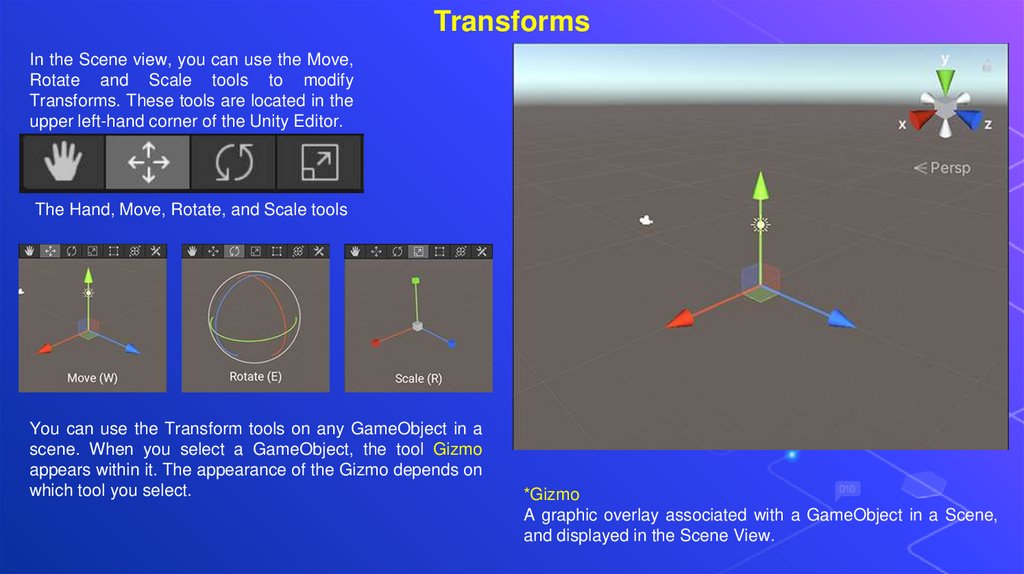
TransformsIn the Scene view, you can use the Move,
Rotate and Scale tools to modify
Transforms. These tools are located in the
upper left-hand corner of the Unity Editor.
The Hand, Move, Rotate, and Scale tools
You can use the Transform tools on any GameObject in a
scene. When you select a GameObject, the tool Gizmo
appears within it. The appearance of the Gizmo depends on
which tool you select.
*Gizmo
A graphic overlay associated with a GameObject in a Scene,
and displayed in the Scene View.
6.
Rotation and orientationEuler angles
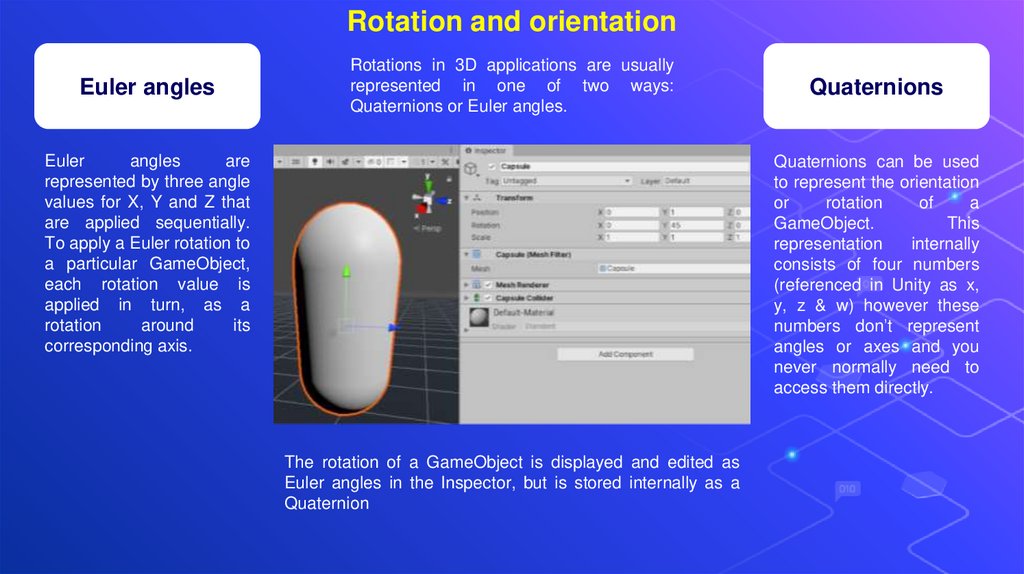
Rotations in 3D applications are usually
represented in one of two ways:
Quaternions or Euler angles.
Euler
angles
are
represented by three angle
values for X, Y and Z that
are applied sequentially.
To apply a Euler rotation to
a particular GameObject,
each rotation value is
applied in turn, as a
rotation
around
its
corresponding axis.
Quaternions
Quaternions can be used
to represent the orientation
or
rotation
of
a
GameObject.
This
representation
internally
consists of four numbers
(referenced in Unity as x,
y, z & w) however these
numbers don’t represent
angles or axes and you
never normally need to
access them directly.
The rotation of a GameObject is displayed and edited as
Euler angles in the Inspector, but is stored internally as a
Quaternion
7.
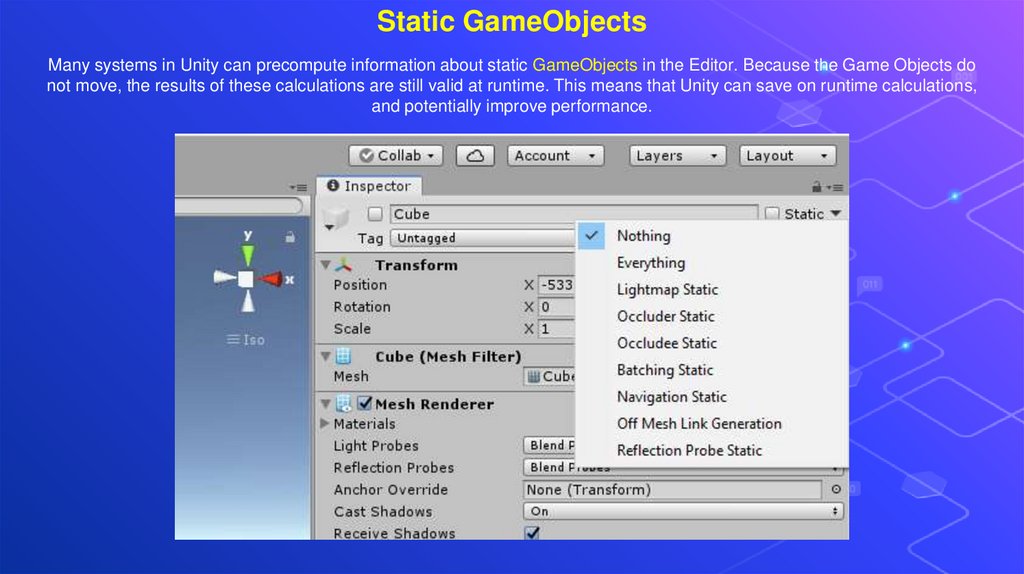
Static GameObjectsMany systems in Unity can precompute information about static GameObjects in the Editor. Because the Game Objects do
not move, the results of these calculations are still valid at runtime. This means that Unity can save on runtime calculations,
and potentially improve performance.
8.
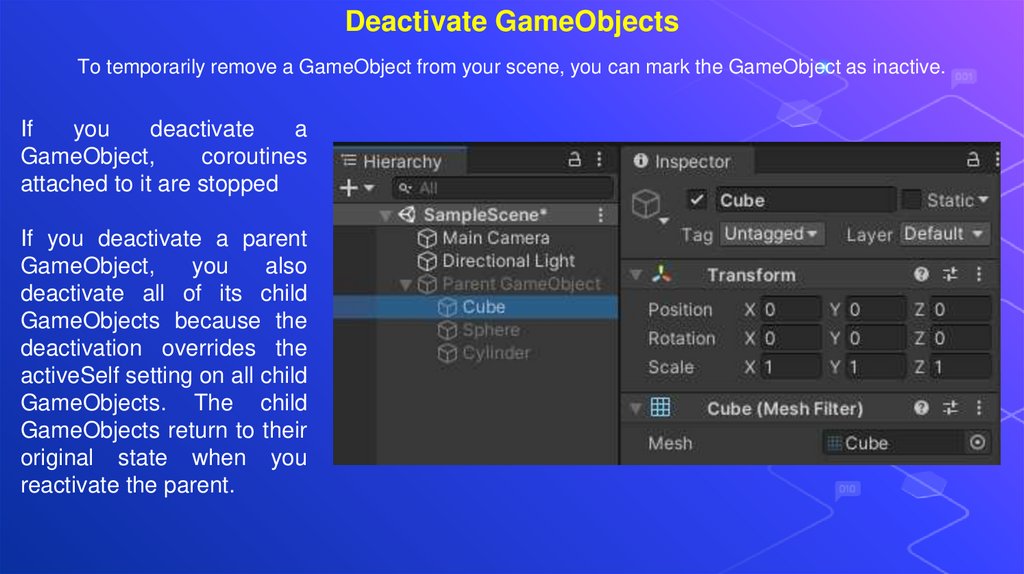
Deactivate GameObjectsTo temporarily remove a GameObject from your scene, you can mark the GameObject as inactive.
If
you
deactivate
a
GameObject,
coroutines
attached to it are stopped
If you deactivate a parent
GameObject,
you
also
deactivate all of its child
GameObjects because the
deactivation overrides the
activeSelf setting on all child
GameObjects. The child
GameObjects return to their
original state when you
reactivate the parent.
9.
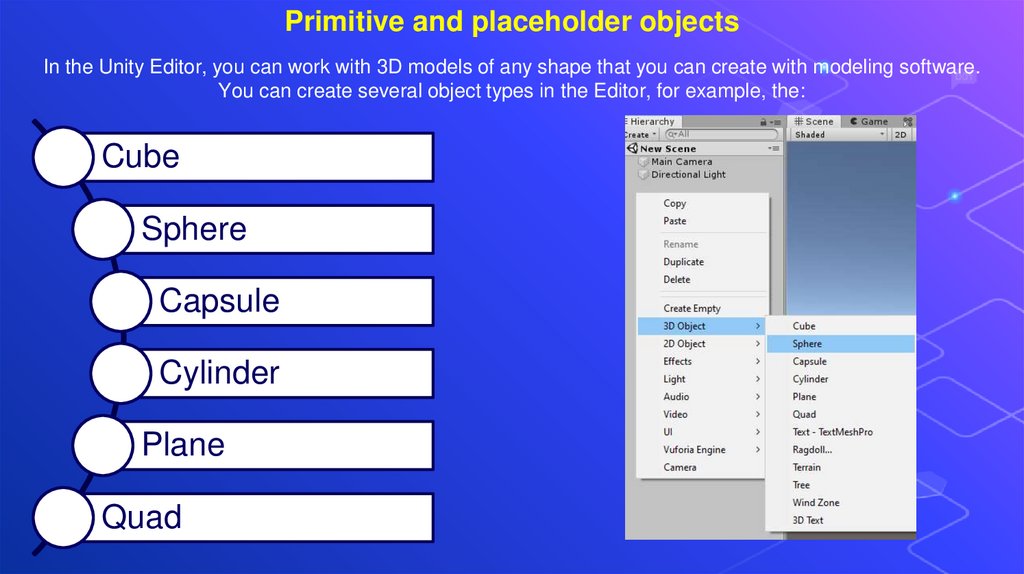
Primitive and placeholder objectsIn the Unity Editor, you can work with 3D models of any shape that you can create with modeling software.
You can create several object types in the Editor, for example, the:
Cube
Sphere
Capsule
Cylinder
Plane
Quad
10.
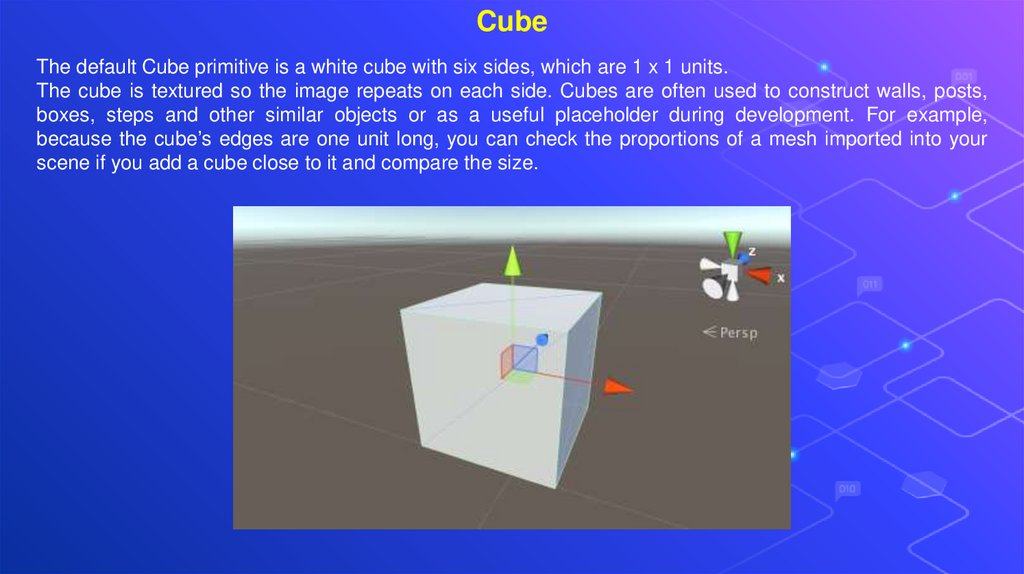
CubeThe default Cube primitive is a white cube with six sides, which are 1 x 1 units.
The cube is textured so the image repeats on each side. Cubes are often used to construct walls, posts,
boxes, steps and other similar objects or as a useful placeholder during development. For example,
because the cube’s edges are one unit long, you can check the proportions of a mesh imported into your
scene if you add a cube close to it and compare the size.
11.
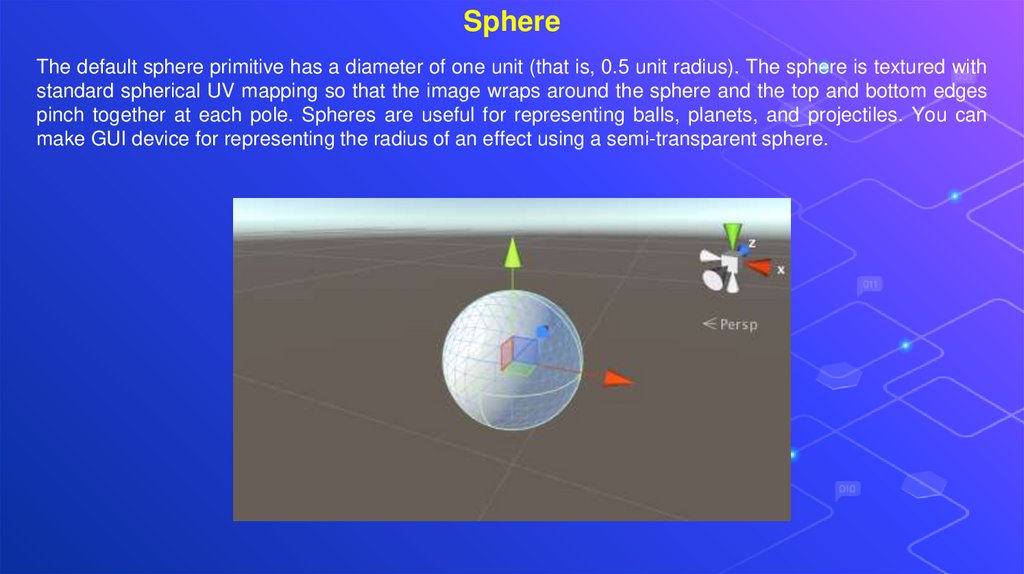
SphereThe default sphere primitive has a diameter of one unit (that is, 0.5 unit radius). The sphere is textured with
standard spherical UV mapping so that the image wraps around the sphere and the top and bottom edges
pinch together at each pole. Spheres are useful for representing balls, planets, and projectiles. You can
make GUI device for representing the radius of an effect using a semi-transparent sphere.
12.
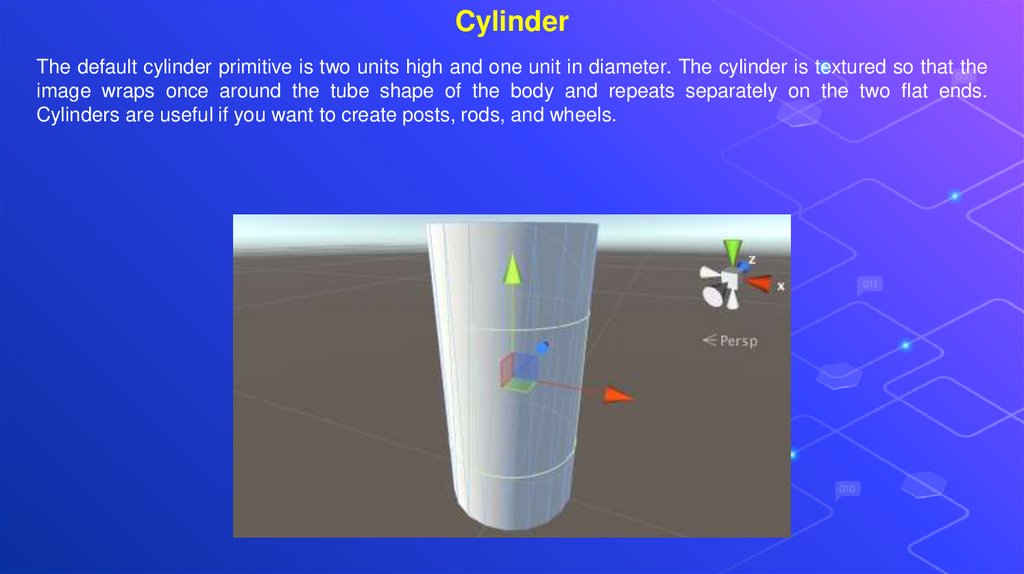
CylinderThe default cylinder primitive is two units high and one unit in diameter. The cylinder is textured so that the
image wraps once around the tube shape of the body and repeats separately on the two flat ends.
Cylinders are useful if you want to create posts, rods, and wheels.
13.
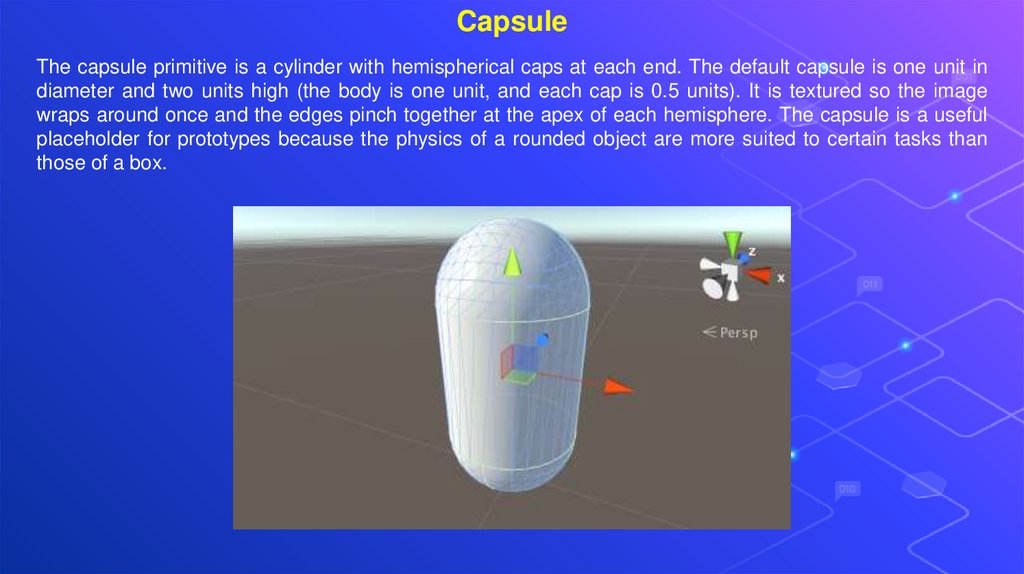
CapsuleThe capsule primitive is a cylinder with hemispherical caps at each end. The default capsule is one unit in
diameter and two units high (the body is one unit, and each cap is 0.5 units). It is textured so the image
wraps around once and the edges pinch together at the apex of each hemisphere. The capsule is a useful
placeholder for prototypes because the physics of a rounded object are more suited to certain tasks than
those of a box.
14.
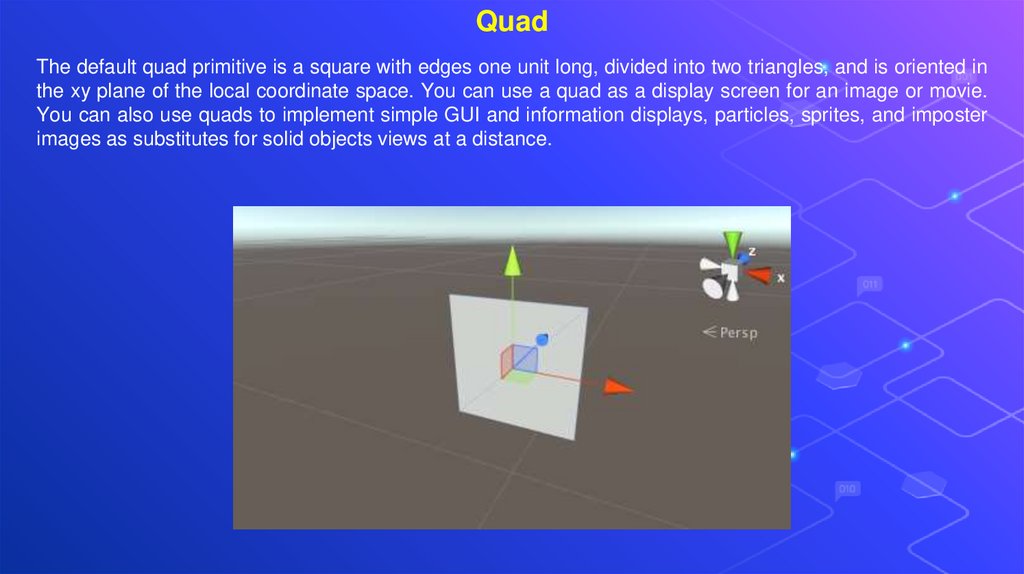
QuadThe default quad primitive is a square with edges one unit long, divided into two triangles, and is oriented in
the xy plane of the local coordinate space. You can use a quad as a display screen for an image or movie.
You can also use quads to implement simple GUI and information displays, particles, sprites, and imposter
images as substitutes for solid objects views at a distance.
15.
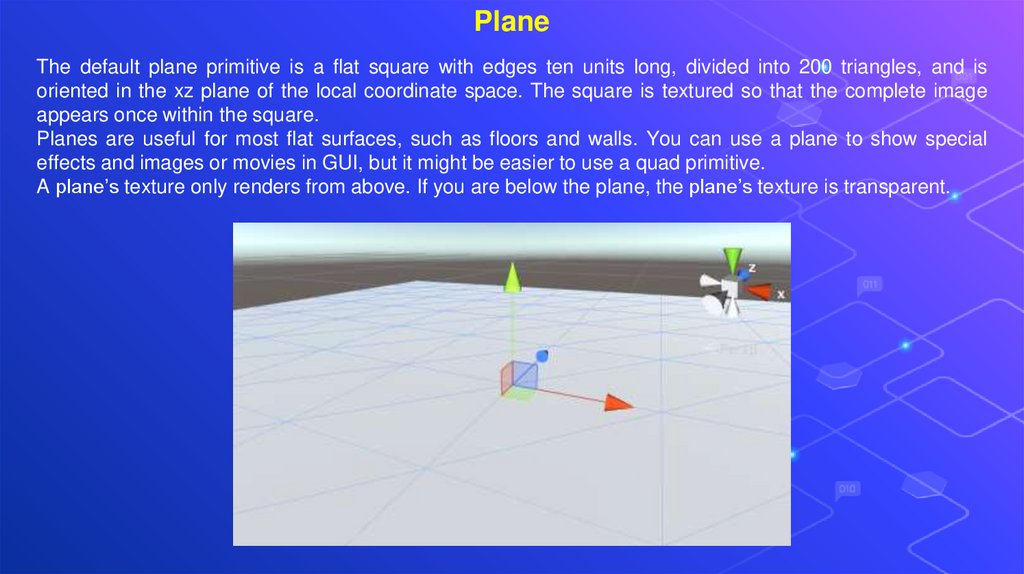
PlaneThe default plane primitive is a flat square with edges ten units long, divided into 200 triangles, and is
oriented in the xz plane of the local coordinate space. The square is textured so that the complete image
appears once within the square.
Planes are useful for most flat surfaces, such as floors and walls. You can use a plane to show special
effects and images or movies in GUI, but it might be easier to use a quad primitive.
A plane’s texture only renders from above. If you are below the plane, the plane’s texture is transparent.
16.
Components17.
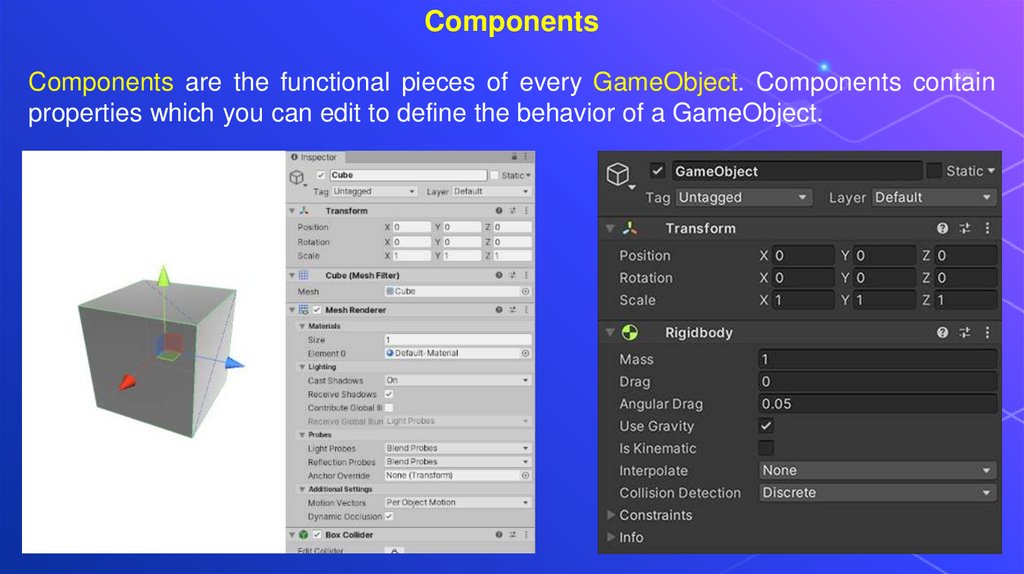
ComponentsComponents are the functional pieces of every GameObject. Components contain
properties which you can edit to define the behavior of a GameObject.
18.
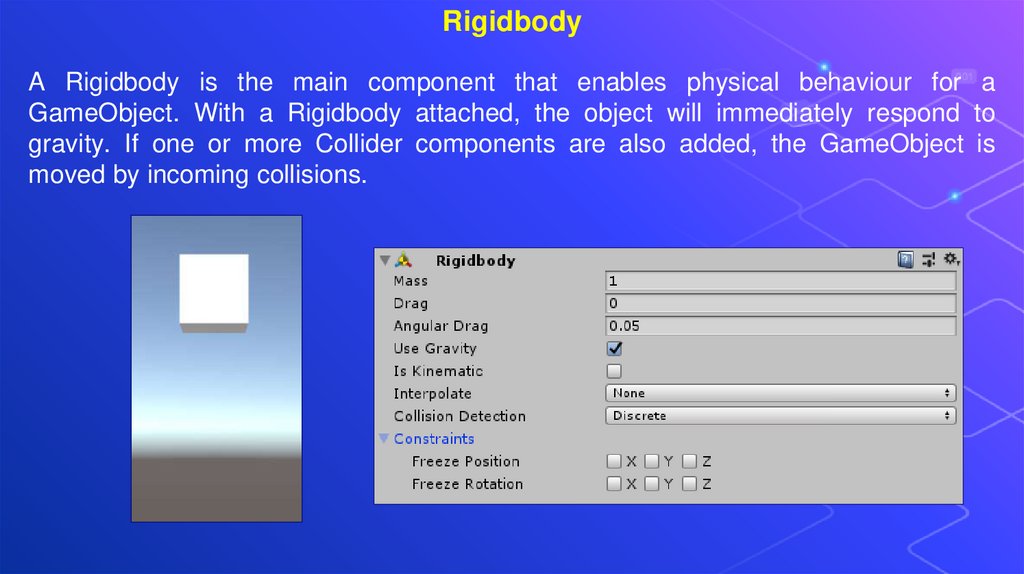
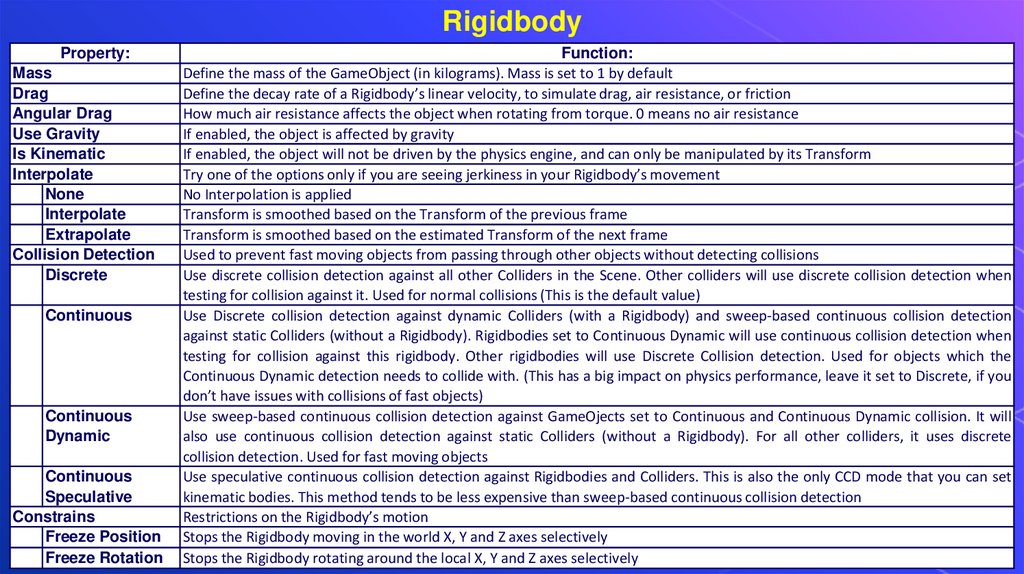
RigidbodyA Rigidbody is the main component that enables physical behaviour for a
GameObject. With a Rigidbody attached, the object will immediately respond to
gravity. If one or more Collider components are also added, the GameObject is
moved by incoming collisions.
19.
RigidbodyProperty:
Mass
Drag
Angular Drag
Use Gravity
Is Kinematic
Interpolate
None
Interpolate
Extrapolate
Collision Detection
Discrete
Continuous
Continuous
Dynamic
Continuous
Speculative
Constrains
Freeze Position
Freeze Rotation
Function:
Define the mass of the GameObject (in kilograms). Mass is set to 1 by default
Define the decay rate of a Rigidbody’s linear velocity, to simulate drag, air resistance, or friction
How much air resistance affects the object when rotating from torque. 0 means no air resistance
If enabled, the object is affected by gravity
If enabled, the object will not be driven by the physics engine, and can only be manipulated by its Transform
Try one of the options only if you are seeing jerkiness in your Rigidbody’s movement
No Interpolation is applied
Transform is smoothed based on the Transform of the previous frame
Transform is smoothed based on the estimated Transform of the next frame
Used to prevent fast moving objects from passing through other objects without detecting collisions
Use discrete collision detection against all other Colliders in the Scene. Other colliders will use discrete collision detection when
testing for collision against it. Used for normal collisions (This is the default value)
Use Discrete collision detection against dynamic Colliders (with a Rigidbody) and sweep-based continuous collision detection
against static Colliders (without a Rigidbody). Rigidbodies set to Continuous Dynamic will use continuous collision detection when
testing for collision against this rigidbody. Other rigidbodies will use Discrete Collision detection. Used for objects which the
Continuous Dynamic detection needs to collide with. (This has a big impact on physics performance, leave it set to Discrete, if you
don’t have issues with collisions of fast objects)
Use sweep-based continuous collision detection against GameOjects set to Continuous and Continuous Dynamic collision. It will
also use continuous collision detection against static Colliders (without a Rigidbody). For all other colliders, it uses discrete
collision detection. Used for fast moving objects
Use speculative continuous collision detection against Rigidbodies and Colliders. This is also the only CCD mode that you can set
kinematic bodies. This method tends to be less expensive than sweep-based continuous collision detection
Restrictions on the Rigidbody’s motion
Stops the Rigidbody moving in the world X, Y and Z axes selectively
Stops the Rigidbody rotating around the local X, Y and Z axes selectively
20.
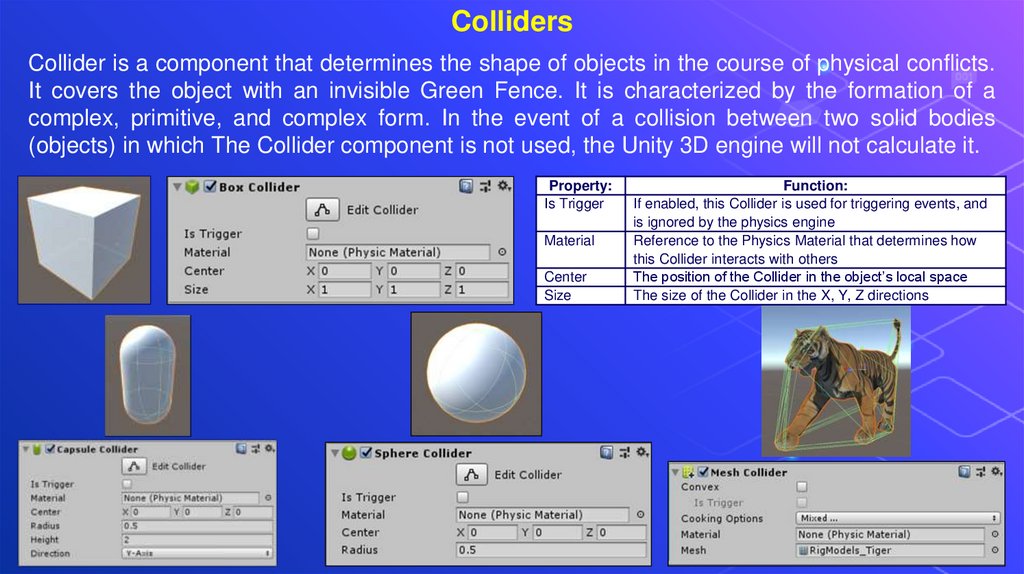
CollidersCollider is a component that determines the shape of objects in the course of physical conflicts.
It covers the object with an invisible Green Fence. It is characterized by the formation of a
complex, primitive, and complex form. In the event of a collision between two solid bodies
(objects) in which The Collider component is not used, the Unity 3D engine will not calculate it.
Property:
Is Trigger
Material
Center
Size
Function:
If enabled, this Collider is used for triggering events, and
is ignored by the physics engine
Reference to the Physics Material that determines how
this Collider interacts with others
The position of the Collider in the object’s local space
The size of the Collider in the X, Y, Z directions
21.
QuestionsWhat Game Objects did you use when creating your projects in Unity?
Name the primitive Game Objects?
What is Rigidbody?
What is Collider?
If our Game Object is in the water, how can we add the environmental
awareness?
22.
Thank youfor your attention!!!