
 informatics
Similar presentations:






Computing Online Searchers and Surfers
1.
ComputingOnline Searchers and Surfers
Computing | Online Searchers and Surfers | Copying and Pasting Images | Lesson 5
2.
3.
Question MarksThis is Quizby.
He is a question mark who
loves to ask questions.
When you see a question mark icon like this in the
Lesson Presentation, it can be clicked on to reveal
one of Quizby’s questions.
The questions that appear next to these question marks will help
you to think about the key learning throughout the lesson.
4.
Aim● To know how to copy and paste images from web pages using
different methods.
Success Criteria
I can search for images online using a search engine.
I can copy an image from a web page.
I can paste an image into a document.
I can use shortcuts on a keyboard.
5.
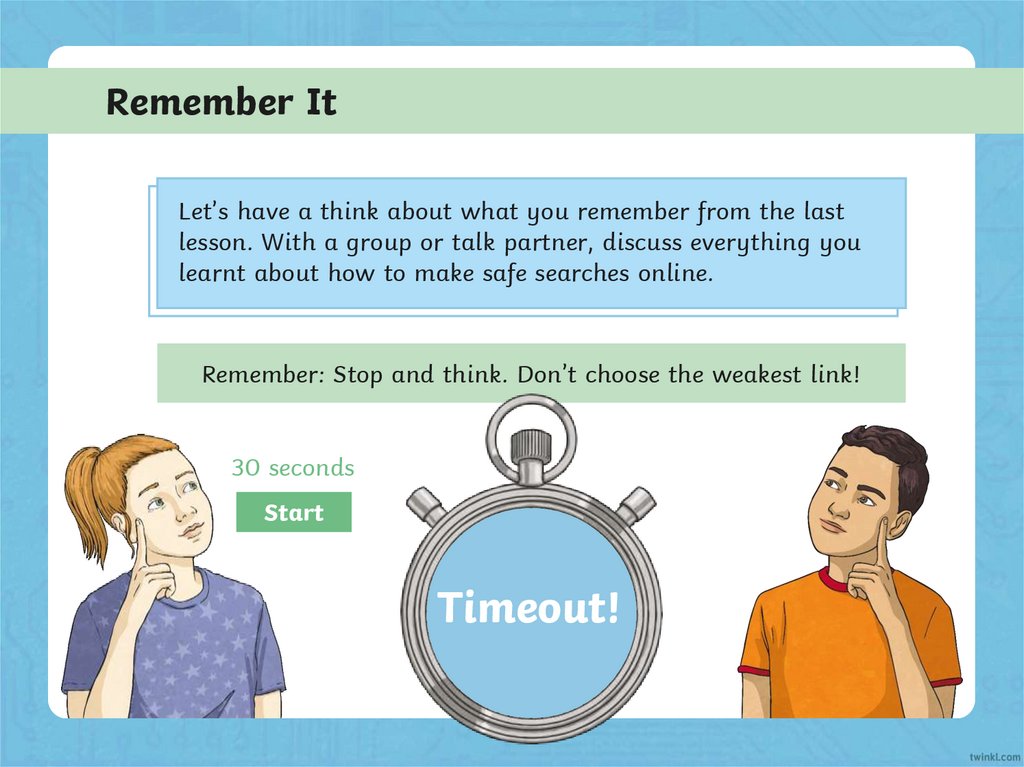
Remember ItLet’s have a think about what you remember from the last
lesson. With a group or talk partner, discuss everything you
learnt about how to make safe searches online.
Remember: Stop and think. Don’t choose the weakest link!
30 seconds
Start
Timeout!
6.
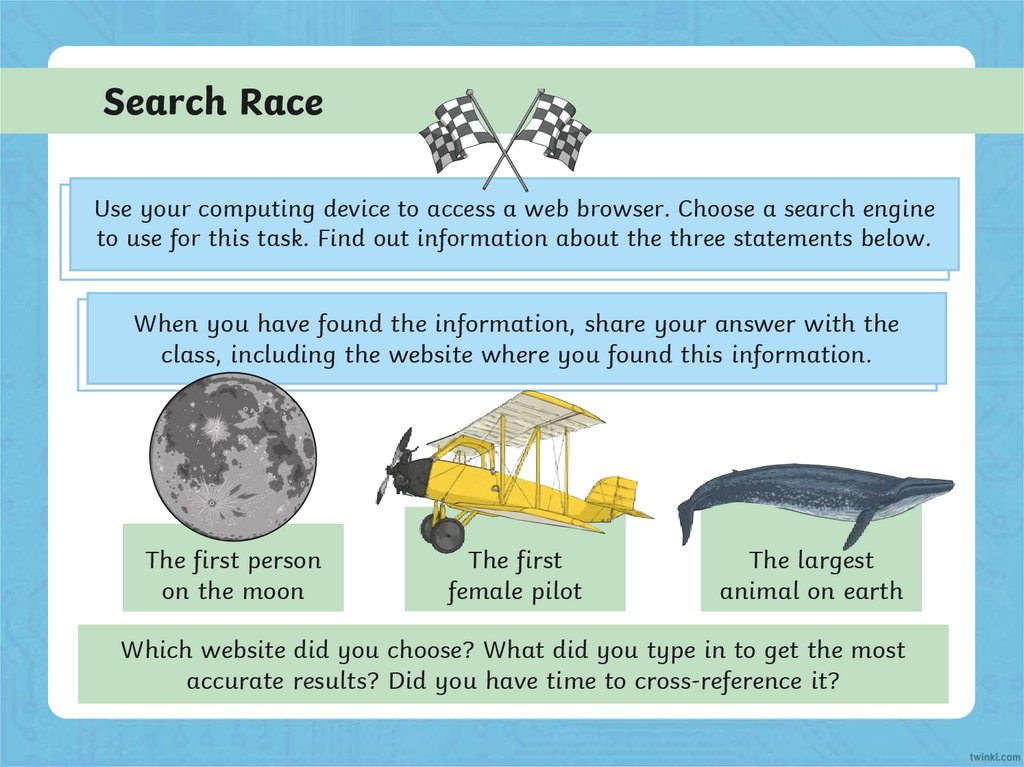
Search RaceUse your computing device to access a web browser. Choose a search engine
to use for this task. Find out information about the three statements below.
When you have found the information, share your answer with the
class, including the website where you found this information.
The first person
on the moon
The first
female pilot
The largest
animal on earth
Which website did you choose? What did you type in to get the most
accurate results? Did you have time to cross-reference it?
7.
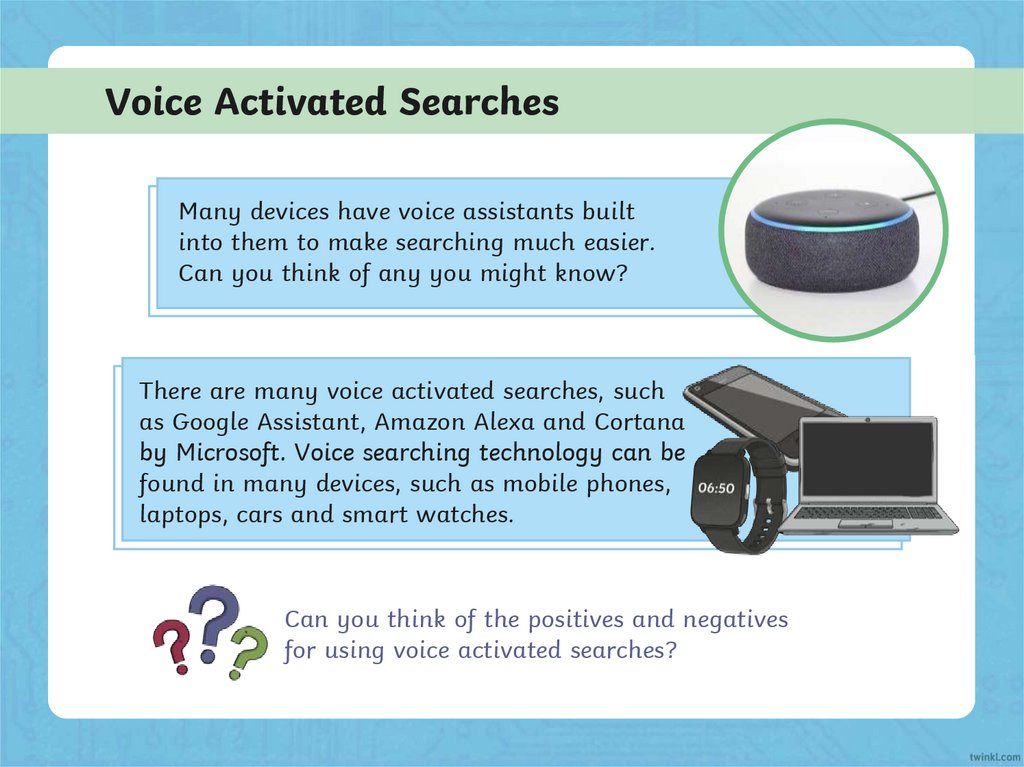
Voice Activated SearchesMany devices have voice assistants built
into them to make searching much easier.
Can you think of any you might know?
There are many voice activated searches, such
as Google Assistant, Amazon Alexa and Cortana
by Microsoft. Voice searching technology can be
found in many devices, such as mobile phones,
laptops, cars and smart watches.
Can you think of the positives and negatives
for using voice activated searches?
8.
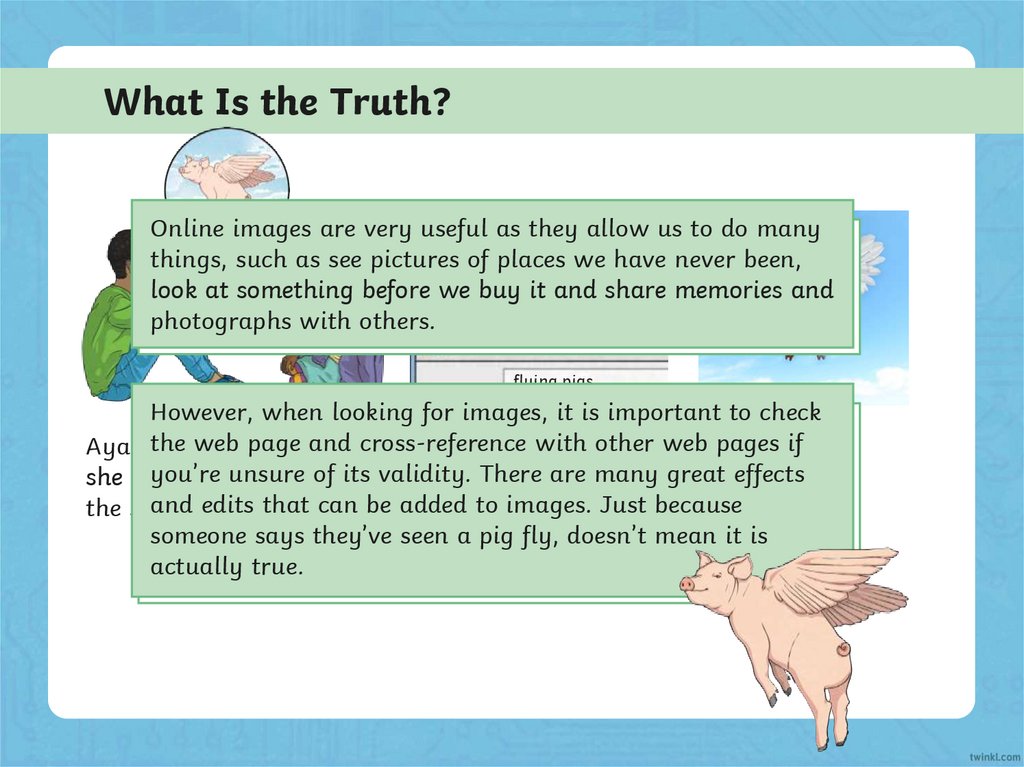
What Is the Truth?Online images are very useful as they allow us to do many
things, such as see pictures of places we have never been,
look at something before we buy it and share memories and
photographs with others.
flying pigs
However, when looking for images, it is important to check
webtold
page
cross-reference
other
pages
if
Aya’s the
friend
herand
that
Aya typed with
‘flying
pigs’webThis
is what
you’re
many great
she saw
a pigunsure
flyingofinits validity.
into aThere
searchare
engine.
sheeffects
found.
and
that can be added to images. Just because
the sky
at edits
the weekend.
someone says they’ve seen a pig fly, doesn’t mean it is
actually true.
9.
What Can I Use?You can copy an image from a copyright-free image website.
The image can then be pasted into your document.
What does copyright-free mean?
When something is copyrighted, it means that the person who
created it, owns it and does not want it copying or being used by
someone else as their own work. If something is copyright-free, it
means that you can use this image in your work.
Some websites, such as Pixabay or Flickr, allow you to copy and
paste images which are copyright-free.
What would you do if you saw an image
online that made you feel uncomfortable?
10.
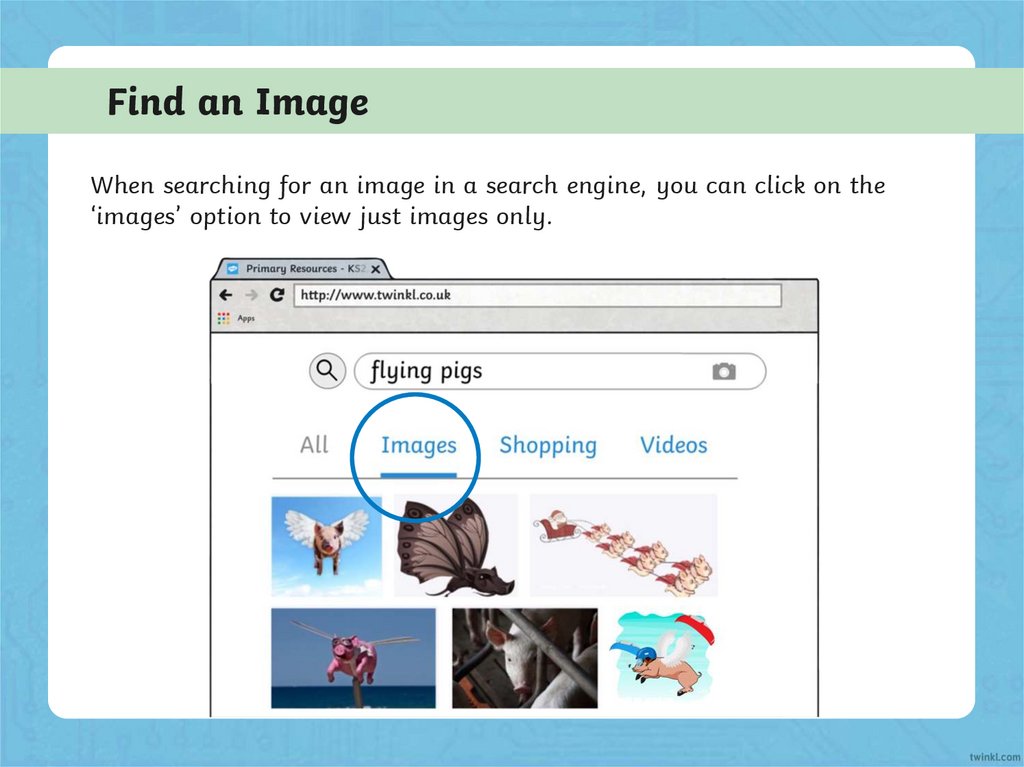
Find an ImageWhen searching for an image in a search engine, you can click on the
‘images’ option to view just images only.
11.
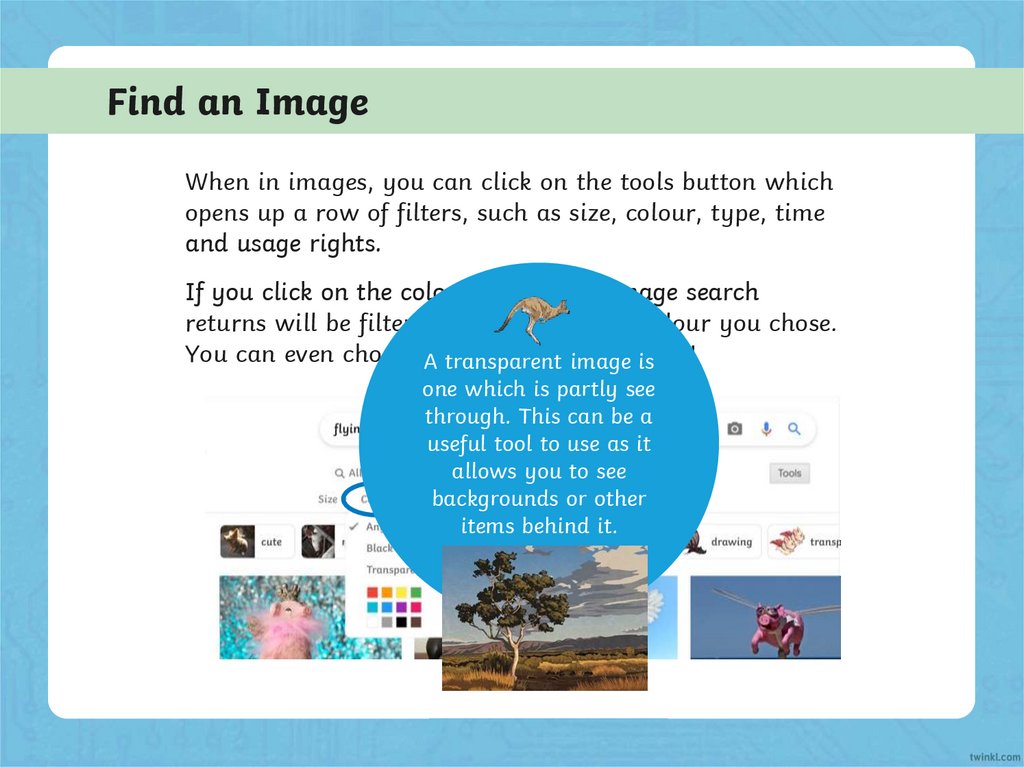
Find an ImageWhen in images, you can click on the tools button which
opens up a row of filters, such as size, colour, type, time
and usage rights.
If you click on the colour option, the image search
returns will be filtered according to the colour you chose.
You can even choose Athe
transparent
option!
transparent
image
is
one which is partly see
through. This can be a
useful tool to use as it
allows you to see
backgrounds or other
items behind it.
12.
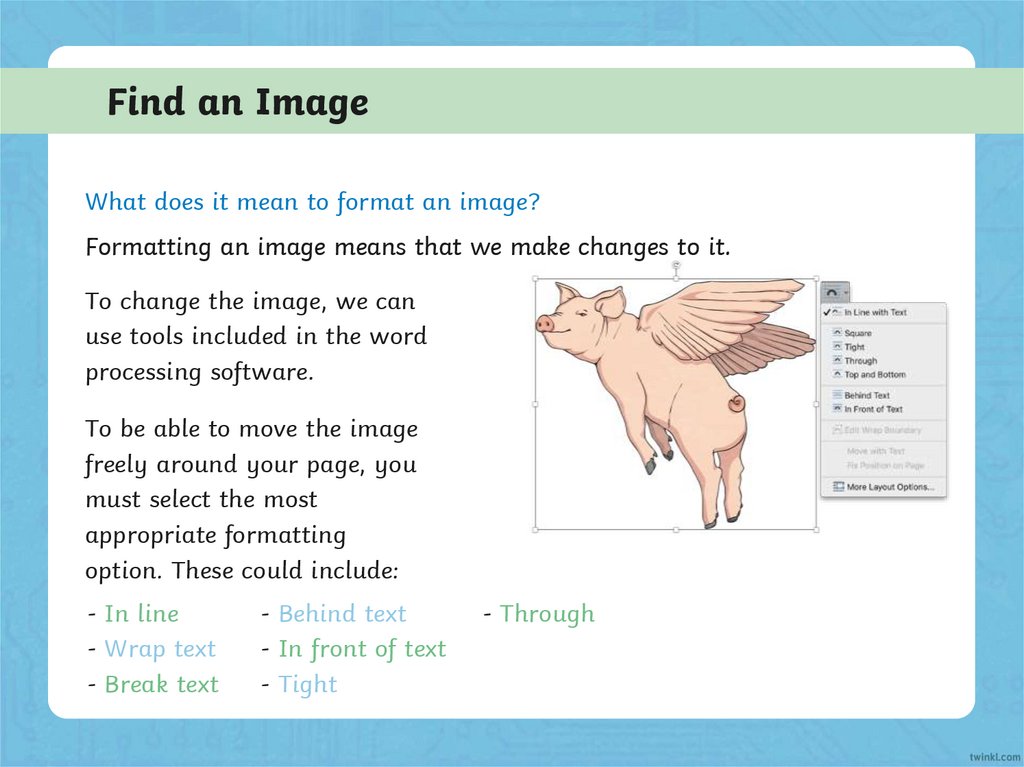
Find an ImageWhat does it mean to format an image?
Formatting an image means that we make changes to it.
To change the image, we can
use tools included in the word
processing software.
To be able to move the image
freely around your page, you
must select the most
appropriate formatting
option. These could include:
- In line
- Wrap text
- Break text
- Behind text
- In front of text
- Tight
- Through
13.
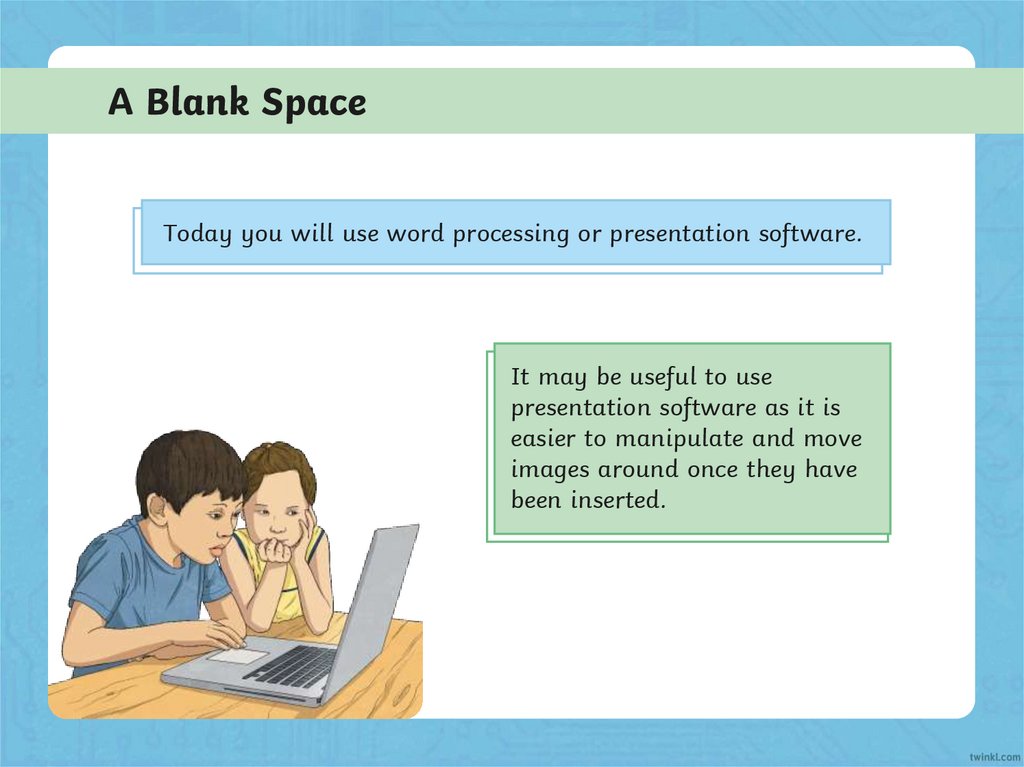
A Blank SpaceToday you will use word processing or presentation software.
It may be useful to use
presentation software as it is
easier to manipulate and move
images around once they have
been inserted.
14.
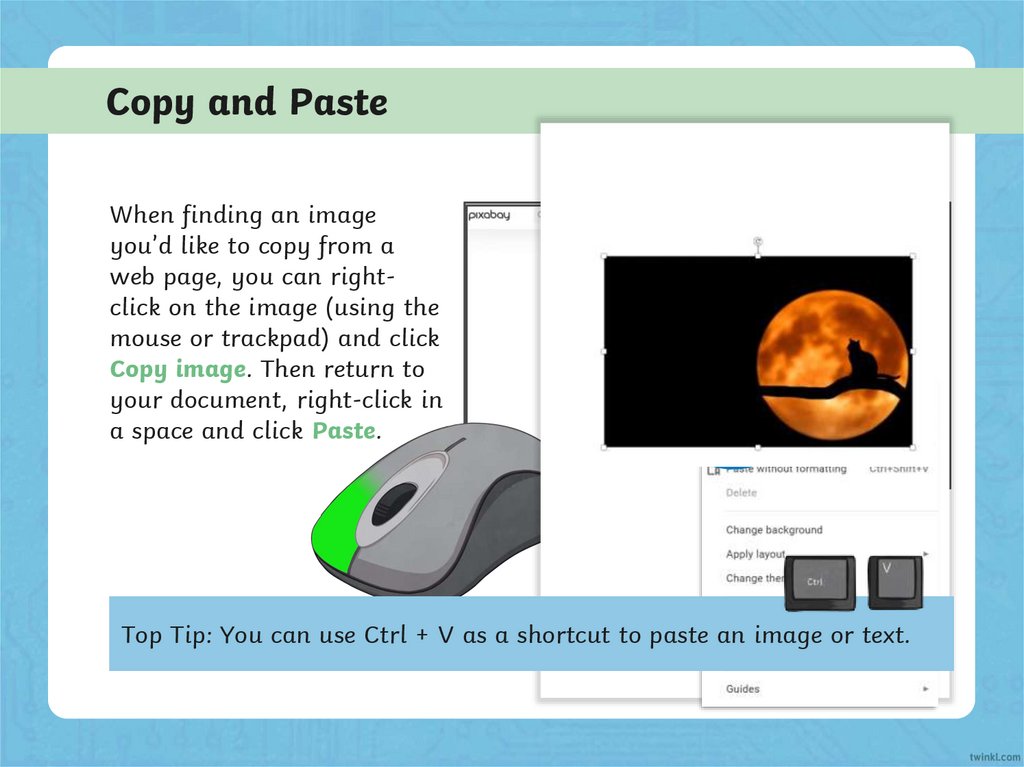
Copy and PasteWhen finding an image
you’d like to copy from a
web page, you can rightclick on the image (using the
mouse or trackpad) and click
Copy image. Then return to
your document, right-click in
a space and click Paste.
Top Tip: You can use Ctrl + V as a shortcut to paste an image or text.
15.
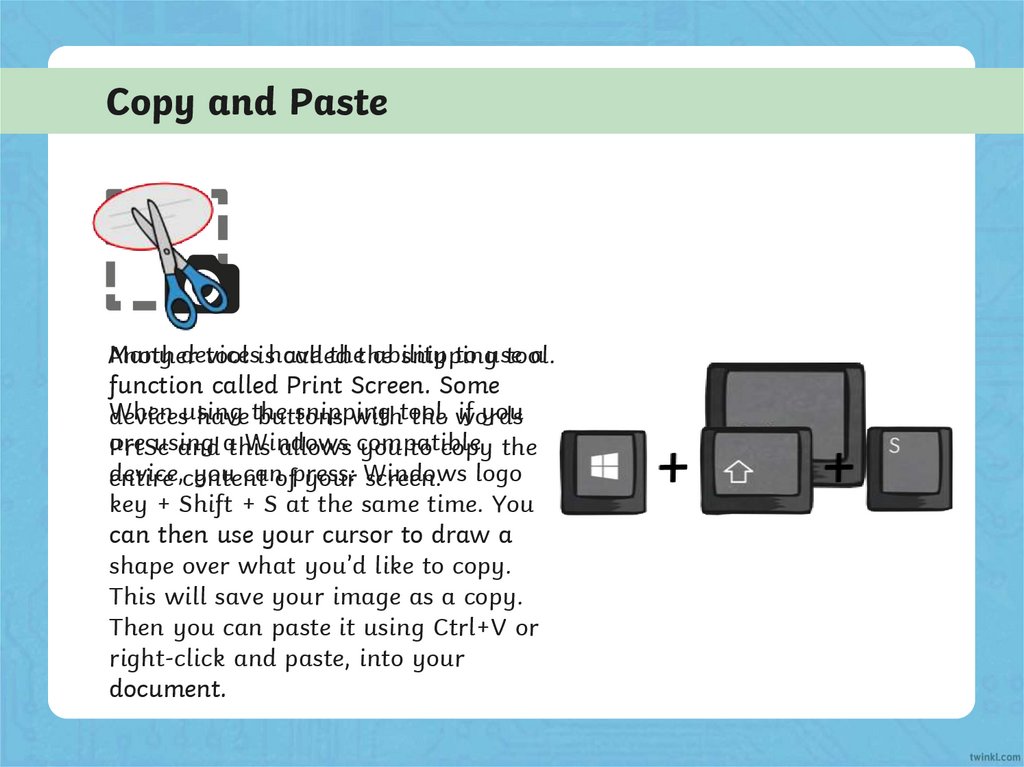
Copy and PasteMany devices
thethe
ability
to use
a
Another
tool ishave
called
snipping
tool.
function called Print Screen. Some
When
snipping
if you
devicesusing
have the
buttons
withtool,
the words
are
using
Windows
PrtSc
and athis
allows compatible
you to copy the
device,
you canofpress:
entire content
your Windows
screen. logo
key + Shift + S at the same time. You
can then use your cursor to draw a
shape over what you’d like to copy.
This will save your image as a copy.
Then you can paste it using Ctrl+V or
right-click and paste, into your
document.
16.
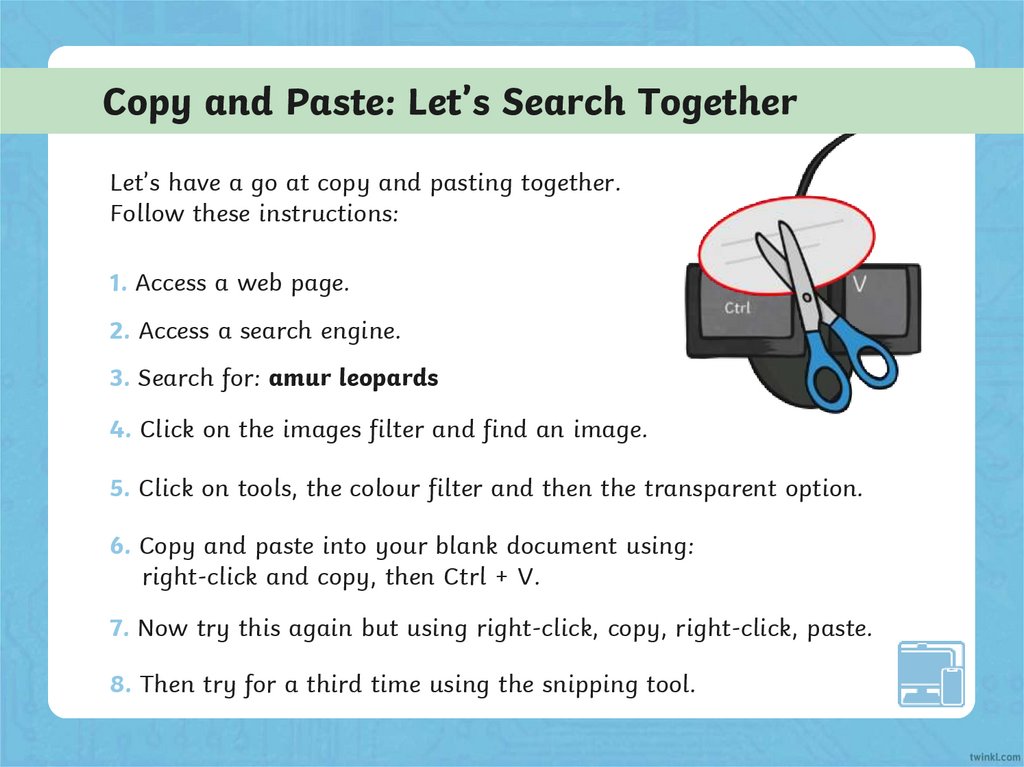
Copy and Paste: Let’s Search TogetherLet’s have a go at copy and pasting together.
Follow these instructions:
1. Access a web page.
2. Access a search engine.
3. Search for: amur leopards
4. Click on the images filter and find an image.
5. Click on tools, the colour filter and then the transparent option.
6. Copy and paste into your blank document using:
right-click and copy, then Ctrl + V.
7. Now try this again but using right-click, copy, right-click, paste.
8. Then try for a third time using the snipping tool.
17.
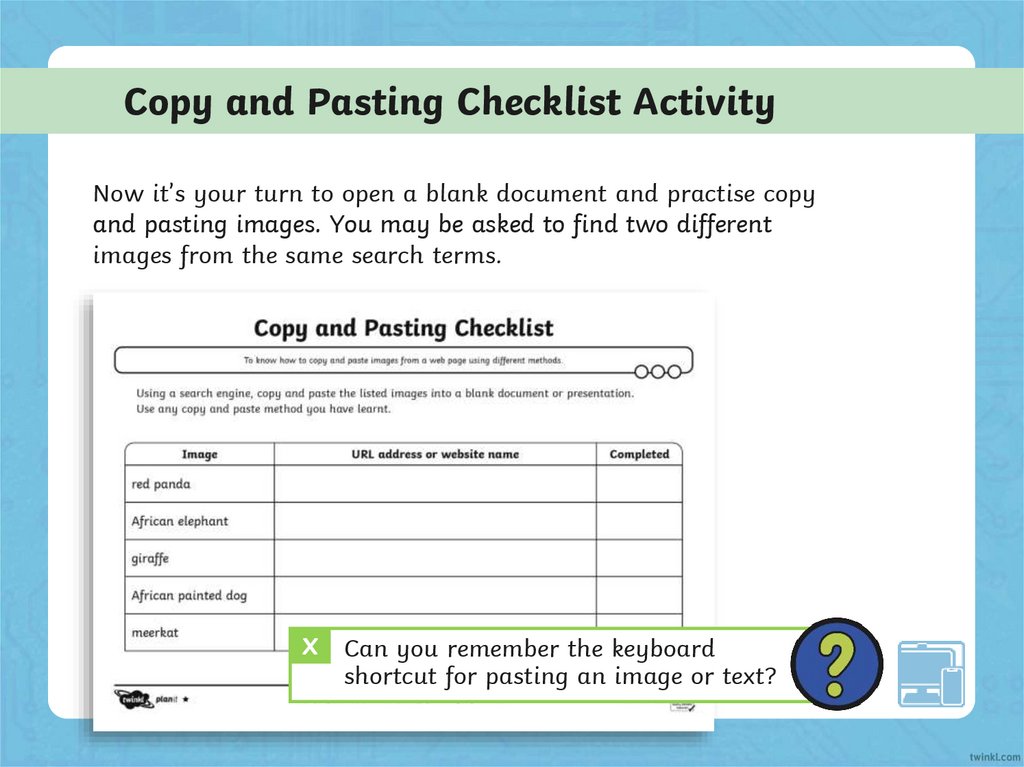
Copy and Pasting Checklist ActivityNow it’s your turn to open a blank document and practise copy
and pasting images. You may be asked to find two different
images from the same search terms.
X Can you remember the keyboard
shortcut for pasting an image or text?
18.
Quiz Time!1
What are the three different ways you can copy and paste
an image?
2
What does copyright mean?
3
What different image formatting options might you find on
word processing software?
19.
Aim● To know how to copy and paste images from web pages using
different methods.
Success Criteria
I can search for images online using a search engine.
I can copy an image from a web page.
I can paste an image into a document.
I can use shortcuts on a keyboard.