
 programming
Similar presentations:








Программирование на языках высокого уровня. Лабораторная работа №4. Создание класса и графика в Java
1. Программирование на языках высокого уровня
Лаб. работа 4. Создание класса и графикав Java
2. Задача 1.
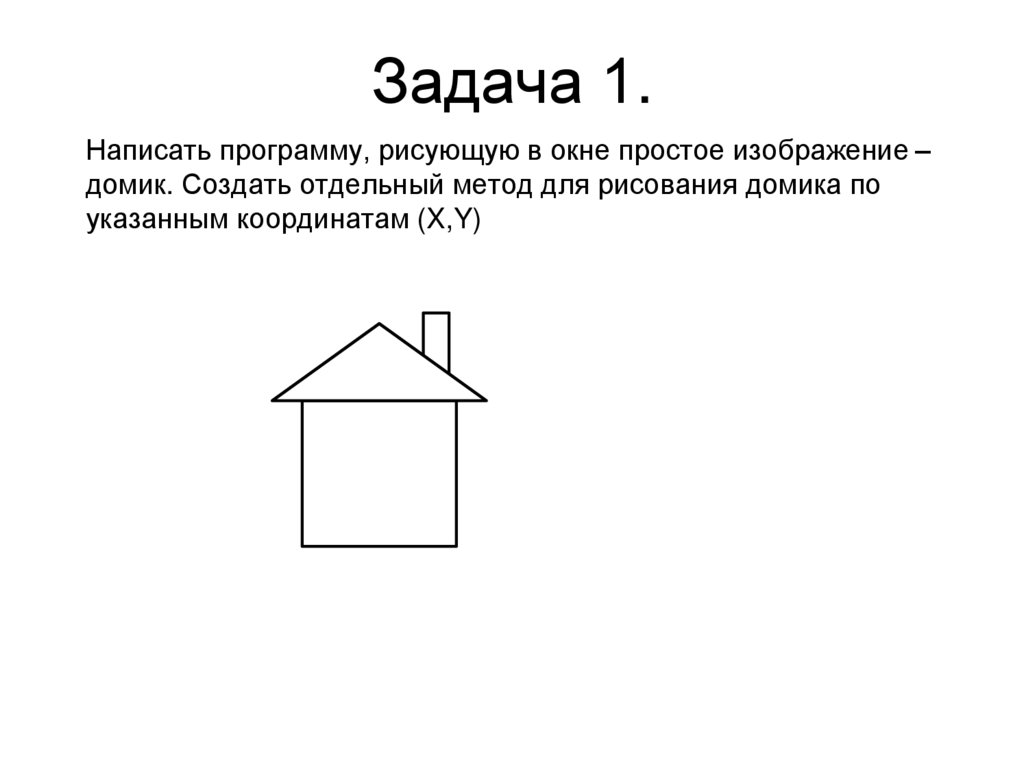
Написать программу, рисующую в окне простое изображение –домик. Создать отдельный метод для рисования домика по
указанным координатам (X,Y)
3. Задача 2
Создать приложение с собственной панелью MyPanel, на которойнарисовать узор из линий, используя цикл и изменяющиеся
координаты точек x1, y1 и x2, y2.
1. На листе бумаги в координатной сетке нарисовать линию
2. Задать формулу изменения координат точек линий
3. Создать код с циклом, изменяющим координаты
4. Задача 2 – пример реализации
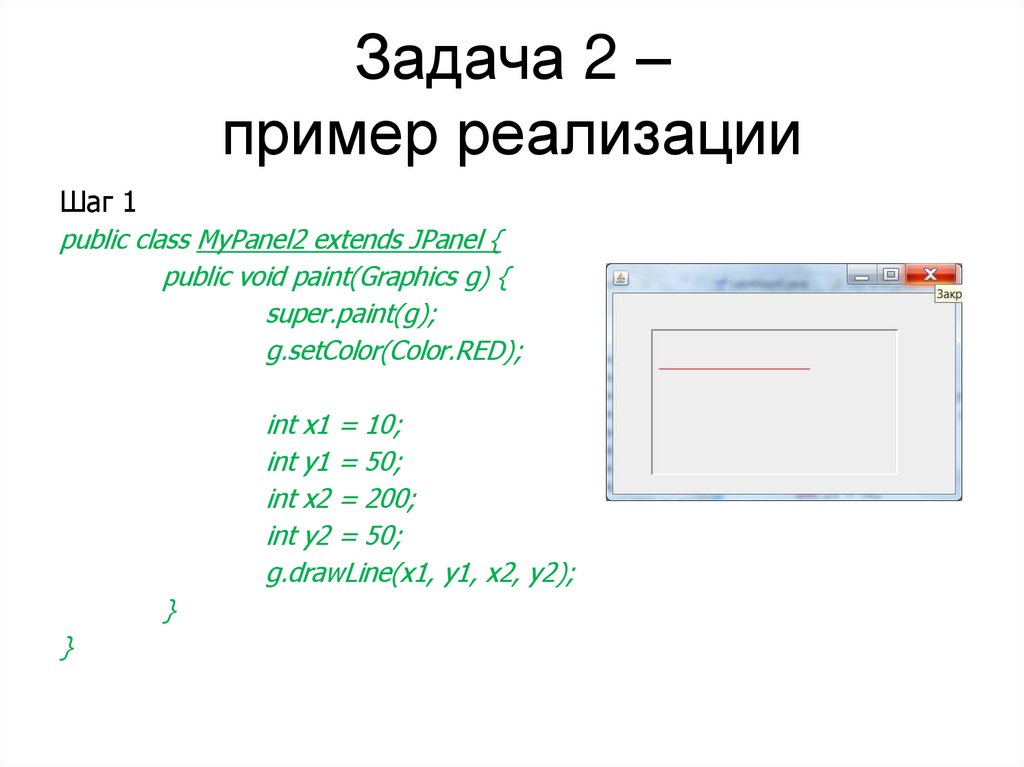
Шаг 1public class MyPanel2 extends JPanel {
public void paint(Graphics g) {
super.paint(g);
g.setColor(Color.RED);
int x1 = 10;
int y1 = 50;
int x2 = 200;
int y2 = 50;
g.drawLine(x1, y1, x2, y2);
}
}
5. Задача 2 – пример реализации
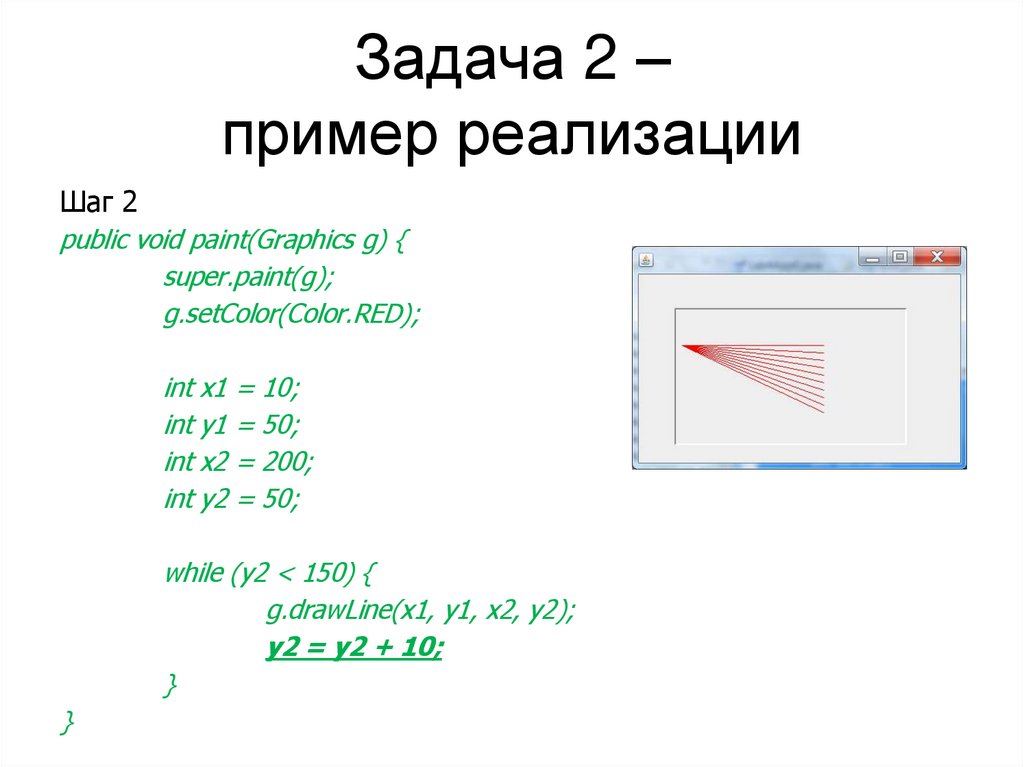
Шаг 2public void paint(Graphics g) {
super.paint(g);
g.setColor(Color.RED);
int x1 = 10;
int y1 = 50;
int x2 = 200;
int y2 = 50;
while (y2 < 150) {
g.drawLine(x1, y1, x2, y2);
y2 = y2 + 10;
}
}
6. Задача 2 – пример реализации
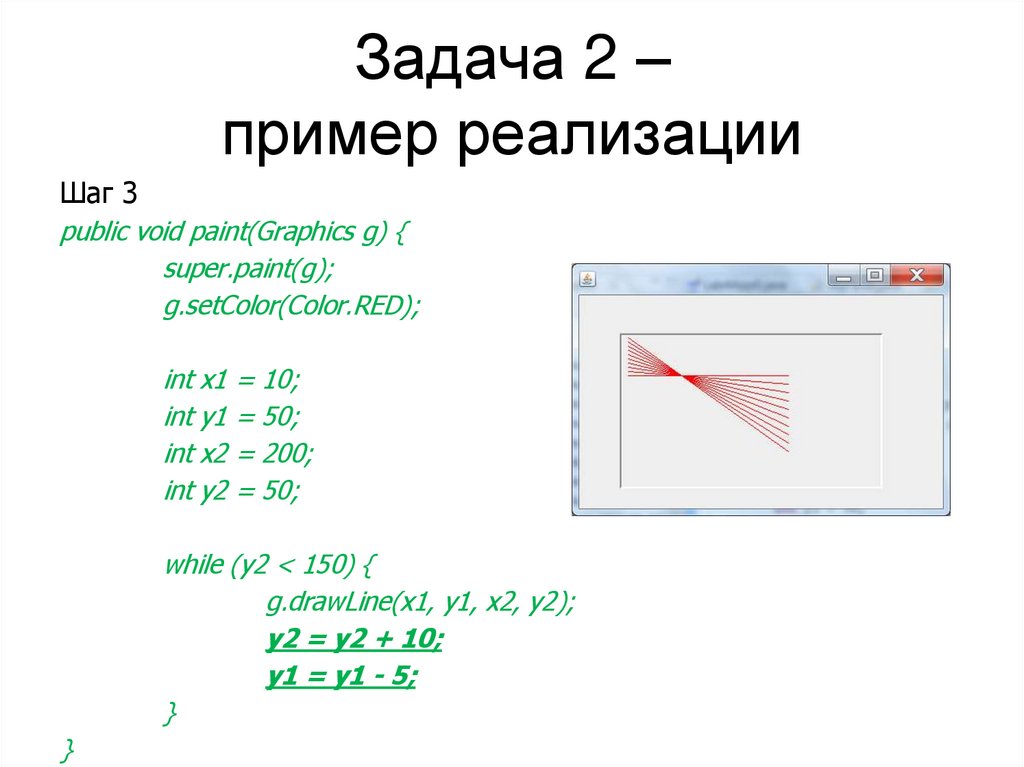
Шаг 3public void paint(Graphics g) {
super.paint(g);
g.setColor(Color.RED);
int x1 = 10;
int y1 = 50;
int x2 = 200;
int y2 = 50;
while (y2 < 150) {
g.drawLine(x1, y1, x2, y2);
y2 = y2 + 10;
y1 = y1 - 5;
}
}
7. Демо 1
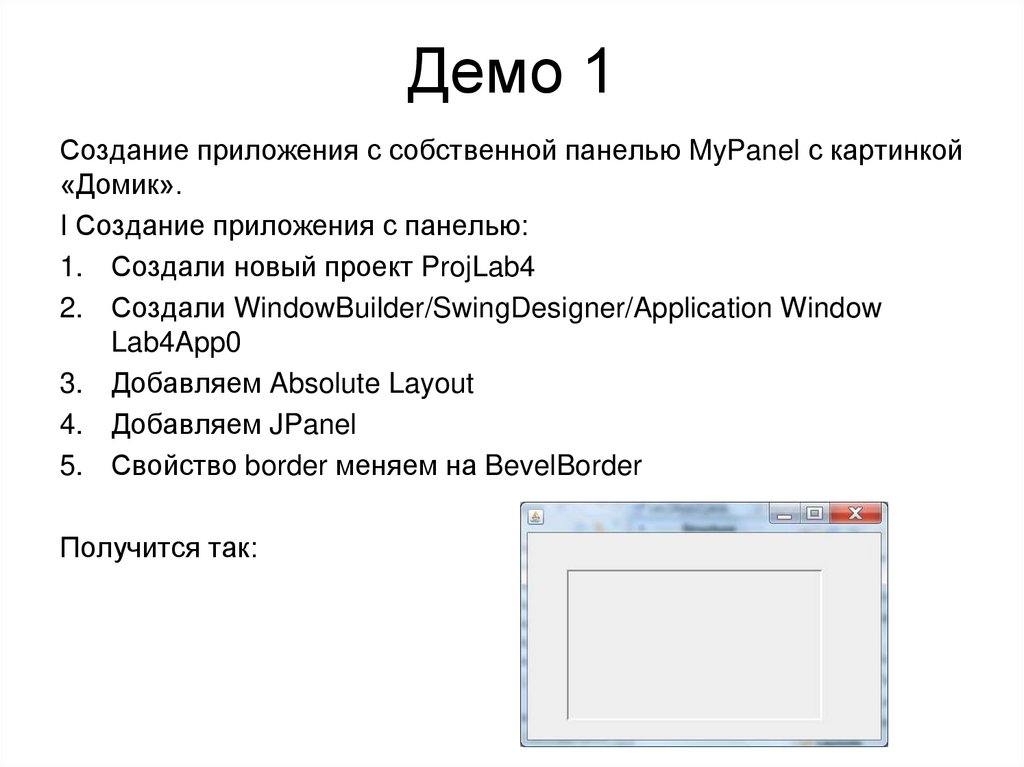
Создание приложения с собственной панелью MyPanel с картинкой«Домик».
I Создание приложения с панелью:
1. Создали новый проект ProjLab4
2. Создали WindowBuilder/SwingDesigner/Application Window
Lab4App0
3. Добавляем Absolute Layout
4. Добавляем JPanel
5. Свойство border меняем на BevelBorder
Получится так:
8. Демо 1 часть 2
II Создание собственного класса MyPanel:1. Создали новый класс MyPanel – в области проекта ProjLab4
нажали правую кнопку мыши: Контекстное меню/New/Class
Name: MyPanel
Superclass: Browse… Choose a type = Jpanel
Matching items: JPanel – java.Swing OK
Галочку возле «public static void main» НЕ СТАВИМ!
Нажимаем Finish.
2. Создается класс со следующим исходным кодом:
import javax.swing.JPanel;
public class MyPanel extends JPanel {
}
9. Демо 1 часть 3
III На MyPanel добавляем красную линию1. Добавляем в класс MyPanel метод public void paint(Graphics g)
2. В метод paint() добавляем код, который вызывает метод paint
стандартного класса JPanel:
super.paint(g);
3. В метод paint() добавляем код изменяющий активный цвет на
красный:
g.setColor(Color.RED);
3. В метод paint() добавляем код рисующий линию:
g.drawLine(10, 100, 100, 10);
Получится код MyPanel – см следующий
слайд
10. Демо 1 часть 4
Код MyPanel с красной линией:import java.awt.Color;
import java.awt.Graphics;
import javax.swing.JPanel;
public class MyPanel extends JPanel {
public void paint(Graphics g) {
super.paint(g);
g.setColor(Color.RED);
g.drawLine(10, 100, 100, 10);
}
}
11. Демо 1 часть 5
IV Заменить в классе Lab4App0 создание JPanel на созданиеMyPanel:
1. Откройте файл Lab4App0 и найдите в нем текст метода initialize():
private void initialize() {
frame = new JFrame();
frame.setBounds(100, 100, 450, 300);
frame.setDefaultCloseOperation(JFrame.EXIT_ON_CLOSE);
frame.getContentPane().setLayout(null);
JPanel panel = new JPanel();
panel.setBorder(new BevelBorder(BevelBorder.LOWERED,
null, null, null, null));
panel.setBounds(48, 45, 312, 184);
frame.getContentPane().add(panel);
}
2. Строку JPanel panel = new JPanel(); надо заменить на
JPanel panel = new MyPanel();
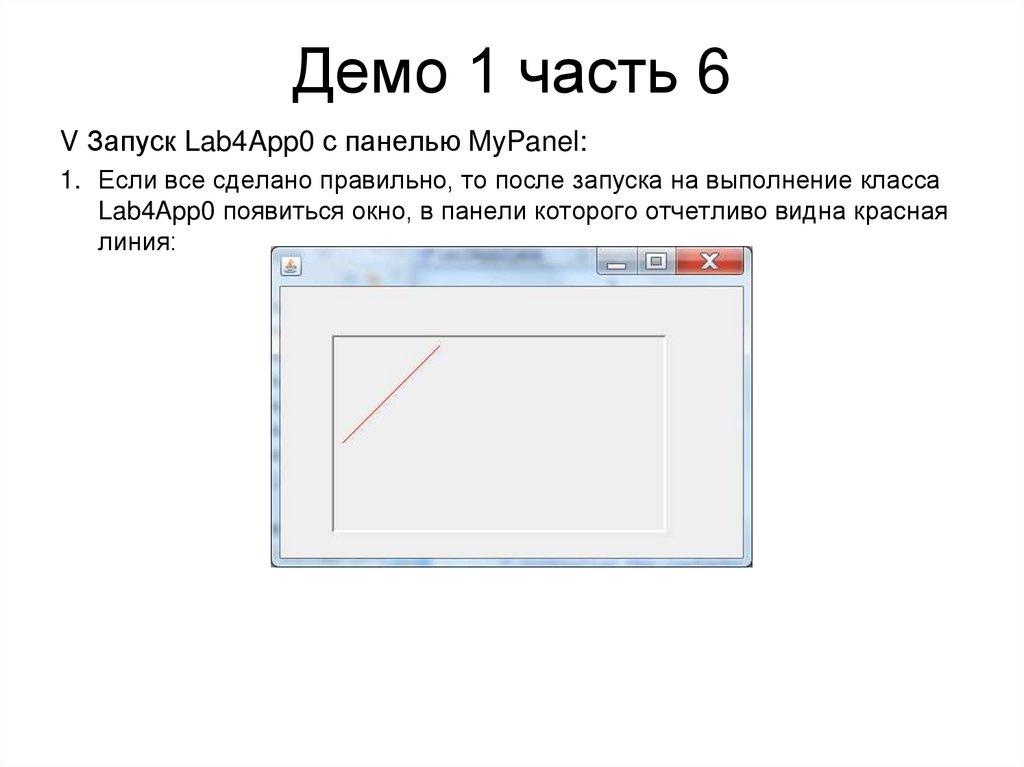
12. Демо 1 часть 6
V Запуск Lab4App0 с панелью MyPanel:1. Если все сделано правильно, то после запуска на выполнение класса
Lab4App0 появиться окно, в панели которого отчетливо видна красная
линия:
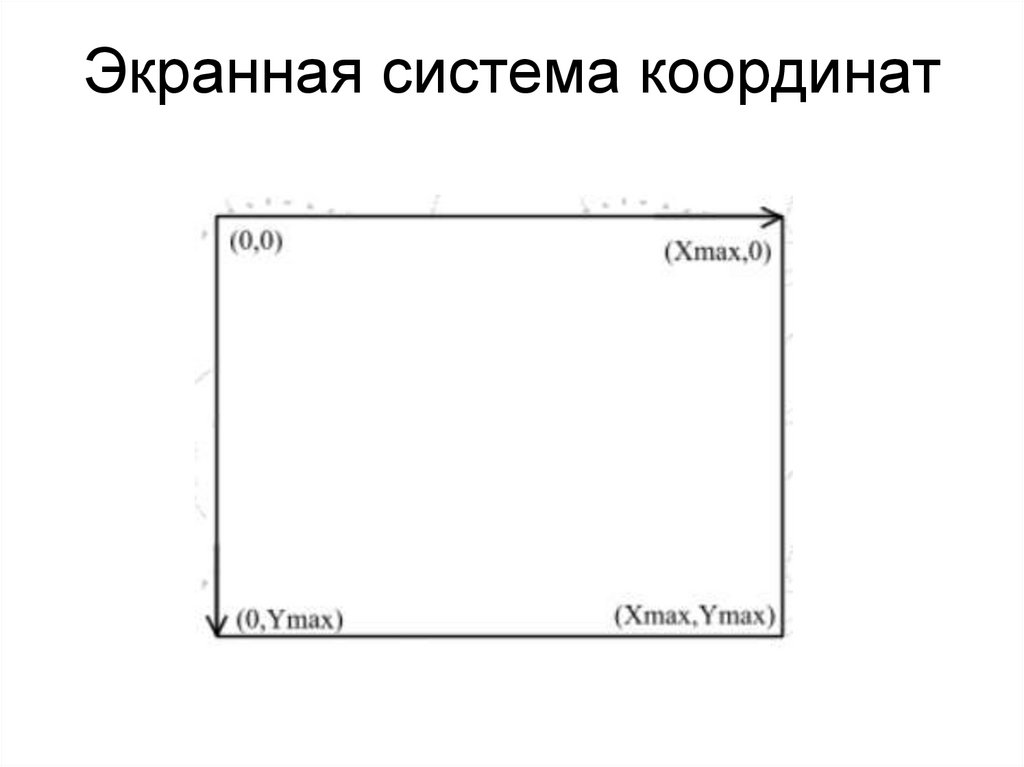
13. Экранная система координат
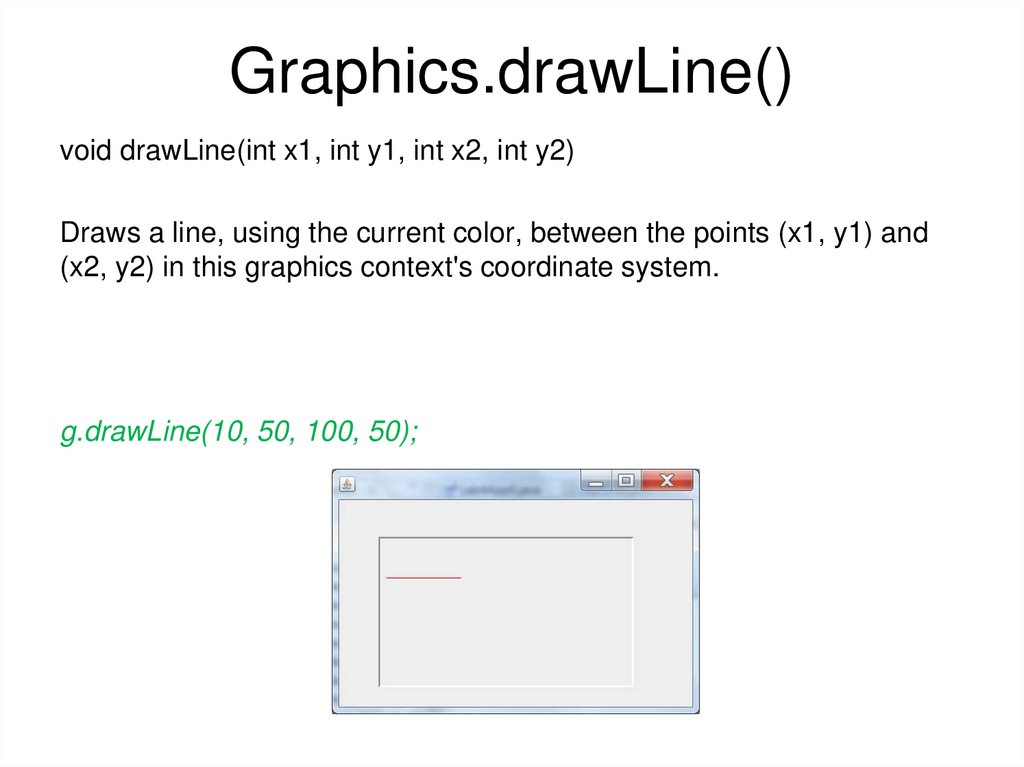
14. Graphics.drawLine()
void drawLine(int x1, int y1, int x2, int y2)Draws a line, using the current color, between the points (x1, y1) and
(x2, y2) in this graphics context's coordinate system.
g.drawLine(10, 50, 100, 50);
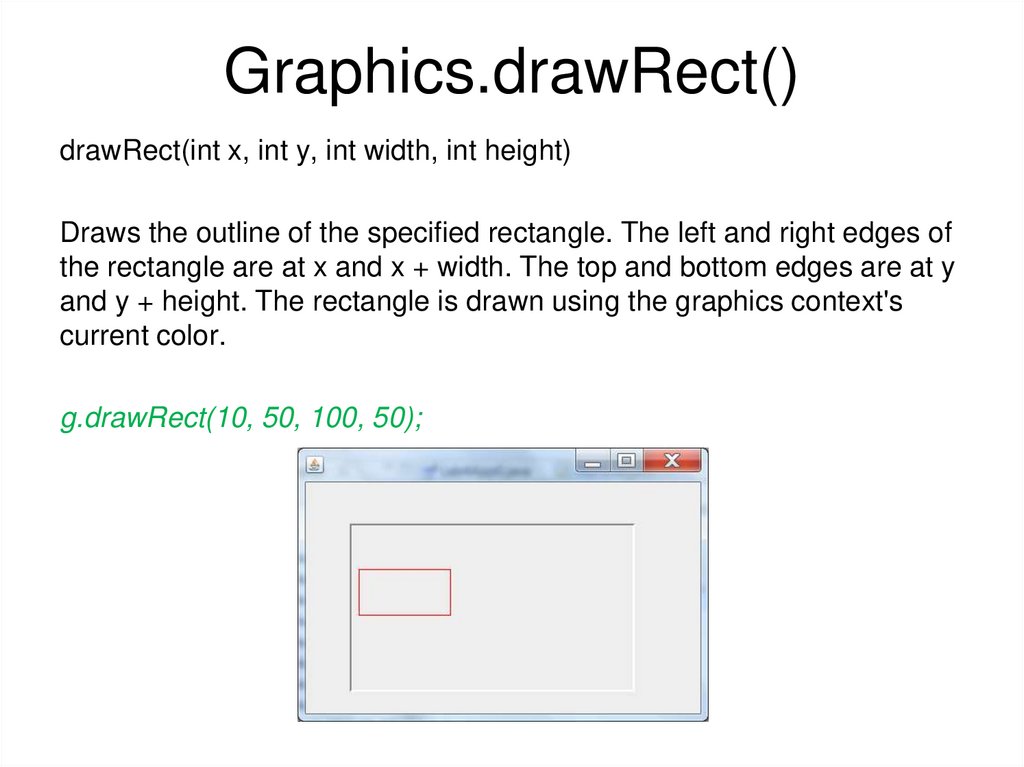
15. Graphics.drawRect()
drawRect(int x, int y, int width, int height)Draws the outline of the specified rectangle. The left and right edges of
the rectangle are at x and x + width. The top and bottom edges are at y
and y + height. The rectangle is drawn using the graphics context's
current color.
g.drawRect(10, 50, 100, 50);
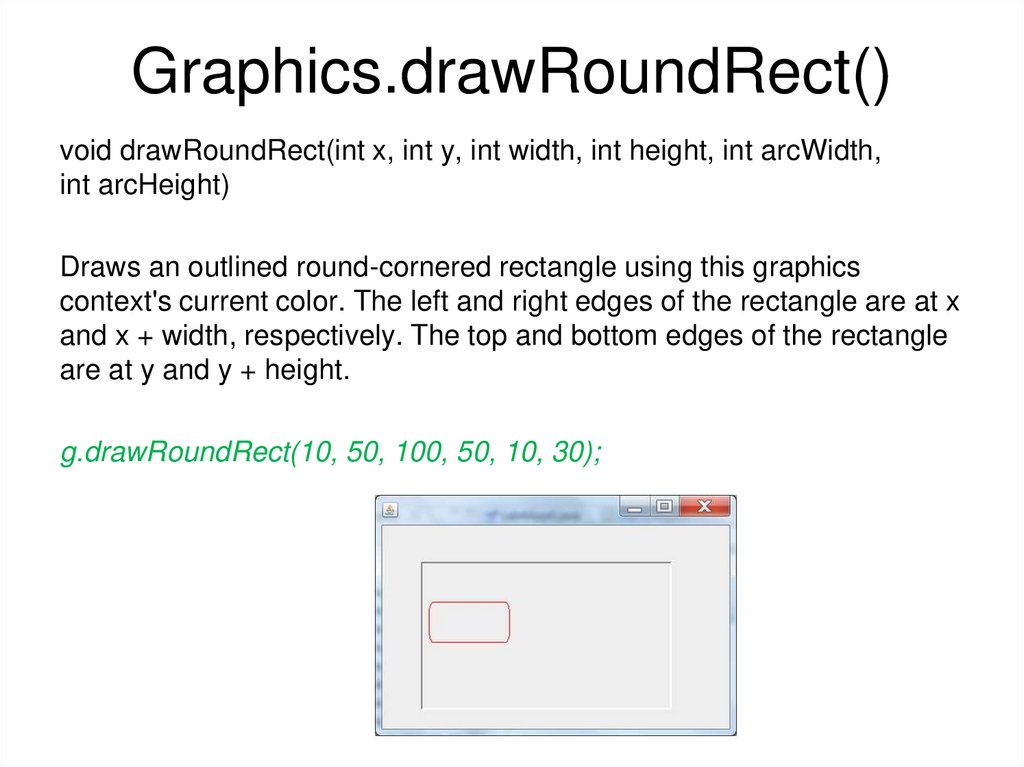
16. Graphics.drawRoundRect()
void drawRoundRect(int x, int y, int width, int height, int arcWidth,int arcHeight)
Draws an outlined round-cornered rectangle using this graphics
context's current color. The left and right edges of the rectangle are at x
and x + width, respectively. The top and bottom edges of the rectangle
are at y and y + height.
g.drawRoundRect(10, 50, 100, 50, 10, 30);
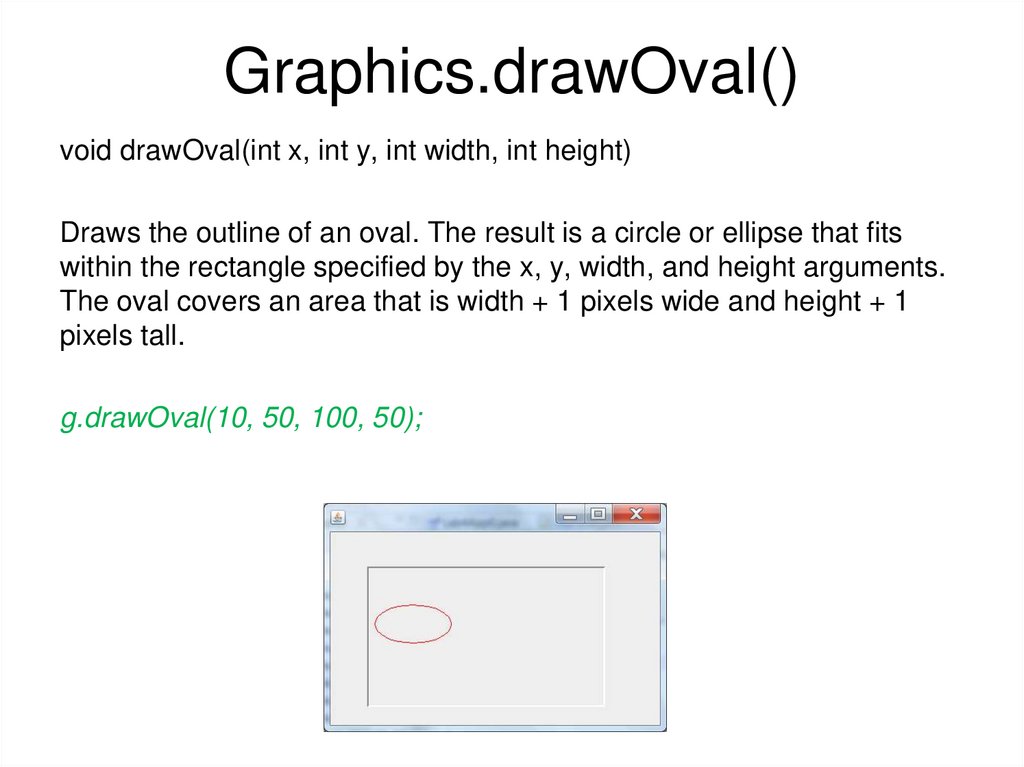
17. Graphics.drawOval()
void drawOval(int x, int y, int width, int height)Draws the outline of an oval. The result is a circle or ellipse that fits
within the rectangle specified by the x, y, width, and height arguments.
The oval covers an area that is width + 1 pixels wide and height + 1
pixels tall.
g.drawOval(10, 50, 100, 50);
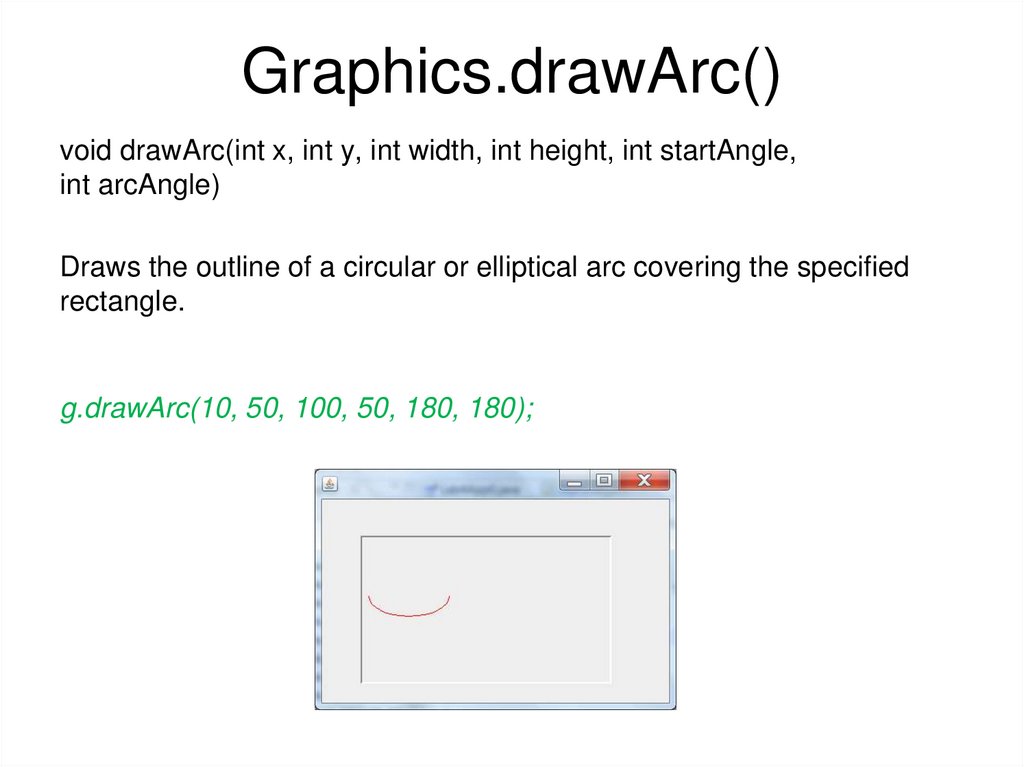
18. Graphics.drawArc()
void drawArc(int x, int y, int width, int height, int startAngle,int arcAngle)
Draws the outline of a circular or elliptical arc covering the specified
rectangle.
g.drawArc(10, 50, 100, 50, 180, 180);
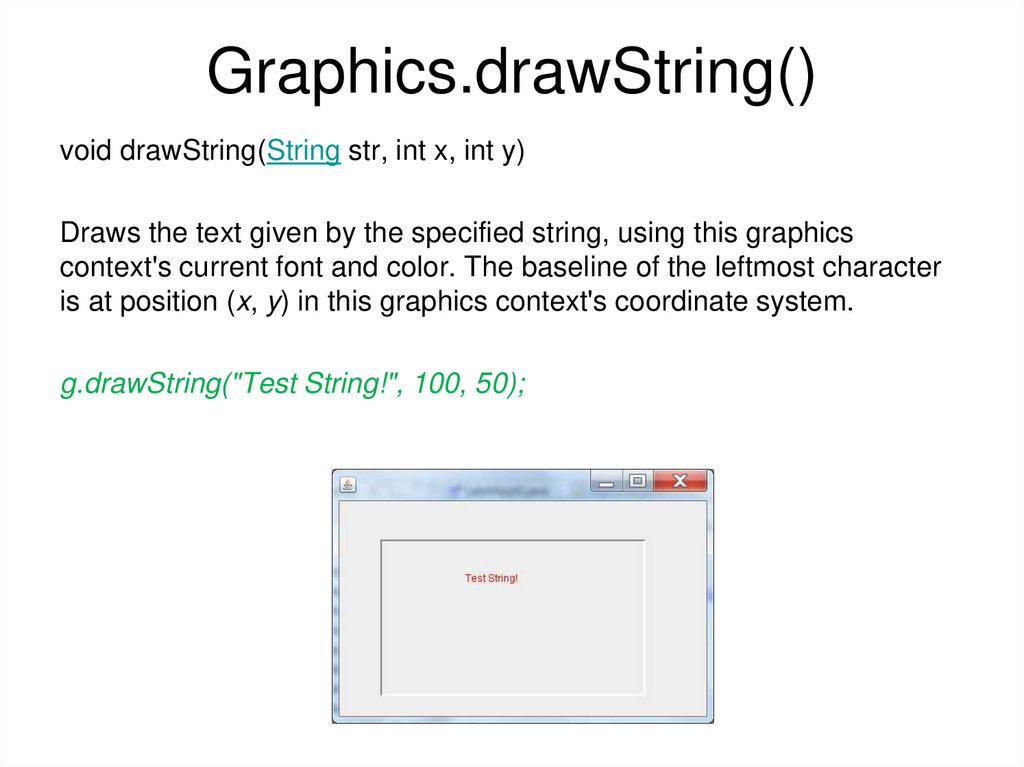
19. Graphics.drawString()
void drawString(String str, int x, int y)Draws the text given by the specified string, using this graphics
context's current font and color. The baseline of the leftmost character
is at position (x, y) in this graphics context's coordinate system.
g.drawString("Test String!", 100, 50);
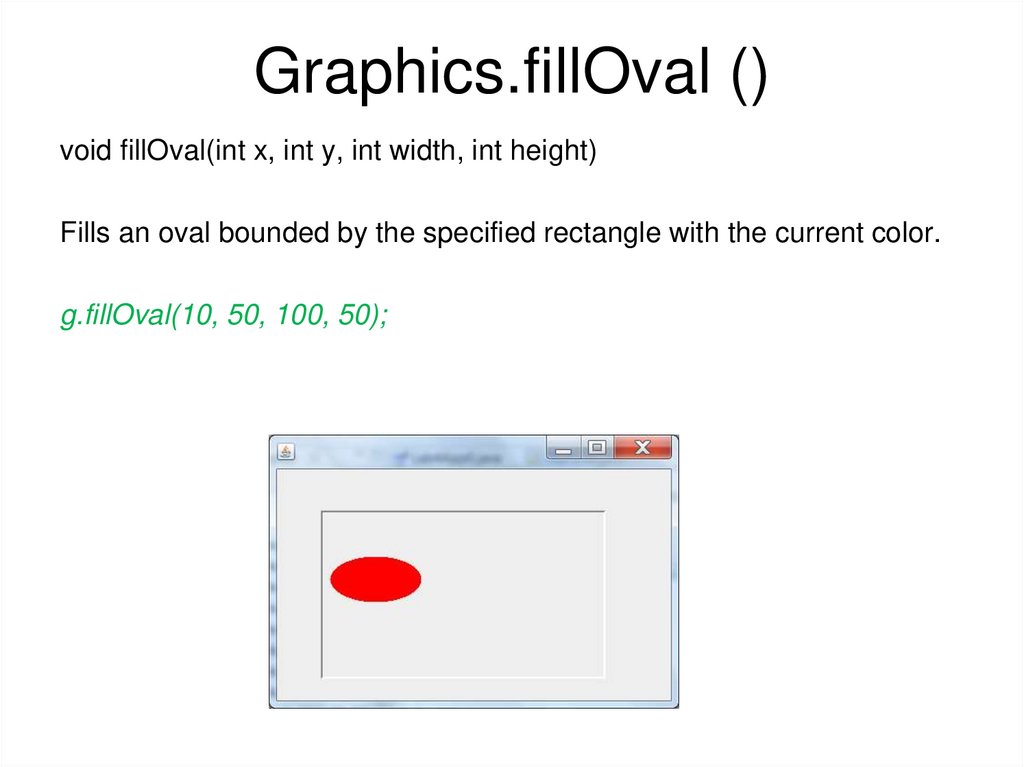
20. Graphics.fillOval ()
void fillOval(int x, int y, int width, int height)Fills an oval bounded by the specified rectangle with the current color.
g.fillOval(10, 50, 100, 50);
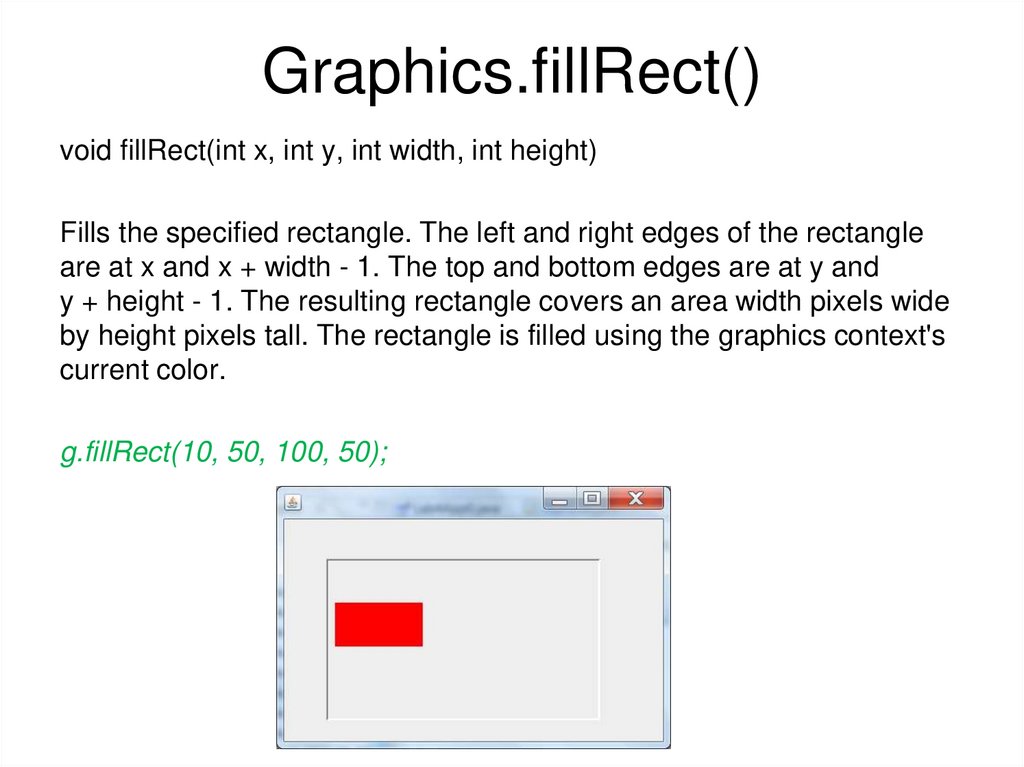
21. Graphics.fillRect()
void fillRect(int x, int y, int width, int height)Fills the specified rectangle. The left and right edges of the rectangle
are at x and x + width - 1. The top and bottom edges are at y and
y + height - 1. The resulting rectangle covers an area width pixels wide
by height pixels tall. The rectangle is filled using the graphics context's
current color.
g.fillRect(10, 50, 100, 50);
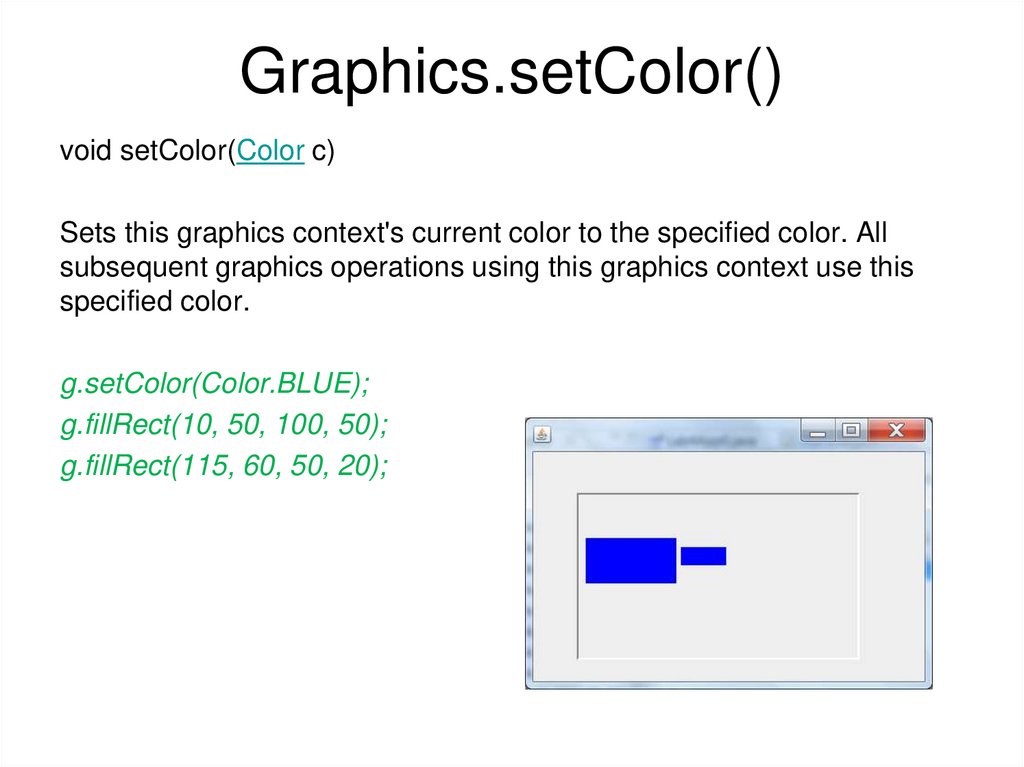
22. Graphics.setColor()
void setColor(Color c)Sets this graphics context's current color to the specified color. All
subsequent graphics operations using this graphics context use this
specified color.
g.setColor(Color.BLUE);
g.fillRect(10, 50, 100, 50);
g.fillRect(115, 60, 50, 20);