 business
Similar presentations:









Traderoom. Guide
1.
TraderoomGuide
Stockity
Binomo
**Keep note of stickers indicating what may or may not be applicable to the specific
2.
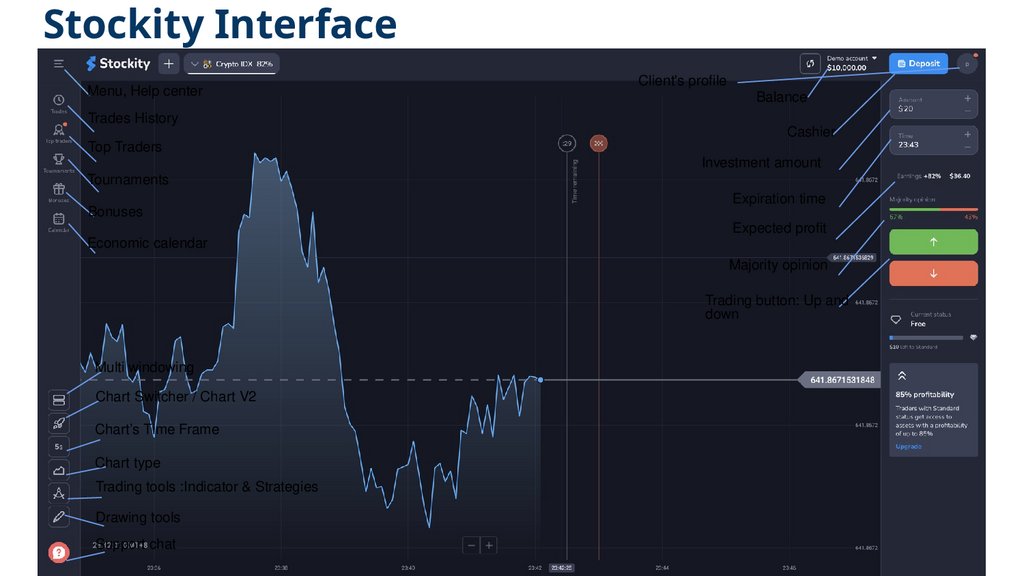
Stockity InterfaceMenu, Help center
Trades History
Top Traders
Tournaments
Bonuses
Economic calendar
Client's profile
Balance
Cashier
Investment amount
Expiration time
Expected profit
Majority opinion
Trading button: Up and
down
Multi windowing
Chart Switcher / Chart V2
Chart’s Time Frame
Chart type
Trading tools :Indicator & Strategies
Drawing tools
Support chat
3.
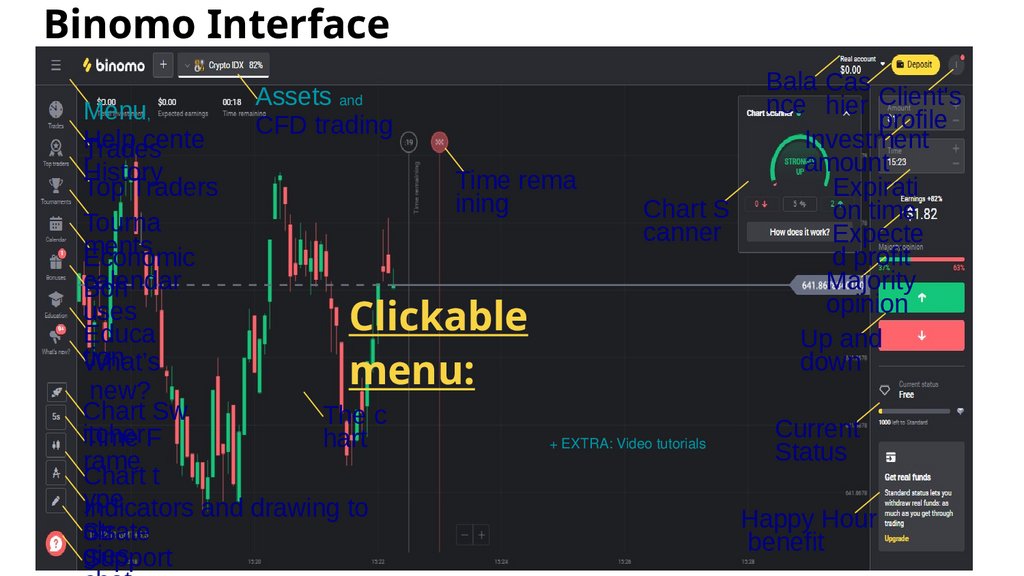
Binomo InterfaceAssets and
CFD trading
Bala Cas
nce hier Client's
profile
Investment
amount
Expirati
on time
Expecte
d profit
Majority
opinion
Up and
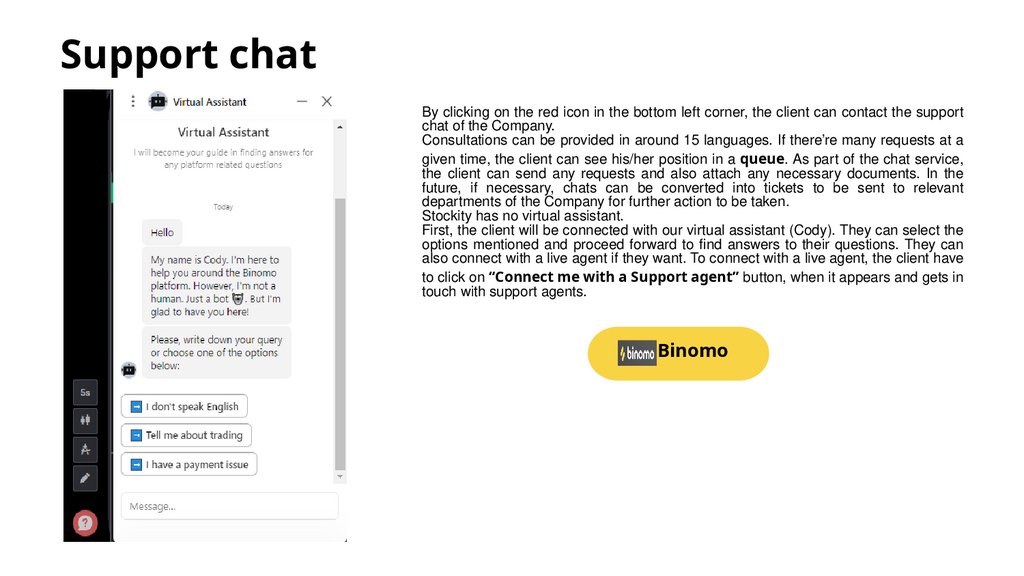
down
Menu,
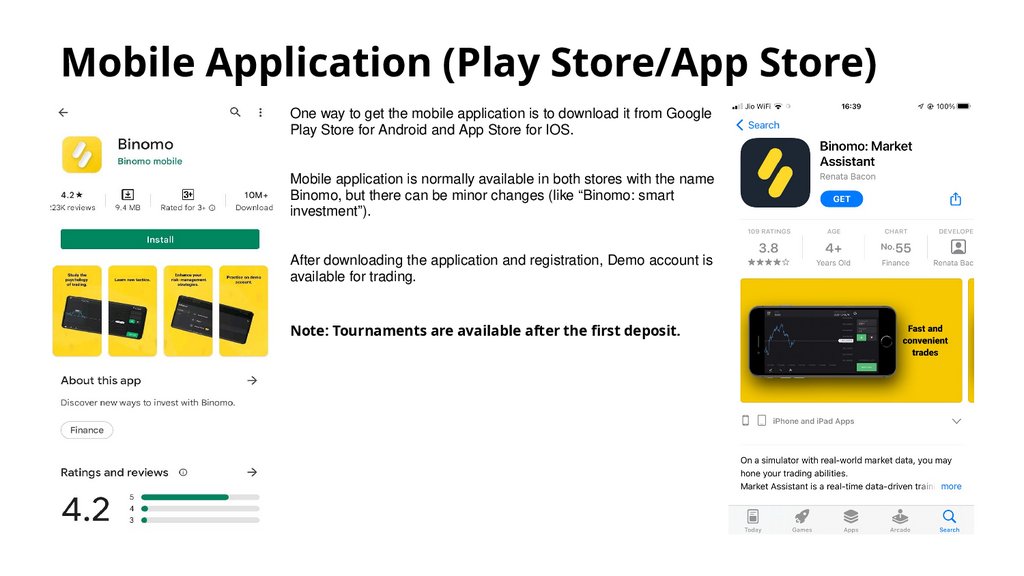
Help
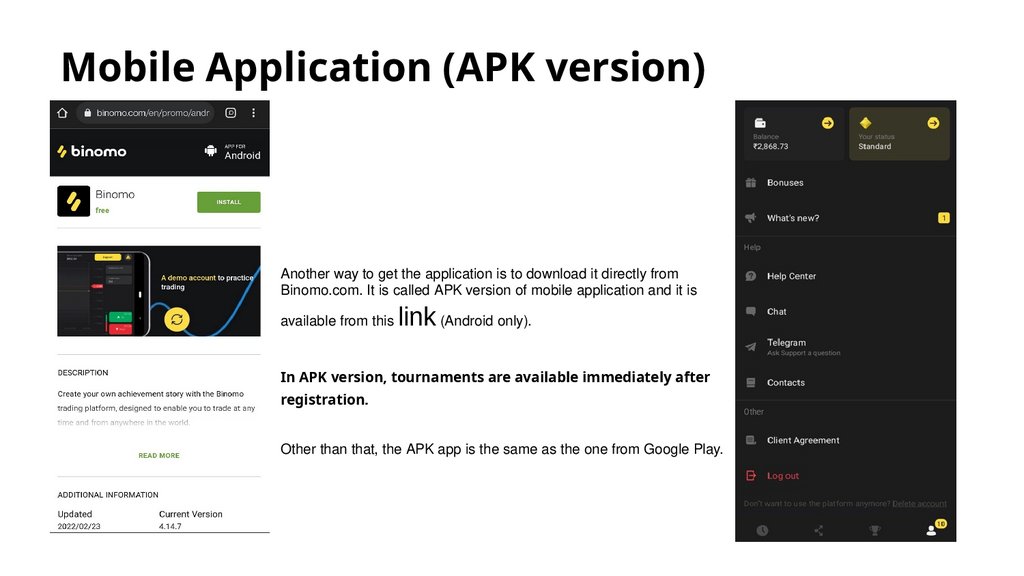
cente
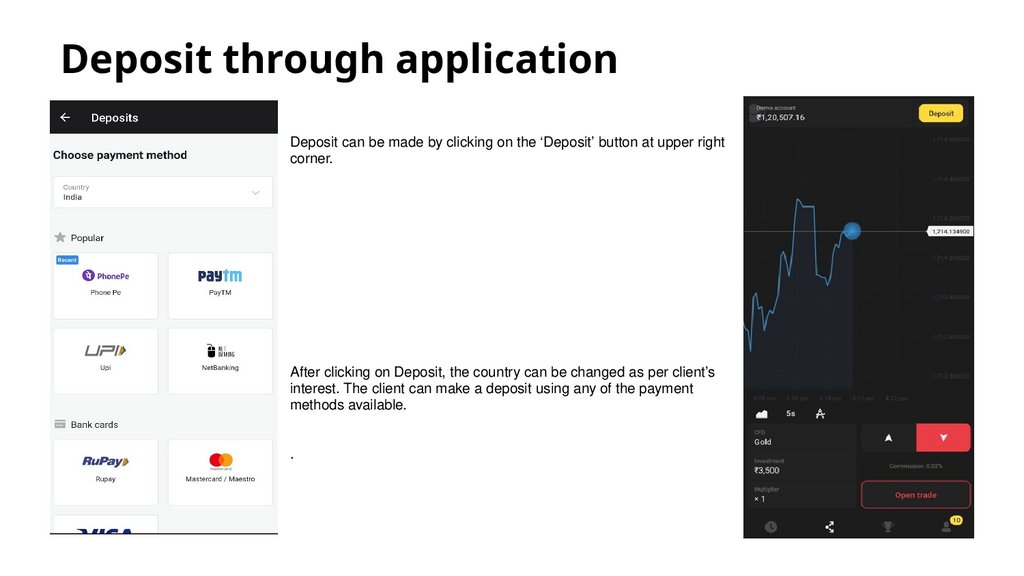
Trades
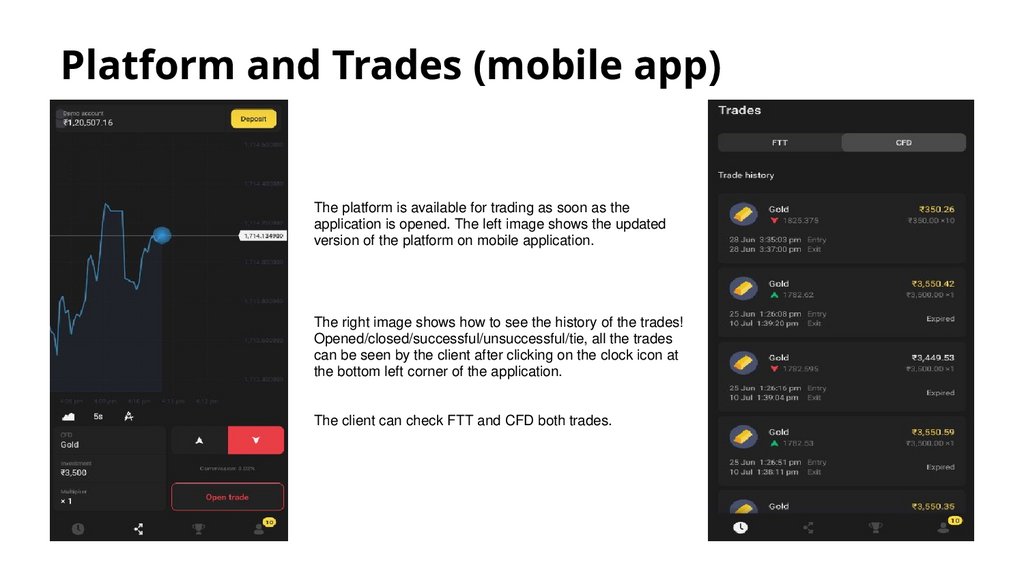
rHistory
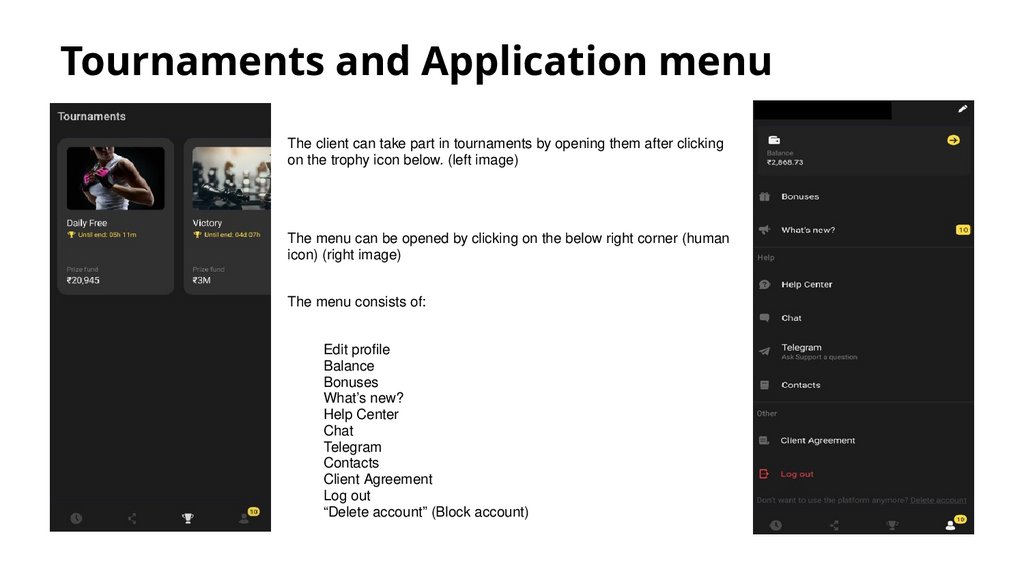
Time rema
Top Traders
ining
Chart S
Tourna
canner
ments
Economic
calendar
Bon
uses
Clickable
Educa
tion
What’s
menu:
new?
Chart Sw
The c
Current
itcher
Time F
hart
+ EXTRA: Video tutorials
Status
rame
Chart t
ype
Indicators and drawing to
Happy Hour
ols
Strate
benefit
gies
Support
4.
The chart20. График
22. The Chart
График является
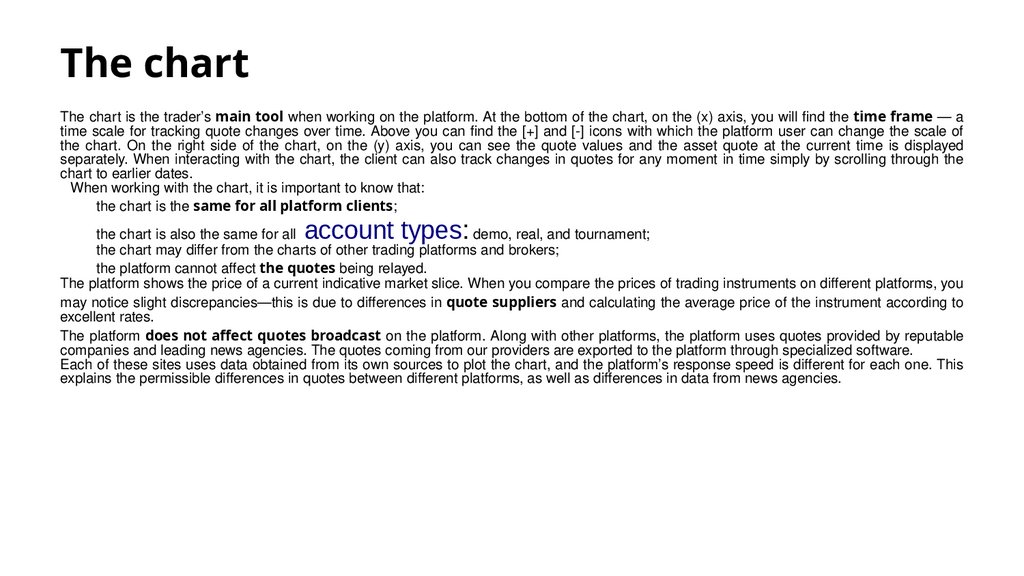
The chart is the trader’s main tool when working on the platform. At the bottom of the chart, on the (x) axis, you will find the time frame — a
time scale for tracking quote changes over time. Above you can find the [+] and [-] icons with which the platform user can change the scale of
the chart. On the right side of the chart, on the (y) axis, you can see the quote values and the asset quote at the current time is displayed
separately. When interacting with the chart, the client can also track changes in quotes for any moment in time simply by scrolling through the
chart to earlier dates.
When working with the chart, it is important to know that:
the chart is the same for all platform clients;
account types:
the chart is also the same for all
demo, real, and tournament;
the chart may differ from the charts of other trading platforms and brokers;
the platform cannot affect the quotes being relayed.
The platform shows the price of a current indicative market slice. When you compare the prices of trading instruments on different platforms, you
may notice slight discrepancies—this is due to differences in quote suppliers and calculating the average price of the instrument according to
excellent rates.
The platform does not affect quotes broadcast on the platform. Along with other platforms, the platform uses quotes provided by reputable
companies and leading news agencies. The quotes coming from our providers are exported to the platform through specialized software.
Each of these sites uses data obtained from its own sources to plot the chart, and the platform’s response speed is different for each one. This
explains the permissible differences in quotes between different platforms, as well as differences in data from news agencies.
5.
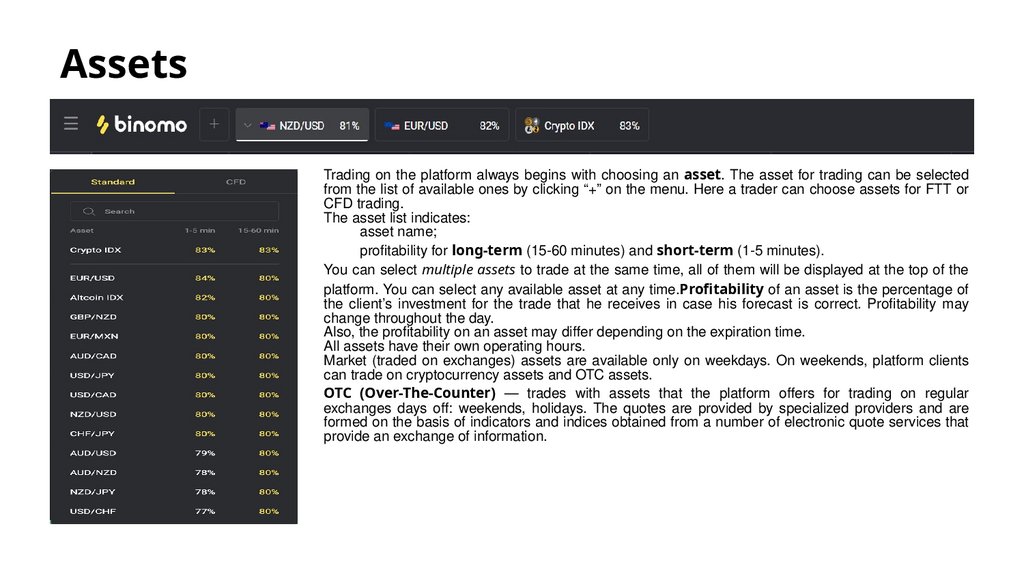
AssetsTrading on the platform always begins with choosing an asset. The asset for trading can be selected
from the list of available ones by clicking “+” on the menu. Here a trader can choose assets for FTT or
CFD trading.
The asset list indicates:
asset name;
profitability for long-term (15-60 minutes) and short-term (1-5 minutes).
You can select multiple assets to trade at the same time, all of them will be displayed at the top of the
platform. You can select any available asset at any time.Profitability of an asset is the percentage of
the client’s investment for the trade that he receives in case his forecast is correct. Profitability may
change throughout the day.
Also, the profitability on an asset may differ depending on the expiration time.
All assets have their own operating hours.
Market (traded on exchanges) assets are available only on weekdays. On weekends, platform clients
can trade on cryptocurrency assets and OTC assets.
OTC (Over-The-Counter) — trades with assets that the platform offers for trading on regular
exchanges days off: weekends, holidays. The quotes are provided by specialized providers and are
formed on the basis of indicators and indices obtained from a number of electronic quote services that
provide an exchange of information.
6.
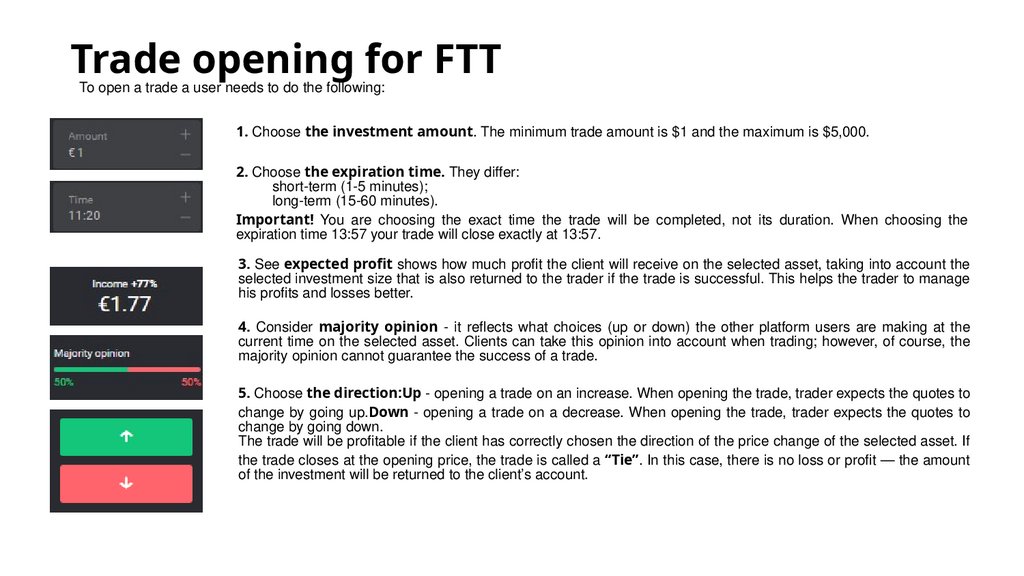
Trade opening for FTTTo open a trade a user needs to do the following:
1. Choose the investment amount. The minimum trade amount is $1 and the maximum is $5,000.
2. Choose the expiration time. They differ:
short-term (1-5 minutes);
long-term (15-60 minutes).
Important! You are choosing the exact time the trade will be completed, not its duration. When choosing the
expiration time 13:57 your trade will close exactly at 13:57.
3. See expected profit shows how much profit the client will receive on the selected asset, taking into account the
selected investment size that is also returned to the trader if the trade is successful. This helps the trader to manage
his profits and losses better.
4. Consider majority opinion - it reflects what choices (up or down) the other platform users are making at the
current time on the selected asset. Clients can take this opinion into account when trading; however, of course, the
majority opinion cannot guarantee the success of a trade.
5. Choose the direction:Up - opening a trade on an increase. When opening the trade, trader expects the quotes to
change by going up.Down - opening a trade on a decrease. When opening the trade, trader expects the quotes to
change by going down.
The trade will be profitable if the client has correctly chosen the direction of the price change of the selected asset. If
the trade closes at the opening price, the trade is called a “Tie”. In this case, there is no loss or profit — the amount
of the investment will be returned to the client’s account.
7.
Fixed Time TradingFixed Time Trading (FTT) is a derivative financial product where a trader receives a payout from investment depending on the correlation
between the opening and closing price of the trade. Before opening a trade, the user needs to set the parameters: asset, investment
amount, expiration time, and direction. If a trader thinks the price of the chosen asset at a chosen time will increase, he chooses the “Up”
direction. His income depends on the investment.
FTT trading mechanics is rather simplified, as the trade closes automatically once it reaches the expiration time, and the profit from a
successful trade is credited to the user’s account. Both profit and loss is easily predictable, it is shown before opening a trade, which helps to
manage risks better. Still, the financial operations offered on this site may involve increased risk. Fixed Time Trading requires skills and
knowledge.
Advantages of FTT:
Fixed profitability and losses;
Controlled risks;
Trading is available 24/7;
No commissions:
No need to constantly monitor the market;
Low entry-level;
Trading under any market conditions;
Wide range of assets.
Apart from FTT, there’s one more trading mechanics available on the platform: CFD (demo account only).
8.
CFD (Contract For Difference)Contract for Difference (CFD) - is another trading mechanics available on the platform. Like FTT, it is a derivative, over-the-counter financial
instrument.
Difference between CFD and FTT
Unlike trades on FTT, CFD trades do not have a fixed expiration time. The client can close the trade manually;
CFD trades can be kept open indefinitely, but if the price of an asset moves in the direction opposite to the forecast and the loss reaches 95%, then the trade is closed automatically;
The bigger the multiplier, the higher the commission for trade opening, and the faster an unprofitable trade can close, as the level of
automatic closing gets closer to the open price with a big multiplier.
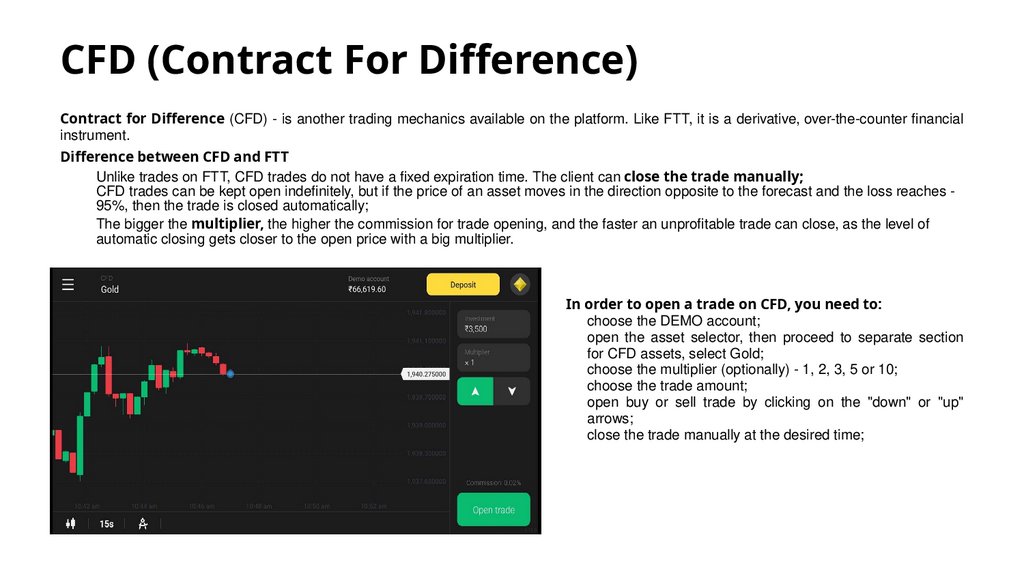
In order to open a trade on CFD, you need to:
choose the DEMO account;
open the asset selector, then proceed to separate section
for CFD assets, select Gold;
choose the multiplier (optionally) - 1, 2, 3, 5 or 10;
choose the trade amount;
open buy or sell trade by clicking on the "down" or "up"
arrows;
close the trade manually at the desired time;
9.
Features of CFD trading1.
2.
3.
4.
5.
6.
7.
8.
9.
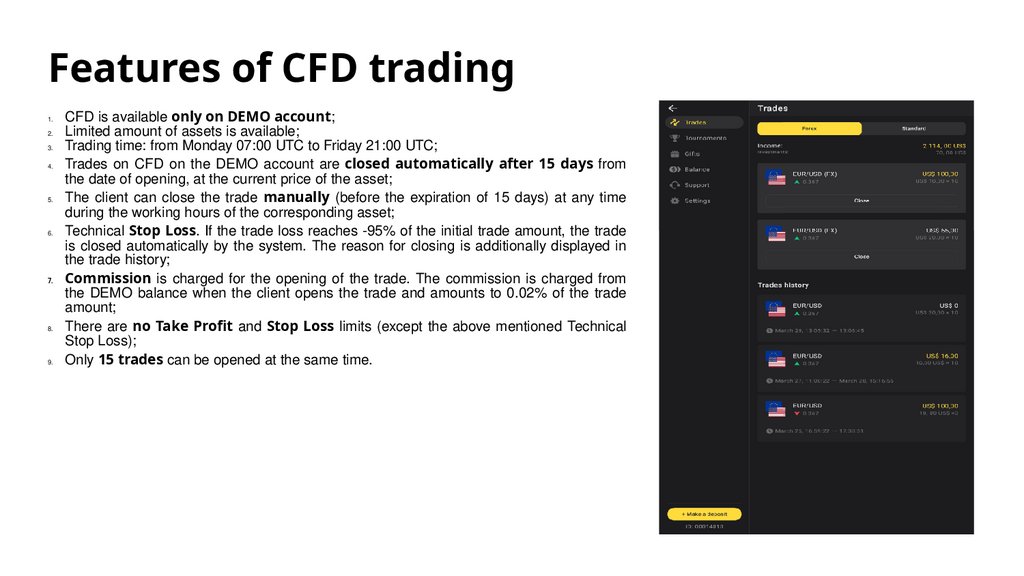
CFD is available only on DEMO account;
Limited amount of assets is available;
Trading time: from Monday 07:00 UTC to Friday 21:00 UTC;
Trades on CFD on the DEMO account are closed automatically after 15 days from
the date of opening, at the current price of the asset;
The client can close the trade manually (before the expiration of 15 days) at any time
during the working hours of the corresponding asset;
Technical Stop Loss. If the trade loss reaches -95% of the initial trade amount, the trade
is closed automatically by the system. The reason for closing is additionally displayed in
the trade history;
Commission is charged for the opening of the trade. The commission is charged from
the DEMO balance when the client opens the trade and amounts to 0.02% of the trade
amount;
There are no Take Profit and Stop Loss limits (except the above mentioned Technical
Stop Loss);
Only 15 trades can be opened at the same time.
10.
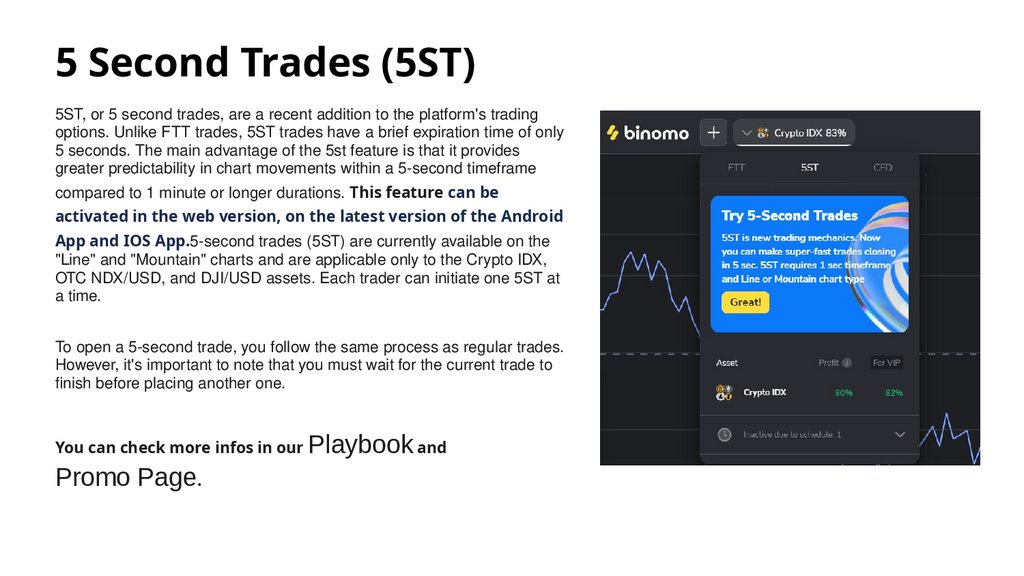
5 Second Trades (5ST)5ST, or 5 second trades, are a recent addition to the platform's trading
options. Unlike FTT trades, 5ST trades have a brief expiration time of only
5 seconds. The main advantage of the 5st feature is that it provides
greater predictability in chart movements within a 5-second timeframe
compared to 1 minute or longer durations. This feature can be
activated in the web version, on the latest version of the Android
App and IOS App.5-second trades (5ST) are currently available on the
"Line" and "Mountain" charts and are applicable only to the Crypto IDX,
OTC NDX/USD, and DJI/USD assets. Each trader can initiate one 5ST at
a time.
To open a 5-second trade, you follow the same process as regular trades.
However, it's important to note that you must wait for the current trade to
finish before placing another one.
You can check more infos in our
Promo Page.
Playbook and
11.
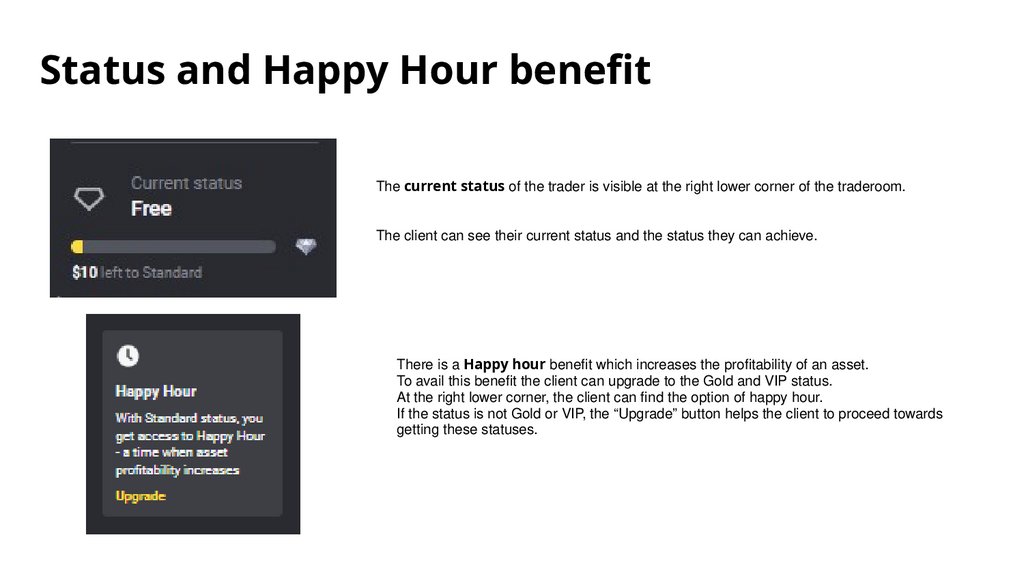
Status and Happy Hour benefitThe current status of the trader is visible at the right lower corner of the traderoom.
The client can see their current status and the status they can achieve.
There is a Happy hour benefit which increases the profitability of an asset.
To avail this benefit the client can upgrade to the Gold and VIP status.
At the right lower corner, the client can find the option of happy hour.
If the status is not Gold or VIP, the “Upgrade” button helps the client to proceed towards
getting these statuses.
12.
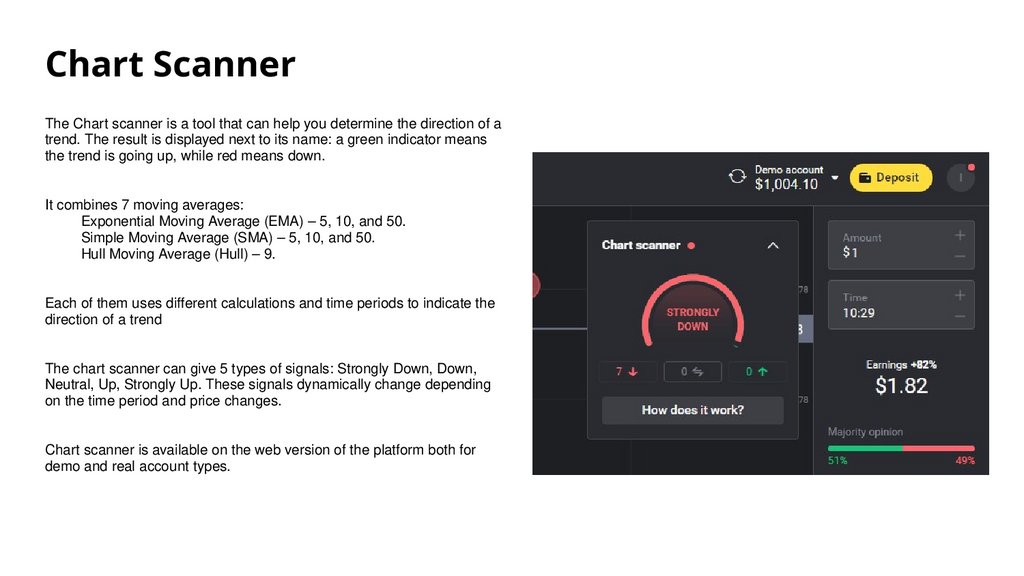
Chart ScannerThe Chart scanner is a tool that can help you determine the direction of a
trend. The result is displayed next to its name: a green indicator means
the trend is going up, while red means down.
It combines 7 moving averages:
Exponential Moving Average (EMA) – 5, 10, and 50.
Simple Moving Average (SMA) – 5, 10, and 50.
Hull Moving Average (Hull) – 9.
Each of them uses different calculations and time periods to indicate the
direction of a trend
The chart scanner can give 5 types of signals: Strongly Down, Down,
Neutral, Up, Strongly Up. These signals dynamically change depending
on the time period and price changes.
Chart scanner is available on the web version of the platform both for
demo and real account types.
13.
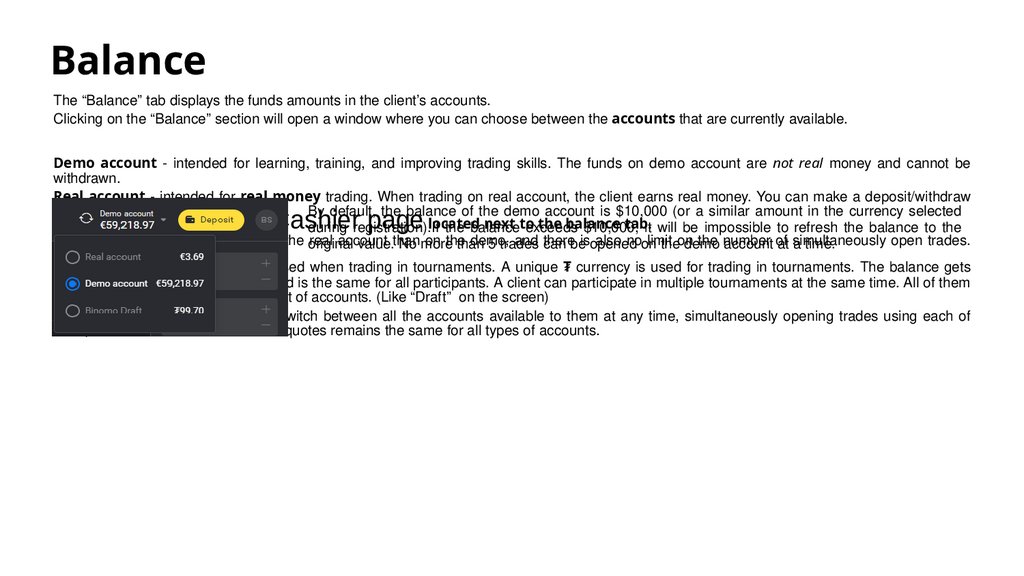
BalanceThe “Balance” tab displays the funds amounts in the client’s accounts.
Clicking on the “Balance” section will open a window where you can choose between the accounts that are currently available.
Demo account - intended for learning, training, and improving trading skills. The funds on demo account are not real money and cannot be
withdrawn.
Real account - intended for real money trading. When trading on real account, the client earns real money. You can make a deposit/withdraw
By default, the balance of the demo account is $10,000 (or a similar amount in the currency selected
funds from the real account on the
located
next to
the balance
tab.
during registration).If
the balance
exceeds
$10,000,
it will be impossible to refresh the balance to the
There are more assets available on the original
real account
on the
demo,
and there
also noon
limit
the number
open trades.
value.than
No more
than
5 trades
can beisopened
theon
demo
account of
at simultaneously
a time.
Cashier page
Tournament account - is used when trading in tournaments. A unique ₮ currency is used for trading in tournaments. The balance gets
renewed in every new tournament and is the same for all participants. A client can participate in multiple tournaments at the same time. All of them
will be available for selection in the list of accounts. (Like “Draft” on the screen)
Important: the platform user can switch between all the accounts available to them at any time, simultaneously opening trades using each of
them, and the list of assets and their quotes remains the same for all types of accounts.
14.
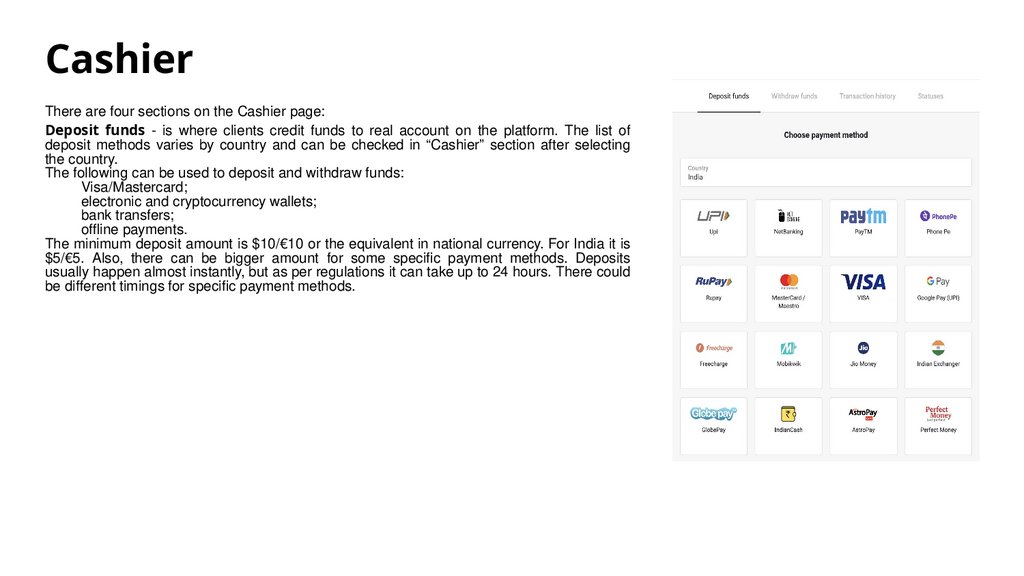
CashierThere are four sections on the Cashier page:
Deposit funds - is where clients credit funds to real account on the platform. The list of
deposit methods varies by country and can be checked in “Cashier” section after selecting
the country.
The following can be used to deposit and withdraw funds:
Visa/Mastercard;
electronic and cryptocurrency wallets;
bank transfers;
offline payments.
The minimum deposit amount is $10/€10 or the equivalent in national currency. For India it is
$5/€5. Also, there can be bigger amount for some specific payment methods. Deposits
usually happen almost instantly, but as per regulations it can take up to 24 hours. There could
be different timings for specific payment methods.
15.
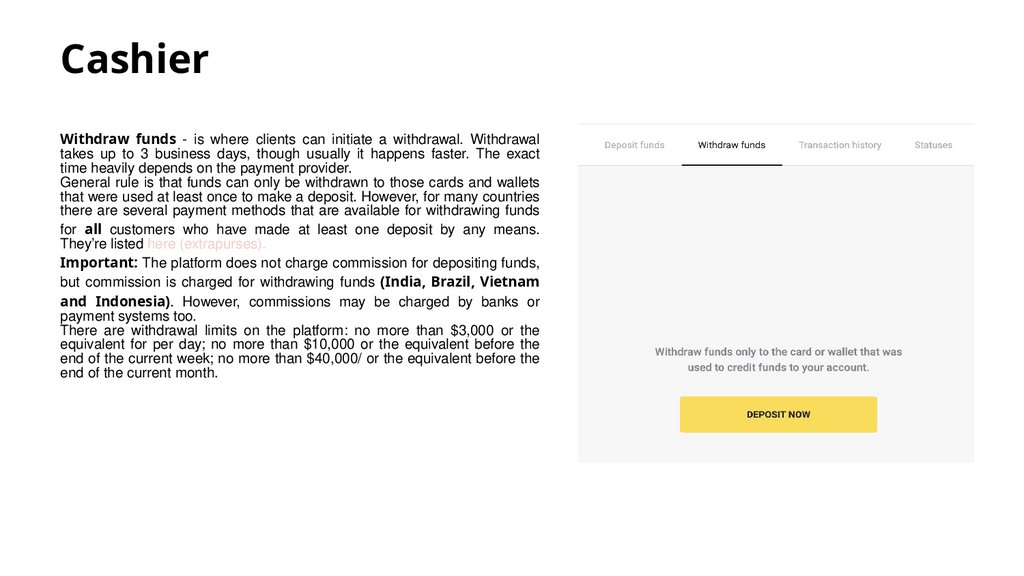
CashierWithdraw funds - is where clients can initiate a withdrawal. Withdrawal
takes up to 3 business days, though usually it happens faster. The exact
time heavily depends on the payment provider.
General rule is that funds can only be withdrawn to those cards and wallets
that were used at least once to make a deposit. However, for many countries
there are several payment methods that are available for withdrawing funds
for all customers who have made at least one deposit by any means.
They’re listed here (extrapurses).
Important: The platform does not charge commission for depositing funds,
but commission is charged for withdrawing funds (India, Brazil, Vietnam
and Indonesia). However, commissions may be charged by banks or
payment systems too.
There are withdrawal limits on the platform: no more than $3,000 or the
equivalent for per day; no more than $10,000 or the equivalent before the
end of the current week; no more than $40,000/ or the equivalent before the
end of the current month.
16.
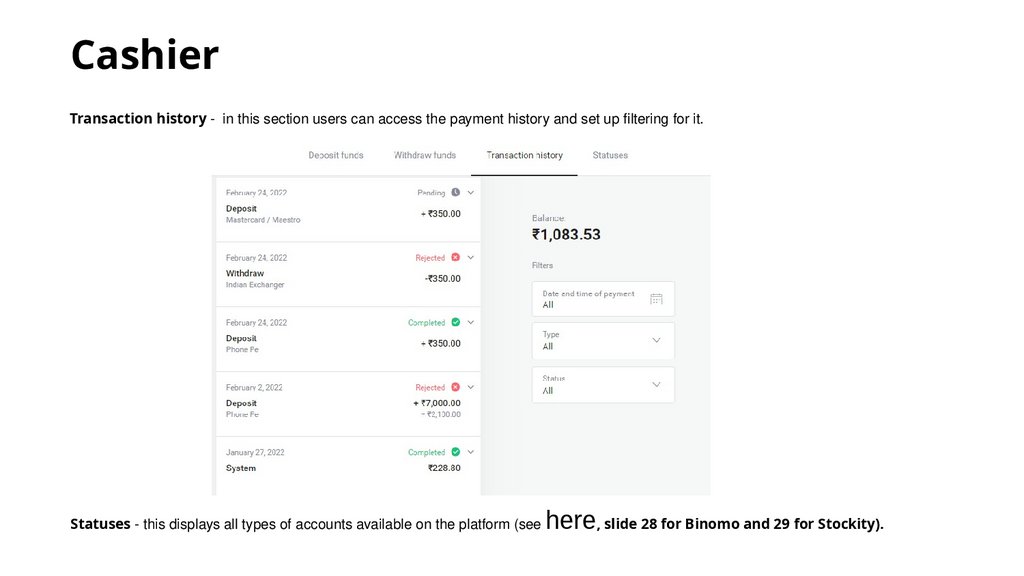
CashierTransaction history - in this section users can access the payment history and set up filtering for it.
Statuses - this displays all types of accounts available on the platform (see
here, slide 28 for Binomo and 29 for Stockity).
17.
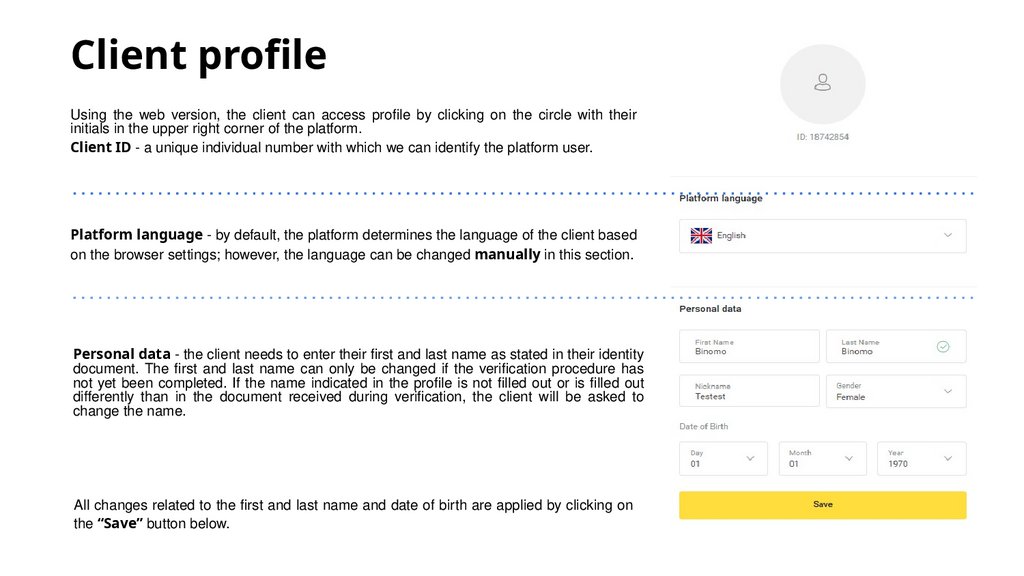
Client profileUsing the web version, the client can access profile by clicking on the circle with their
initials in the upper right corner of the platform.
Client ID - a unique individual number with which we can identify the platform user.
Platform language - by default, the platform determines the language of the client based
on the browser settings; however, the language can be changed manually in this section.
Personal data - the client needs to enter their first and last name as stated in their identity
document. The first and last name can only be changed if the verification procedure has
not yet been completed. If the name indicated in the profile is not filled out or is filled out
differently than in the document received during verification, the client will be asked to
change the name.
All changes related to the first and last name and date of birth are applied by clicking on
the “Save” button below.
18.
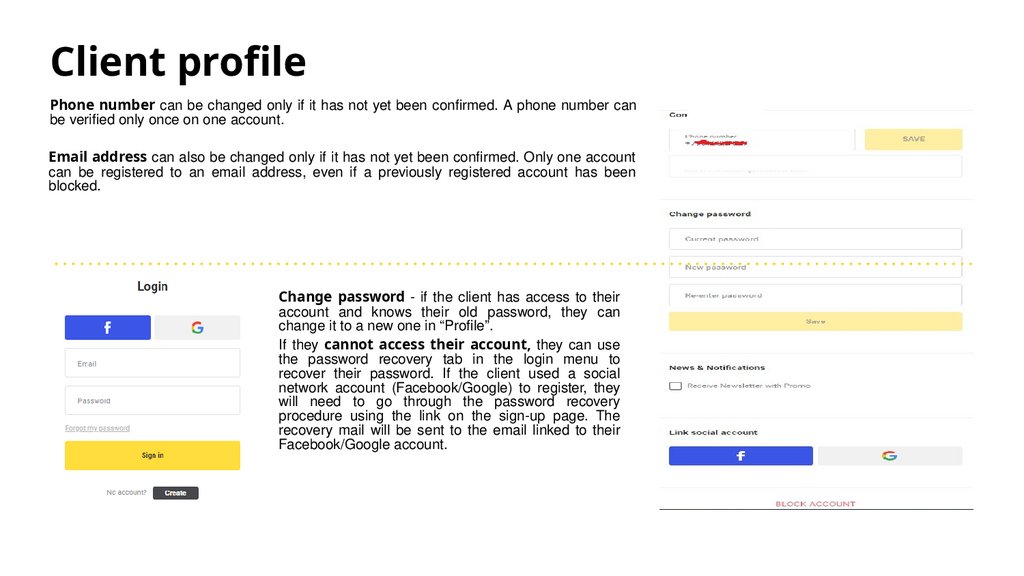
Client profilePhone number can be changed only if it has not yet been confirmed. A phone number can
be verified only once on one account.
Email address can also be changed only if it has not yet been confirmed. Only one account
can be registered to an email address, even if a previously registered account has been
blocked.
Change password - if the client has access to their
account and knows their old password, they can
change it to a new one in “Profile”.
If they cannot access their account, they can use
the password recovery tab in the login menu to
recover their password. If the client used a social
network account (Facebook/Google) to register, they
will need to go through the password recovery
procedure using the link on the sign-up page. The
recovery mail will be sent to the email linked to their
Facebook/Google account.
19.
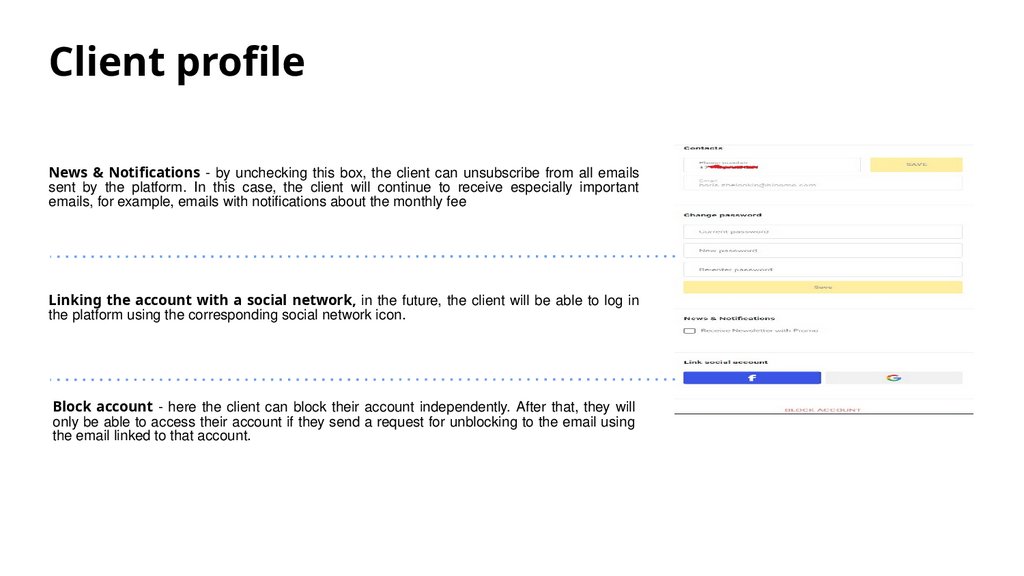
Client profileNews & Notifications - by unchecking this box, the client can unsubscribe from all emails
sent by the platform. In this case, the client will continue to receive especially important
emails, for example, emails with notifications about the monthly fee
Linking the account with a social network, in the future, the client will be able to log in
the platform using the corresponding social network icon.
Block account - here the client can block their account independently. After that, they will
only be able to access their account if they send a request for unblocking to the email using
the email linked to that account.
20.
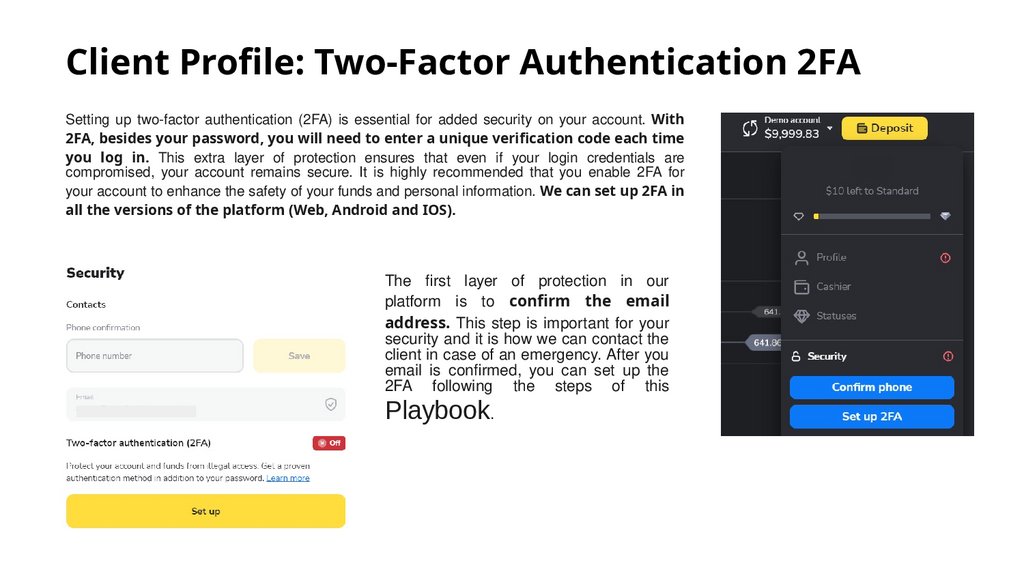
Client Profile: Two-Factor Authentication 2FASetting up two-factor authentication (2FA) is essential for added security on your account. With
2FA, besides your password, you will need to enter a unique verification code each time
you log in. This extra layer of protection ensures that even if your login credentials are
compromised, your account remains secure. It is highly recommended that you enable 2FA for
your account to enhance the safety of your funds and personal information. We can set up 2FA in
all the versions of the platform (Web, Android and IOS).
The first layer of protection in our
platform is to confirm the email
address. This step is important for your
security and it is how we can contact the
client in case of an emergency. After you
email is confirmed, you can set up the
2FA following the steps of this
Playbook.
21.
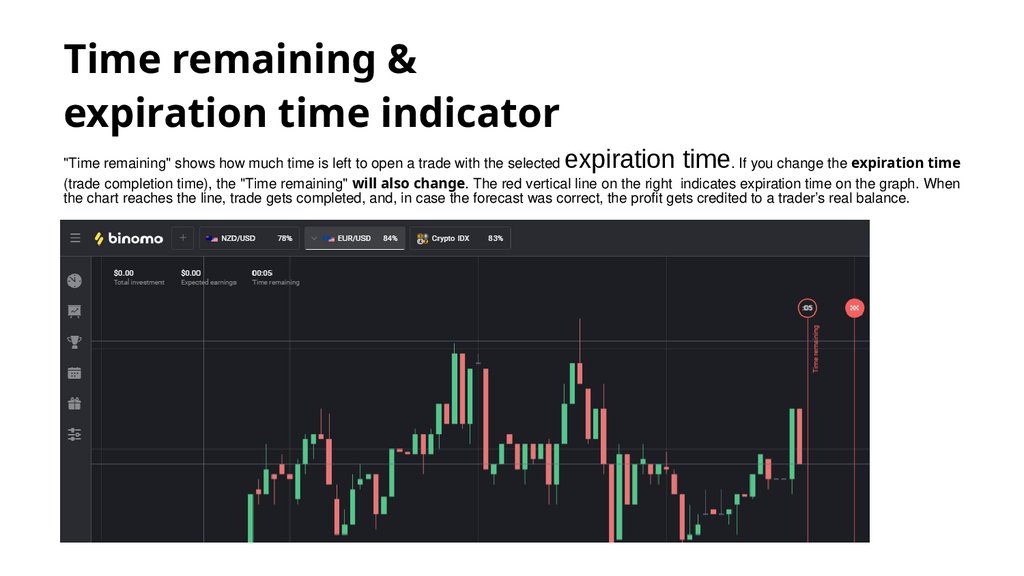
Time remaining &expiration time indicator
expiration time
"Time remaining" shows how much time is left to open a trade with the selected
. If you change the expiration time
(trade completion time), the "Time remaining" will also change. The red vertical line on the right indicates expiration time on the graph. When
the chart reaches the line, trade gets completed, and, in case the forecast was correct, the profit gets credited to a trader’s real balance.
22.
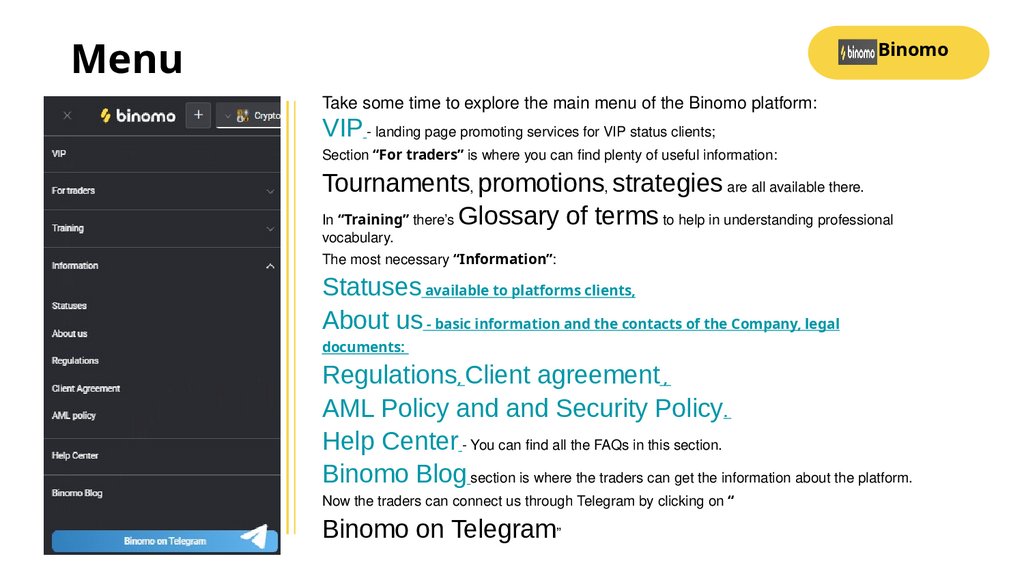
MenuBinomo
Take some time to explore the main menu of the Binomo platform:
VIP - landing page promoting services for VIP status clients;
Section “For traders” is where you can find plenty of useful information:
Tournaments, promotions, strategies are all available there.
In “Training” there’s Glossary of terms to help in understanding professional
vocabulary.
The most necessary “Information”:
Statuses available to platforms clients,
About us - basic information and the contacts of the Company, legal
documents:
Regulations, Client agreement ,
AML Policy and and Security Policy.
Help Center - You can find all the FAQs in this section.
Binomo Blog section is where the traders can get the information about the platform.
Now the traders can connect us through Telegram by clicking on “
Binomo on Telegram”
23.
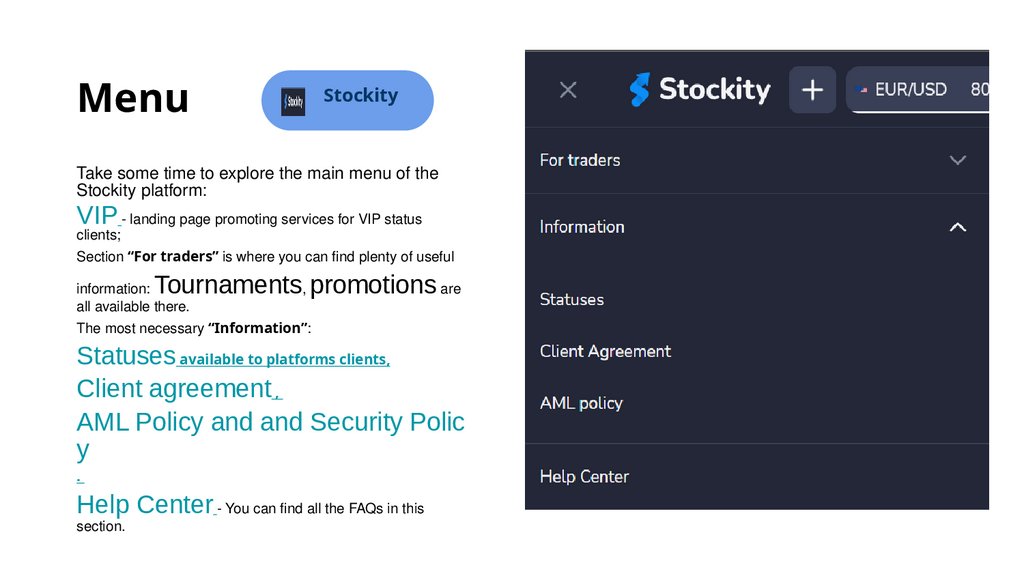
MenuStockity
Take some time to explore the main menu of the
Stockity platform:
VIP - landing page promoting services for VIP status
clients;
Section “For traders” is where you can find plenty of useful
Tournaments, promotions are
information:
all available there.
The most necessary “Information”:
Statuses available to platforms clients,
Client agreement ,
AML Policy and and Security Polic
y
.
Help Center - You can find all the FAQs in this
section.
24.
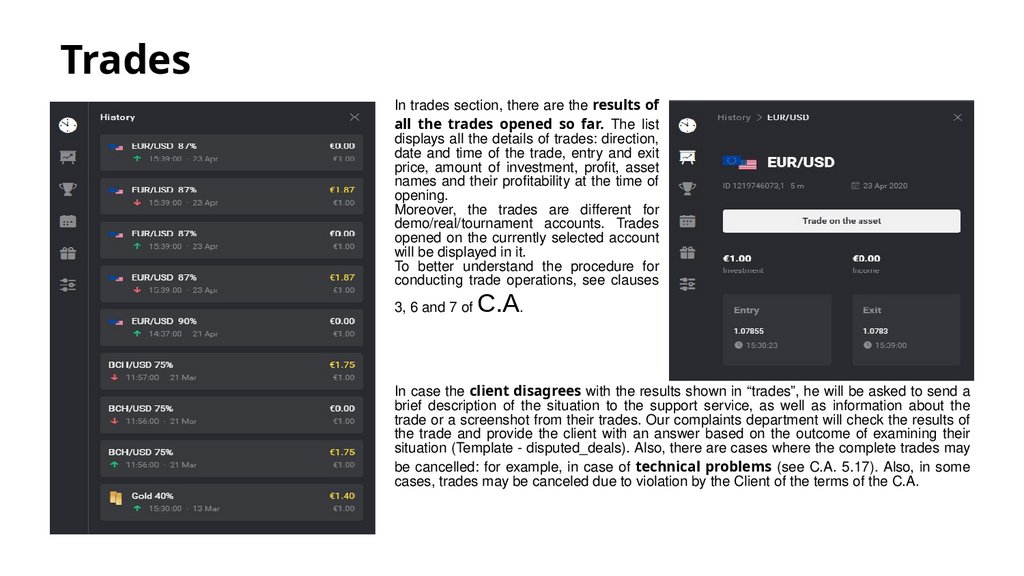
TradesIn trades section, there are the results of
all the trades opened so far. The list
displays all the details of trades: direction,
date and time of the trade, entry and exit
price, amount of investment, profit, asset
names and their profitability at the time of
opening.
Moreover, the trades are different for
demo/real/tournament accounts. Trades
opened on the currently selected account
will be displayed in it.
To better understand the procedure for
conducting trade operations, see clauses
3, 6 and 7 of
C.A.
In case the client disagrees with the results shown in “trades”, he will be asked to send a
brief description of the situation to the support service, as well as information about the
trade or a screenshot from their trades. Our complaints department will check the results of
the trade and provide the client with an answer based on the outcome of examining their
situation (Template - disputed_deals). Also, there are cases where the complete trades may
be cancelled: for example, in case of technical problems (see C.A. 5.17). Also, in some
cases, trades may be canceled due to violation by the Client of the terms of the C.A.
25.
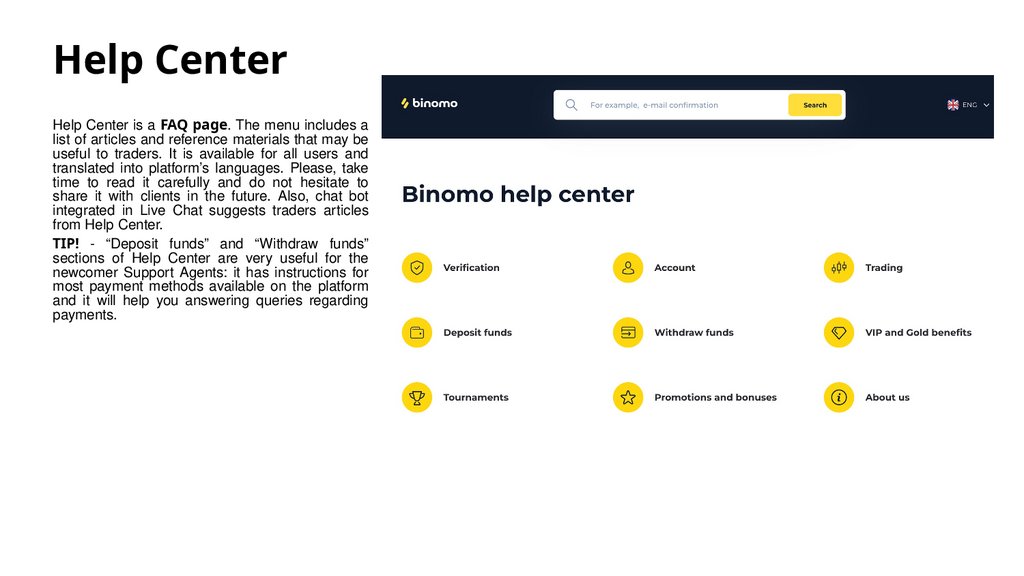
Help CenterHelp Center is a FAQ page. The menu includes a
list of articles and reference materials that may be
useful to traders. It is available for all users and
translated into platform’s languages. Please, take
time to read it carefully and do not hesitate to
share it with clients in the future. Also, chat bot
integrated in Live Chat suggests traders articles
from Help Center.
TIP! - “Deposit funds” and “Withdraw funds”
sections of Help Center are very useful for the
newcomer Support Agents: it has instructions for
most payment methods available on the platform
and it will help you answering queries regarding
payments.
26.
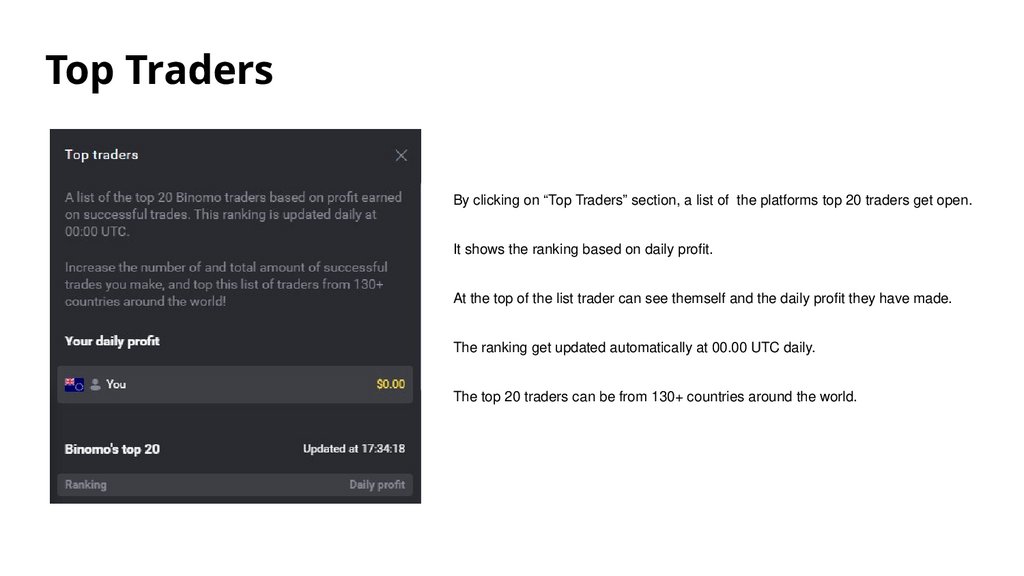
Top TradersBy clicking on “Top Traders” section, a list of the platforms top 20 traders get open.
It shows the ranking based on daily profit.
At the top of the list trader can see themself and the daily profit they have made.
The ranking get updated automatically at 00.00 UTC daily.
The top 20 traders can be from 130+ countries around the world.
27.
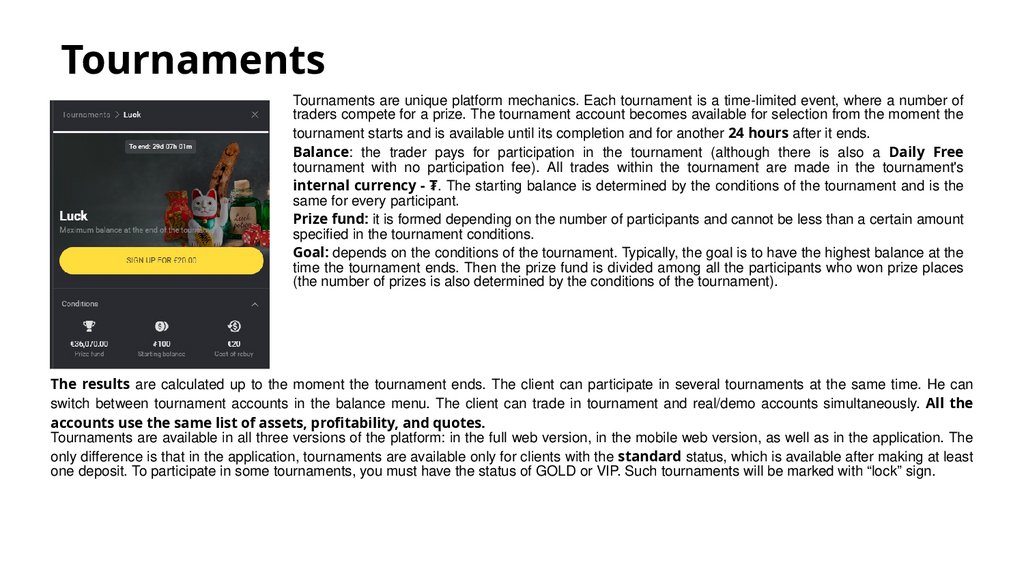
TournamentsTournaments are unique platform mechanics. Each tournament is a time-limited event, where a number of
traders compete for a prize. The tournament account becomes available for selection from the moment the
tournament starts and is available until its completion and for another 24 hours after it ends.
Balance: the trader pays for participation in the tournament (although there is also a Daily Free
tournament with no participation fee). All trades within the tournament are made in the tournament's
internal currency - ₮. The starting balance is determined by the conditions of the tournament and is the
same for every participant.
Prize fund: it is formed depending on the number of participants and cannot be less than a certain amount
specified in the tournament conditions.
Goal: depends on the conditions of the tournament. Typically, the goal is to have the highest balance at the
time the tournament ends. Then the prize fund is divided among all the participants who won prize places
(the number of prizes is also determined by the conditions of the tournament).
The results are calculated up to the moment the tournament ends. The client can participate in several tournaments at the same time. He can
switch between tournament accounts in the balance menu. The client can trade in tournament and real/demo accounts simultaneously. All the
accounts use the same list of assets, profitability, and quotes.
Tournaments are available in all three versions of the platform: in the full web version, in the mobile web version, as well as in the application. The
only difference is that in the application, tournaments are available only for clients with the standard status, which is available after making at least
one deposit. To participate in some tournaments, you must have the status of GOLD or VIP. Such tournaments will be marked with “lock” sign.
28.
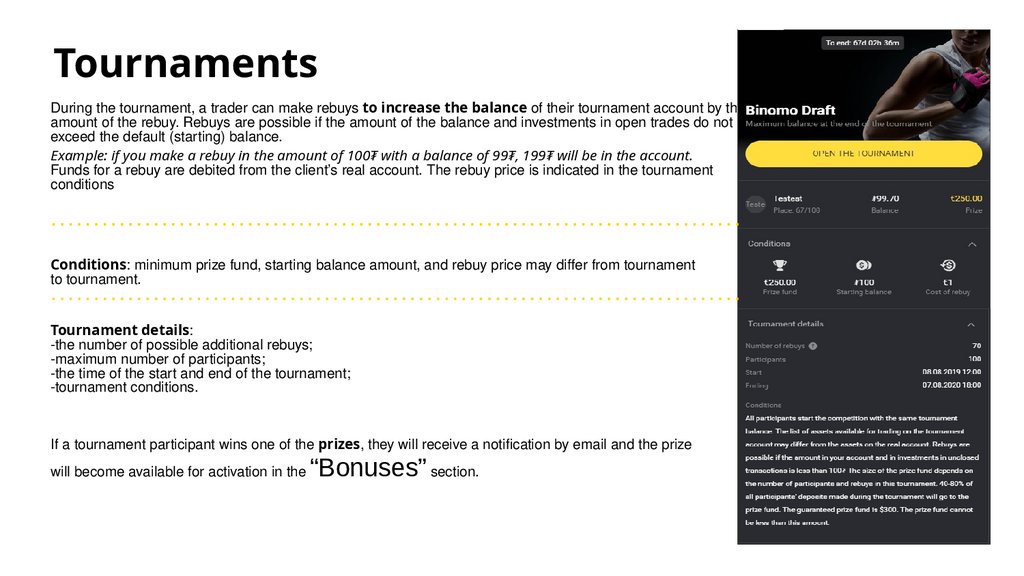
TournamentsDuring the tournament, a trader can make rebuys to increase the balance of their tournament account by the
amount of the rebuy. Rebuys are possible if the amount of the balance and investments in open trades do not
exceed the default (starting) balance.
Example: if you make a rebuy in the amount of 100₮ with a balance of 99₮, 199₮ will be in the account.
Funds for a rebuy are debited from the client’s real account. The rebuy price is indicated in the tournament
conditions
Conditions: minimum prize fund, starting balance amount, and rebuy price may differ from tournament
to tournament.
Tournament details:
-the number of possible additional rebuys;
-maximum number of participants;
-the time of the start and end of the tournament;
-tournament conditions.
If a tournament participant wins one of the prizes, they will receive a notification by email and the prize
will become available for activation in the
“Bonuses” section.
29.
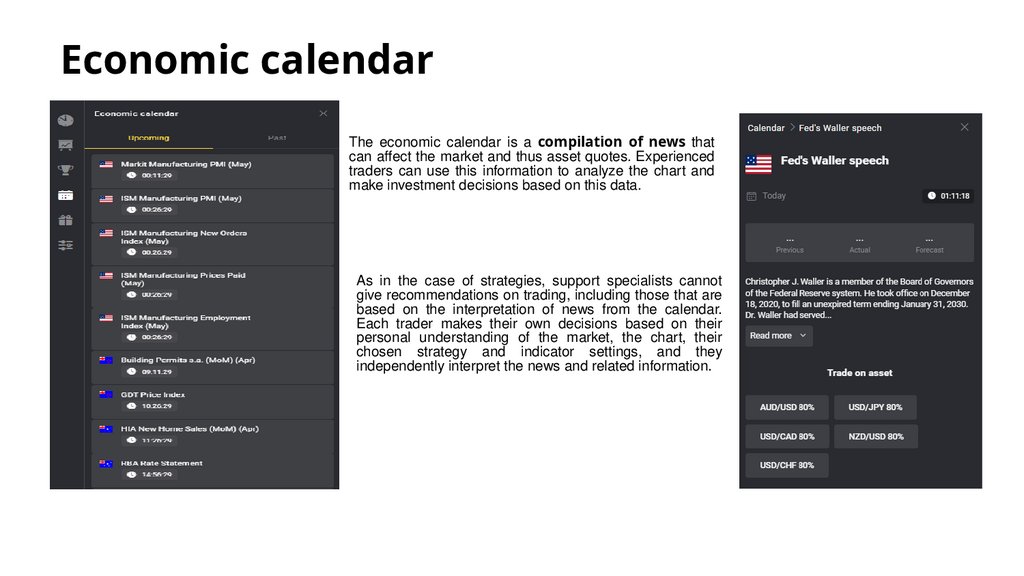
Economic calendarThe economic calendar is a compilation of news that
can affect the market and thus asset quotes. Experienced
traders can use this information to analyze the chart and
make investment decisions based on this data.
As in the case of strategies, support specialists cannot
give recommendations on trading, including those that are
based on the interpretation of news from the calendar.
Each trader makes their own decisions based on their
personal understanding of the market, the chart, their
chosen strategy and indicator settings, and they
independently interpret the news and related information.
30.
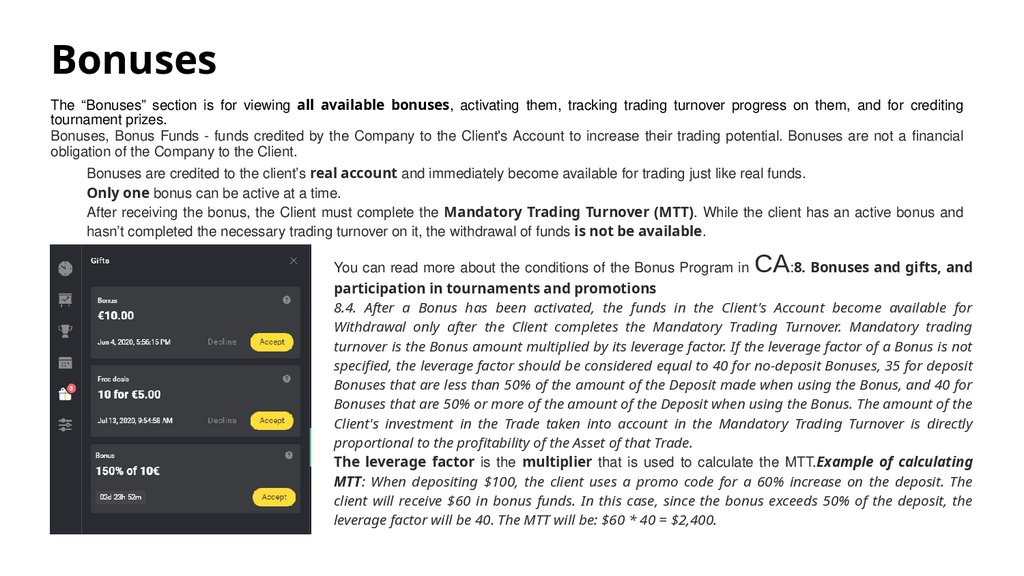
BonusesThe “Bonuses” section is for viewing all available bonuses, activating them, tracking trading turnover progress on them, and for crediting
tournament prizes.
Bonuses, Bonus Funds - funds credited by the Company to the Client's Account to increase their trading potential. Bonuses are not a financial
obligation of the Company to the Client.
Bonuses are credited to the client’s real account and immediately become available for trading just like real funds.
Only one bonus can be active at a time.
After receiving the bonus, the Client must complete the Mandatory Trading Turnover (MTT). While the client has an active bonus and
hasn’t completed the necessary trading turnover on it, the withdrawal of funds is not be available.
CA
You can read more about the conditions of the Bonus Program in
:8. Bonuses and gifts, and
participation in tournaments and promotions
8.4. After a Bonus has been activated, the funds in the Client's Account become available for
Withdrawal only after the Client completes the Mandatory Trading Turnover. Mandatory trading
turnover is the Bonus amount multiplied by its leverage factor. If the leverage factor of a Bonus is not
specified, the leverage factor should be considered equal to 40 for no-deposit Bonuses, 35 for deposit
Bonuses that are less than 50% of the amount of the Deposit made when using the Bonus, and 40 for
Bonuses that are 50% or more of the amount of the Deposit when using the Bonus. The amount of the
Client's investment in the Trade taken into account in the Mandatory Trading Turnover is directly
proportional to the profitability of the Asset of that Trade.
The leverage factor is the multiplier that is used to calculate the MTT.Example of calculating
MTT: When depositing $100, the client uses a promo code for a 60% increase on the deposit. The
client will receive $60 in bonus funds. In this case, since the bonus exceeds 50% of the deposit, the
leverage factor will be 40. The MTT will be: $60 * 40 = $2,400.
31.
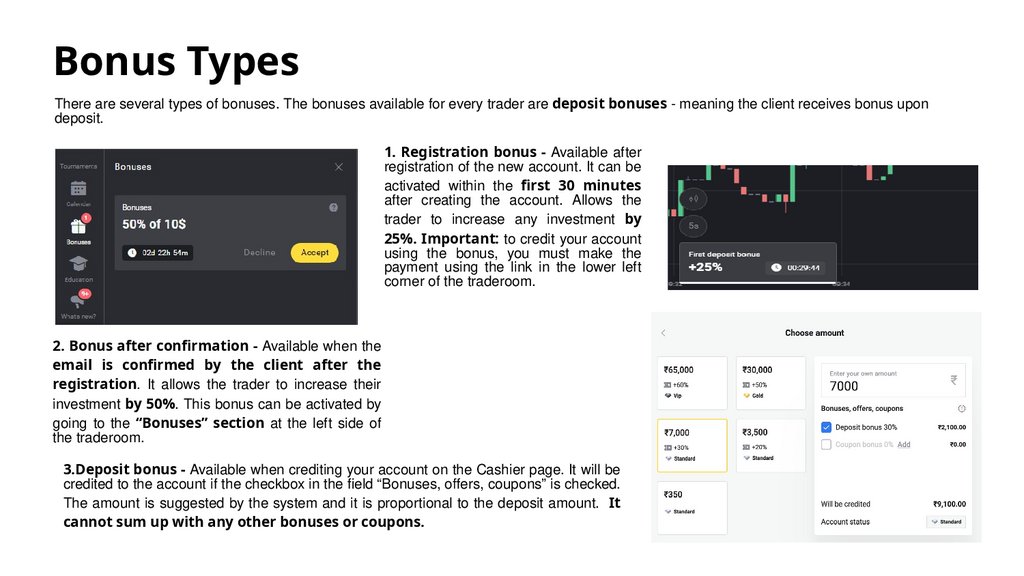
Bonus TypesThere are several types of bonuses. The bonuses available for every trader are deposit bonuses - meaning the client receives bonus upon
deposit.
1. Registration bonus - Available after
registration of the new account. It can be
activated within the first 30 minutes
after creating the account. Allows the
trader to increase any investment by
25%. Important: to credit your account
using the bonus, you must make the
payment using the link in the lower left
corner of the traderoom.
2. Bonus after confirmation - Available when the
email is confirmed by the client after the
registration. It allows the trader to increase their
investment by 50%. This bonus can be activated by
going to the “Bonuses” section at the left side of
the traderoom.
3.Deposit bonus - Available when crediting your account on the Cashier page. It will be
credited to the account if the checkbox in the field “Bonuses, offers, coupons” is checked.
The amount is suggested by the system and it is proportional to the deposit amount. It
cannot sum up with any other bonuses or coupons.
32.
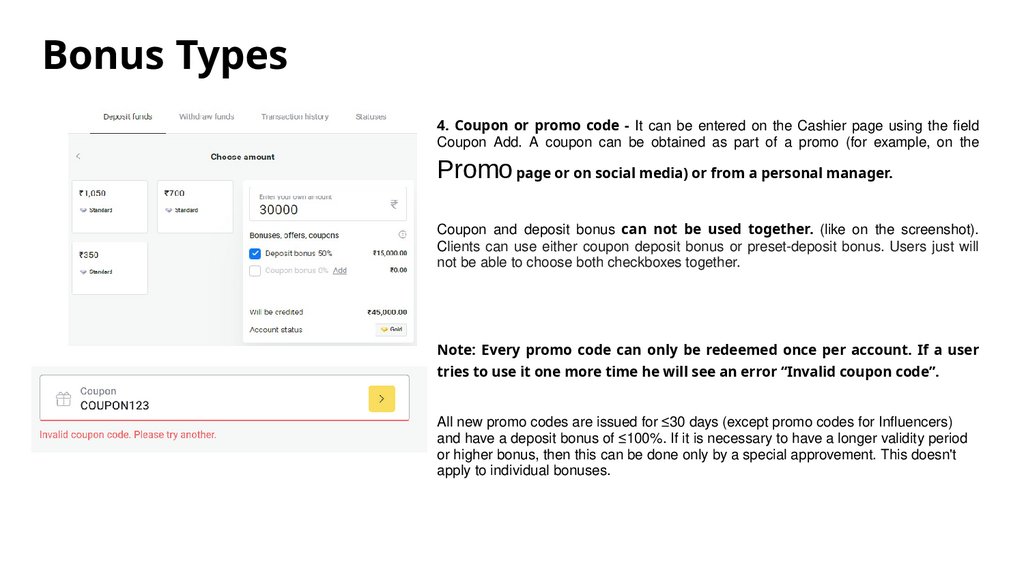
Bonus Types4. Coupon or promo code - It can be entered on the Cashier page using the field
Coupon Add. A coupon can be obtained as part of a promo (for example, on the
Promo page or on social media) or from a personal manager.
Coupon and deposit bonus can not be used together. (like on the screenshot).
Clients can use either coupon deposit bonus or preset-deposit bonus. Users just will
not be able to choose both checkboxes together.
Note: Every promo code can only be redeemed once per account. If a user
tries to use it one more time he will see an error “Invalid coupon code”.
All new promo codes are issued for ≤30 days (except promo codes for Influencers)
and have a deposit bonus of ≤100%. If it is necessary to have a longer validity period
or higher bonus, then this can be done only by a special approvement. This doesn't
apply to individual bonuses.
33.
Bonus TypesThe bonuses listed here are non-deposit bonuses, they do not require deposit to receive them. Normally, such bonuses are only provided to VIP
clients by their personal managers.
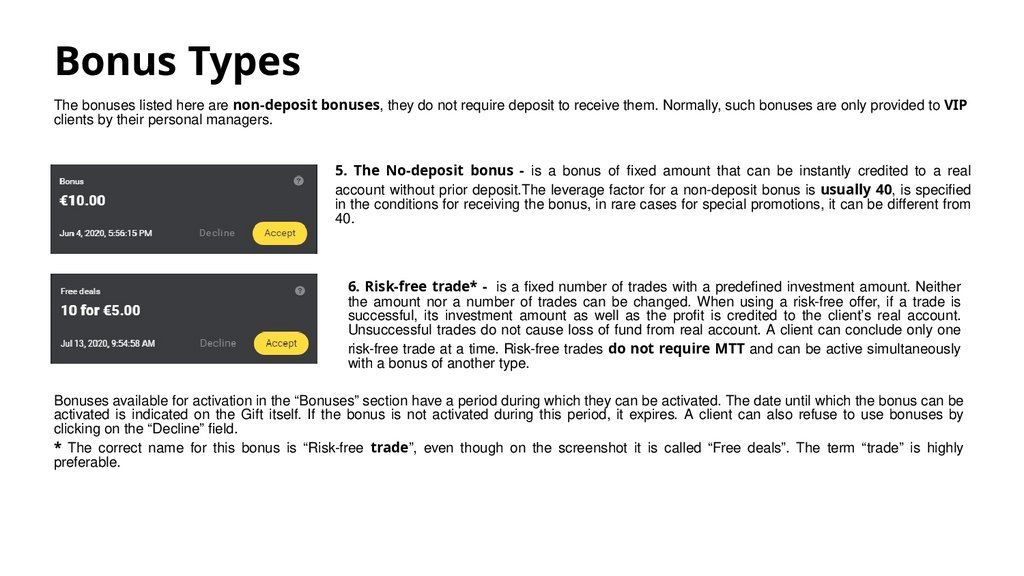
5. The No-deposit bonus - is a bonus of fixed amount that can be instantly credited to a real
account without prior deposit.The leverage factor for a non-deposit bonus is usually 40, is specified
in the conditions for receiving the bonus, in rare cases for special promotions, it can be different from
40.
6. Risk-free trade* - is a fixed number of trades with a predefined investment amount. Neither
the amount nor a number of trades can be changed. When using a risk-free offer, if a trade is
successful, its investment amount as well as the profit is credited to the client’s real account.
Unsuccessful trades do not cause loss of fund from real account. A client can conclude only one
risk-free trade at a time. Risk-free trades do not require MTT and can be active simultaneously
with a bonus of another type.
Bonuses available for activation in the “Bonuses” section have a period during which they can be activated. The date until which the bonus can be
activated is indicated on the Gift itself. If the bonus is not activated during this period, it expires. A client can also refuse to use bonuses by
clicking on the “Decline” field.
* The correct name for this bonus is “Risk-free trade”, even though on the screenshot it is called “Free deals”. The term “trade” is highly
preferable.
34.
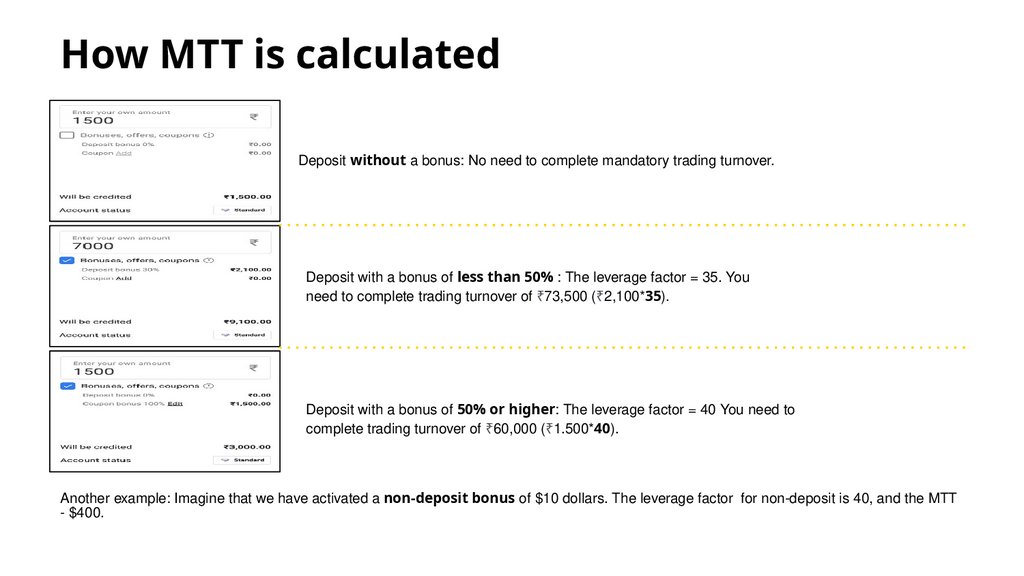
How MTT is calculatedDeposit without a bonus
Deposit without a bonus: No need to complete mandatory trading turnover.
Deposit with a bonus of less than 50% : The leverage factor = 35. You
need to complete trading turnover of ₹73,500 (₹2,100*35).
Deposit with a bonus of 50% or higher: The leverage factor = 40 You need to
complete trading turnover of ₹60,000 (₹1.500*40).
Another example: Imagine that we have activated a non-deposit bonus of $10 dollars. The leverage factor for non-deposit is 40, and the MTT
- $400.
35.
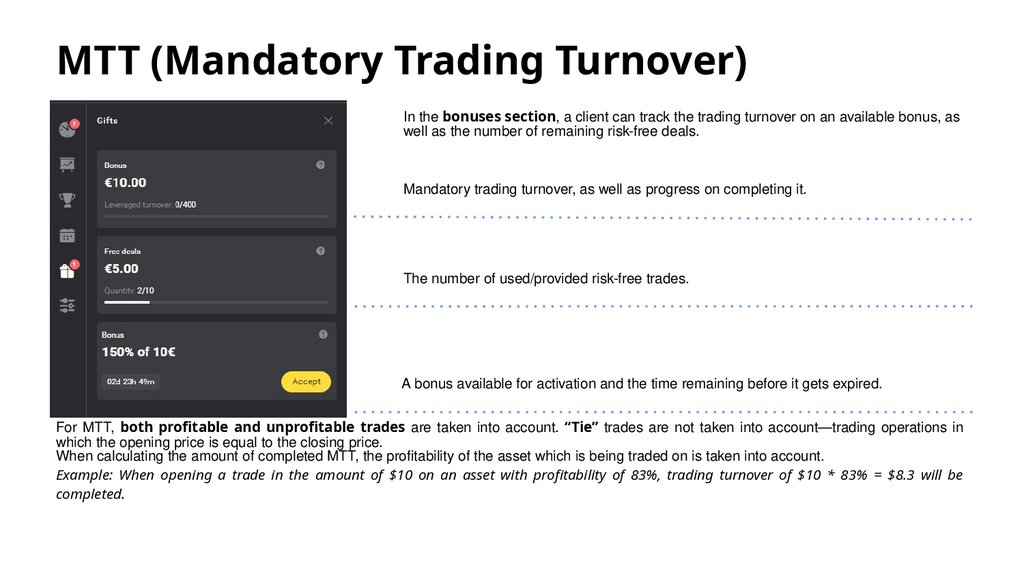
MTT (Mandatory Trading Turnover)In the bonuses section, a client can track the trading turnover on an available bonus, as
well as the number of remaining risk-free deals.
Mandatory trading turnover, as well as progress on completing it.
The number of used/provided risk-free trades.
A bonus available for activation and the time remaining before it gets expired.
For MTT, both profitable and unprofitable trades are taken into account. “Tie” trades are not taken into account—trading operations in
which the opening price is equal to the closing price.
When calculating the amount of completed MTT, the profitability of the asset which is being traded on is taken into account.
Example: When opening a trade in the amount of $10 on an asset with profitability of 83%, trading turnover of $10 * 83% = $8.3 will be
completed.
36.
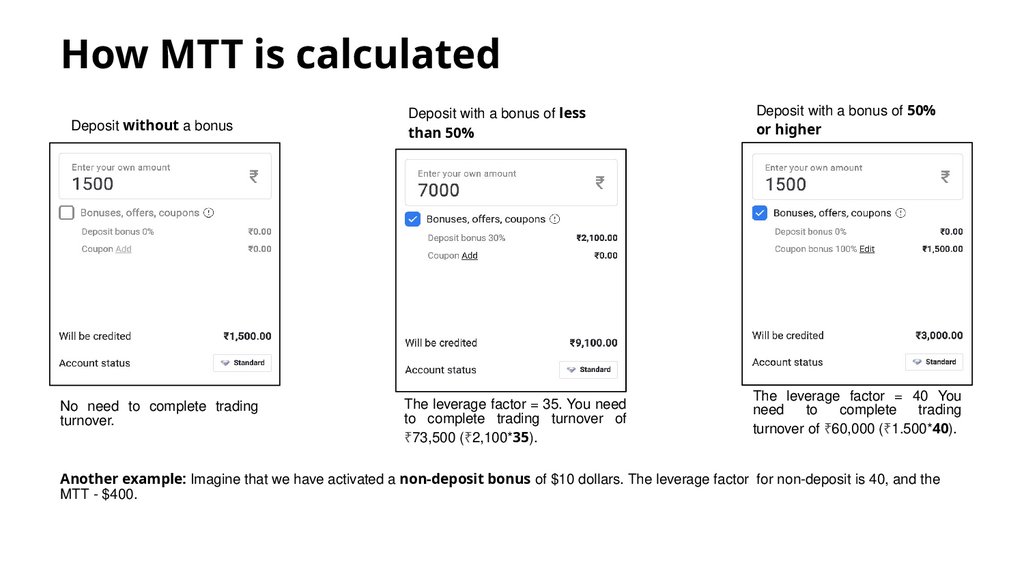
How MTT is calculatedDeposit without a bonus
No need to complete trading
turnover.
Deposit with a bonus of less
than 50%
The leverage factor = 35. You need
to complete trading turnover of
₹73,500 (₹2,100*35).
Deposit with a bonus of 50%
or higher
The leverage factor = 40 You
need
to
complete
trading
turnover of ₹60,000 (₹1.500*40).
Another example: Imagine that we have activated a non-deposit bonus of $10 dollars. The leverage factor for non-deposit is 40, and the
MTT - $400.
37.
Ways to complete the MTTTrading turnover for bonus and withdrawal restriction caused by it can be removed in one of the following ways:
The client has successfully completed the mandatory trading turnover. The entire amount on the balance of the real account will be
available for withdrawal.
2.
During the course of trading, the client's balance dropped lower than the amount of the minimum trade ($1). In this case, the bonus will
be automatically canceled and further completion of trading turnover will be discontinued.
In rare cases, the bonus may not be automatically canceled upon reaching a zero balance. Then, the bonus can be canceled manually. If after
reaching a zero balance while still having active trading turnover, the client has made a new deposit, the bonus can be manually canceled
with subsequent compensation of the debited funds.
3.
In one case, bonus can be canceled by support agents. According to the CA:8.10. After a Bonus is activated, the Client has the right
to cancel it by contacting the Company's Client Support Service using the contacts specified in section 12 of this Agreement. Declining
or cancelling a Bonus is possible only if the Client has completed no Trading Operations since the Bonuses were credited.When deciding
on a possible cancellation of a bonus, the support employee (usually 2nd and 3rd line) checks the volume of already completed trading
turnover and opened trades. If the trading turnover has not exceeded 3%, and the client has no open trades, the support employee may
cancel the bonus. In this case, the bonus amount will be deducted from client’s real account.
1.
38.
EducationBinomo
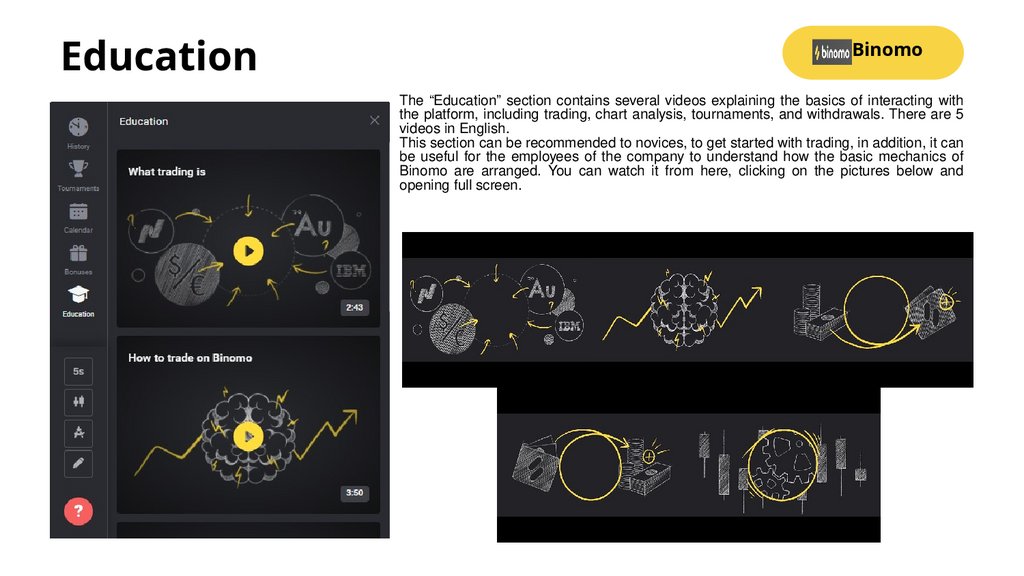
The “Education” section contains several videos explaining the basics of interacting with
the platform, including trading, chart analysis, tournaments, and withdrawals. There are 5
videos in English.
This section can be recommended to novices, to get started with trading, in addition, it can
be useful for the employees of the company to understand how the basic mechanics of
Binomo are arranged. You can watch it from here, clicking on the pictures below and
opening full screen.
39.
What’s new?Binomo
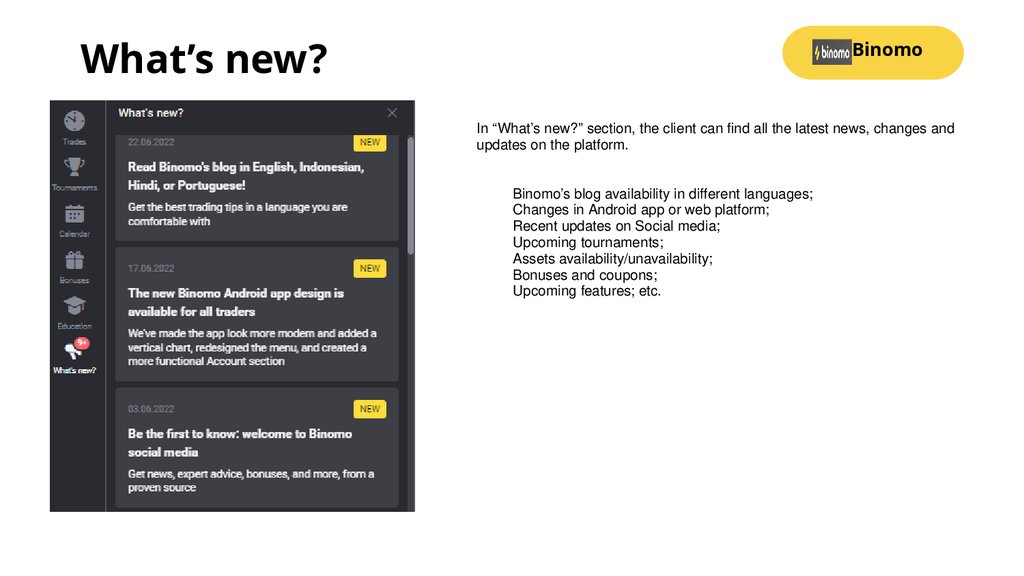
In “What’s new?” section, the client can find all the latest news, changes and
updates on the platform.
Binomo’s blog availability in different languages;
Changes in Android app or web platform;
Recent updates on Social media;
Upcoming tournaments;
Assets availability/unavailability;
Bonuses and coupons;
Upcoming features; etc.
40.
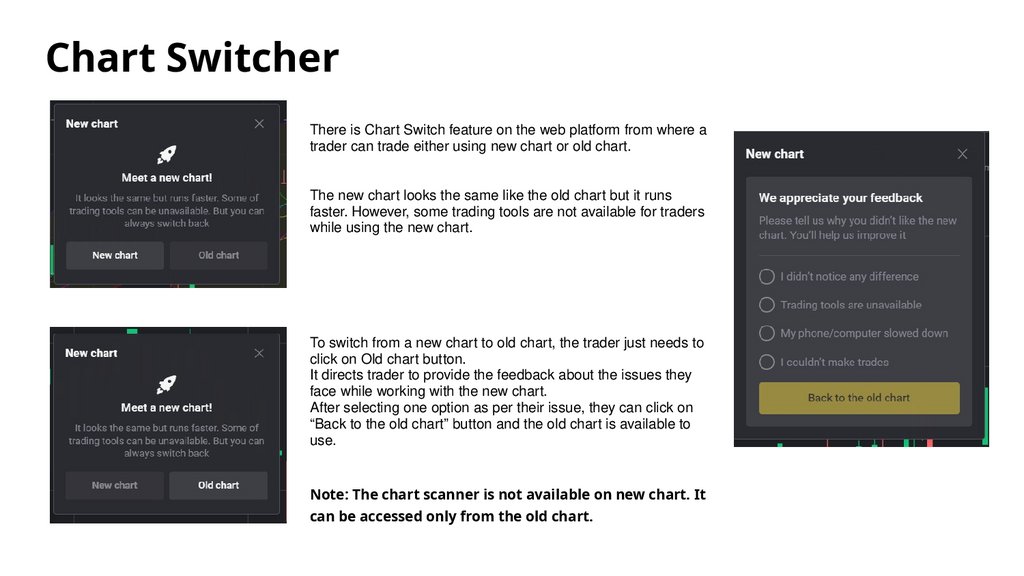
Chart SwitcherThere is Chart Switch feature on the web platform from where a
trader can trade either using new chart or old chart.
The new chart looks the same like the old chart but it runs
faster. However, some trading tools are not available for traders
while using the new chart.
To switch from a new chart to old chart, the trader just needs to
click on Old chart button.
It directs trader to provide the feedback about the issues they
face while working with the new chart.
After selecting one option as per their issue, they can click on
“Back to the old chart” button and the old chart is available to
use.
Note: The chart scanner is not available on new chart. It
can be accessed only from the old chart.
41.
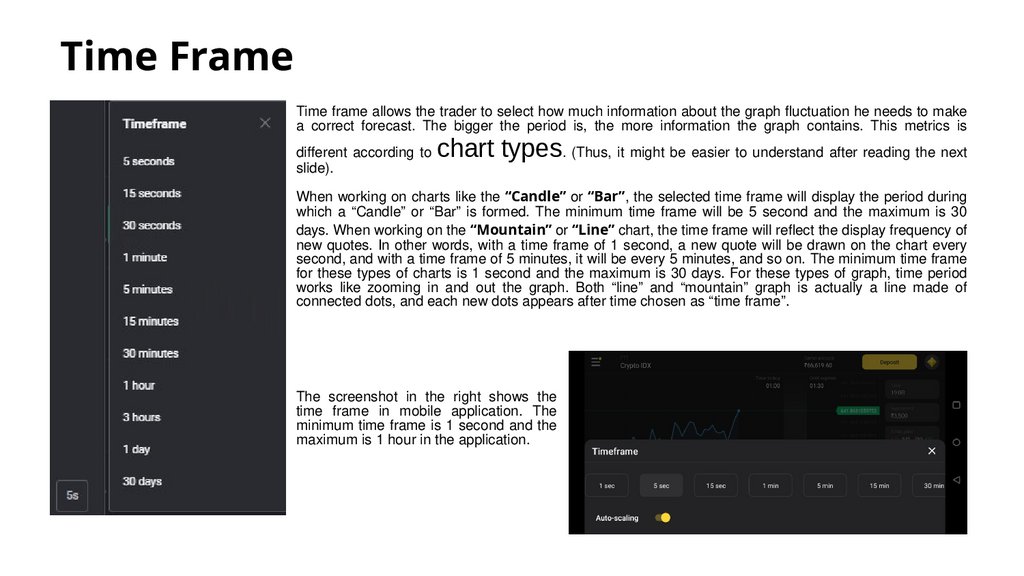
Time FrameTime frame allows the trader to select how much information about the graph fluctuation he needs to make
a correct forecast. The bigger the period is, the more information the graph contains. This metrics is
different according to
slide).
chart types. (Thus, it might be easier to understand after reading the next
When working on charts like the “Candle” or “Bar”, the selected time frame will display the period during
which a “Candle” or “Bar” is formed. The minimum time frame will be 5 second and the maximum is 30
days. When working on the “Mountain” or “Line” chart, the time frame will reflect the display frequency of
new quotes. In other words, with a time frame of 1 second, a new quote will be drawn on the chart every
second, and with a time frame of 5 minutes, it will be every 5 minutes, and so on. The minimum time frame
for these types of charts is 1 second and the maximum is 30 days. For these types of graph, time period
works like zooming in and out the graph. Both “line” and “mountain” graph is actually a line made of
connected dots, and each new dots appears after time chosen as “time frame”.
The screenshot in the right shows the
time frame in mobile application. The
minimum time frame is 1 second and the
maximum is 1 hour in the application.
42.
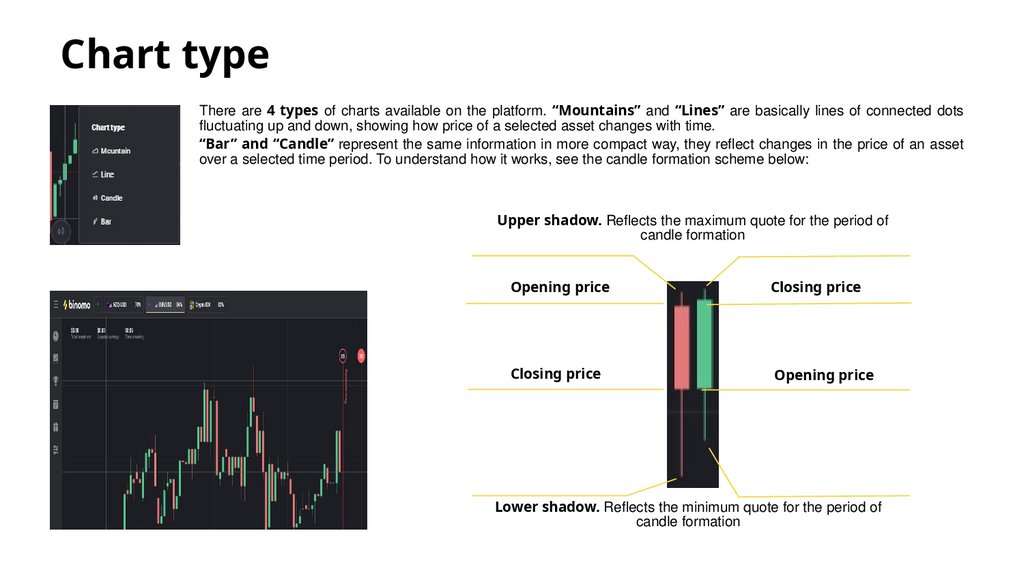
Chart typeThere are 4 types of charts available on the platform. “Mountains” and “Lines” are basically lines of connected dots
fluctuating up and down, showing how price of a selected asset changes with time.
“Bar” and “Candle” represent the same information in more compact way, they reflect changes in the price of an asset
over a selected time period. To understand how it works, see the candle formation scheme below:
Upper shadow. Reflects the maximum quote for the period of
candle formation
Opening price
Closing price
Closing price
Opening price
Lower shadow. Reflects the minimum quote for the period of
candle formation
43.
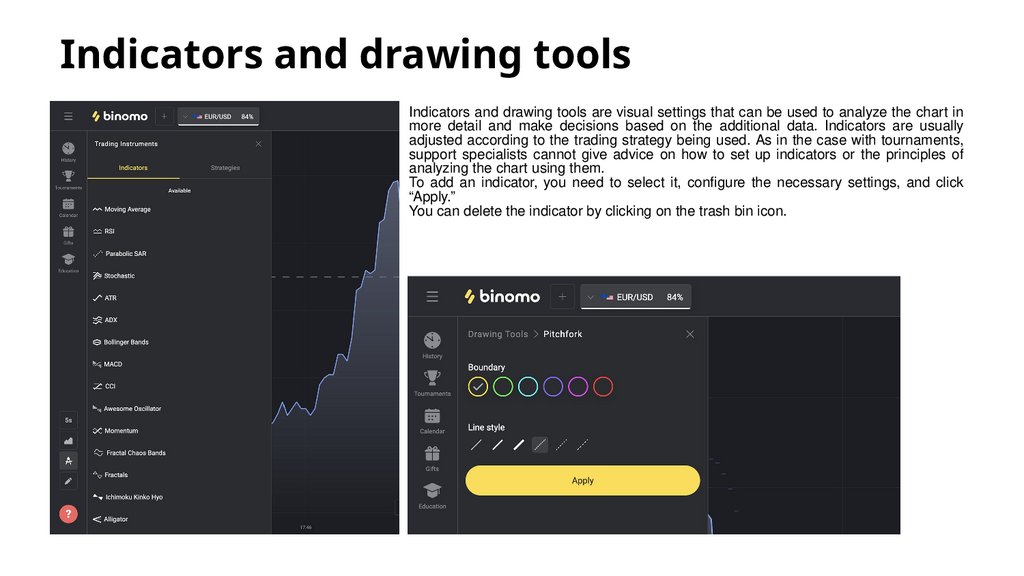
Indicators and drawing toolsIndicators and drawing tools are visual settings that can be used to analyze the chart in
more detail and make decisions based on the additional data. Indicators are usually
adjusted according to the trading strategy being used. As in the case with tournaments,
support specialists cannot give advice on how to set up indicators or the principles of
analyzing the chart using them.
To add an indicator, you need to select it, configure the necessary settings, and click
“Apply.”
You can delete the indicator by clicking on the trash bin icon.
44.
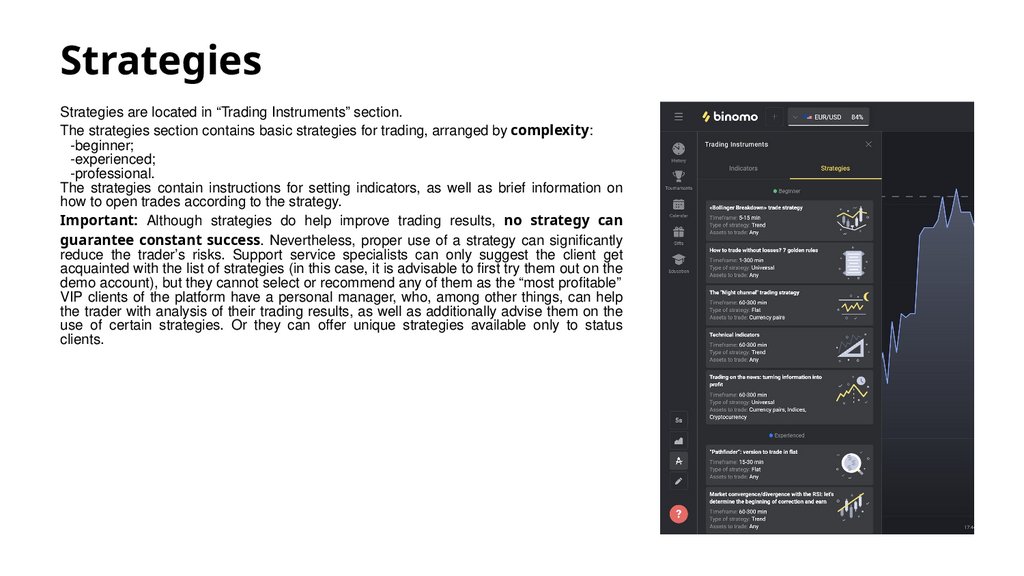
StrategiesStrategies are located in “Trading Instruments” section.
The strategies section contains basic strategies for trading, arranged by complexity:
-beginner;
-experienced;
-professional.
The strategies contain instructions for setting indicators, as well as brief information on
how to open trades according to the strategy.
Important: Although strategies do help improve trading results, no strategy can
guarantee constant success. Nevertheless, proper use of a strategy can significantly
reduce the trader’s risks. Support service specialists can only suggest the client get
acquainted with the list of strategies (in this case, it is advisable to first try them out on the
demo account), but they cannot select or recommend any of them as the “most profitable”
VIP clients of the platform have a personal manager, who, among other things, can help
the trader with analysis of their trading results, as well as additionally advise them on the
use of certain strategies. Or they can offer unique strategies available only to status
clients.
45.
Indicators and StrategiesThere are different types of market indicators which are used in different ways to analyse and predict chart’s movement.
There are 2 main groups:
Trend Indicators:
They can be used to suggest future market trends. The main trend indicators are:
- Moving Average
- MACD
- Bollinger Bands
Oscillators:
They let you know when the market is overbought or oversold, which can indicate a trend reversal. There are many Oscillators, like:
- RSI
- Stochastic
Trading strategies are set of tools and rules for gaining profit from trading.
Trading strategies include:
Global analysis of the news that might influence the market
Technical analysis using indicators and/or candlestick patterns
Risk management
Click on hyperlinks for detailed information about
Indicators and Strategies available on the platform.
page contains the information about our platform and its advantages.
This page includes the detailed information about strategies..
This
46.
Support chatBy clicking on the red icon in the bottom left corner, the client can contact the support
chat of the Company.
Consultations can be provided in around 15 languages. If there’re many requests at a
given time, the client can see his/her position in a queue. As part of the chat service,
the client can send any requests and also attach any necessary documents. In the
future, if necessary, chats can be converted into tickets to be sent to relevant
departments of the Company for further action to be taken.
Stockity has no virtual assistant.
First, the client will be connected with our virtual assistant (Cody). They can select the
options mentioned and proceed forward to find answers to their questions. They can
also connect with a live agent if they want. To connect with a live agent, the client have
to click on “Connect me with a Support agent” button, when it appears and gets in
touch with support agents.
Binomo
47.
EXTRA: Video tutorialsIn order to better digest the information, and also to relax after a lot of reading, please watch our educational video tutorials. The images below
are clickable and you can open a video in a separate tab of your browser.
48.
Mobile Application (Play Store/App Store)One way to get the mobile application is to download it from Google
Play Store for Android and App Store for IOS.
Mobile application is normally available in both stores with the name
Binomo, but there can be minor changes (like “Binomo: smart
investment”).
After downloading the application and registration, Demo account is
available for trading.
Note: Tournaments are available after the first deposit.
49.
Mobile Application (APK version)Another way to get the application is to download it directly from
Binomo.com. It is called APK version of mobile application and it is
available from this
link (Android only).
In APK version, tournaments are available immediately after
registration.
Other than that, the APK app is the same as the one from Google Play.
50.
Deposit through applicationDeposit can be made by clicking on the ‘Deposit’ button at upper right
corner.
After clicking on Deposit, the country can be changed as per client’s
interest. The client can make a deposit using any of the payment
methods available.
.
51.
Platform and Trades (mobile app)The platform is available for trading as soon as the
application is opened. The left image shows the updated
version of the platform on mobile application.
The right image shows how to see the history of the trades!
Opened/closed/successful/unsuccessful/tie, all the trades
can be seen by the client after clicking on the clock icon at
the bottom left corner of the application.
The client can check FTT and CFD both trades.
52.
Tournaments and Application menuThe client can take part in tournaments by opening them after clicking
on the trophy icon below. (left image)
The menu can be opened by clicking on the below right corner (human
icon) (right image)
The menu consists of:
Edit profile
Balance
Bonuses
What’s new?
Help Center
Chat
Telegram
Contacts
Client Agreement
Log out
“Delete account” (Block account)
53.
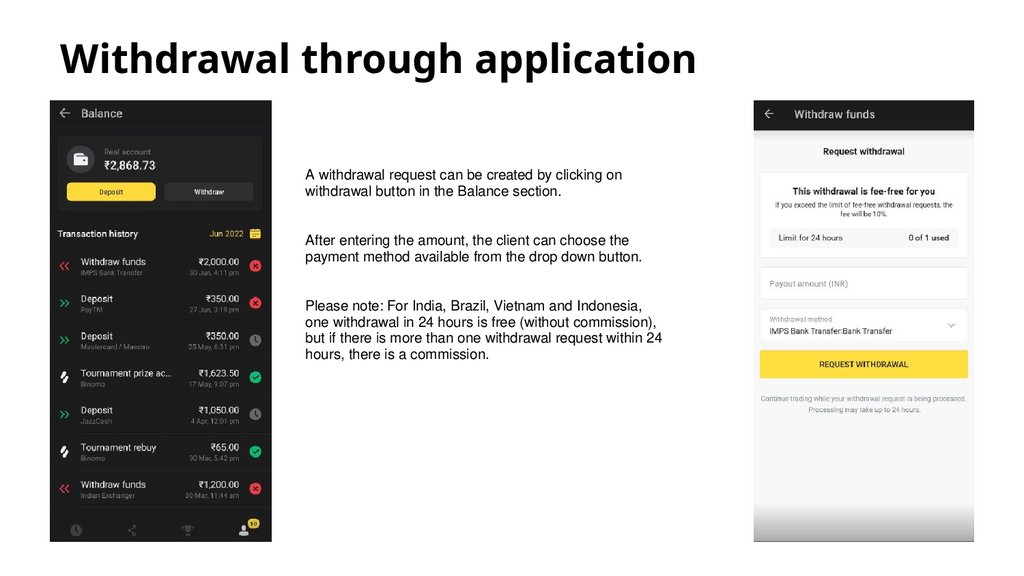
Withdrawal through applicationA withdrawal request can be created by clicking on
withdrawal button in the Balance section.
After entering the amount, the client can choose the
payment method available from the drop down button.
Please note: For India, Brazil, Vietnam and Indonesia,
one withdrawal in 24 hours is free (without commission),
but if there is more than one withdrawal request within 24
hours, there is a commission.
54.
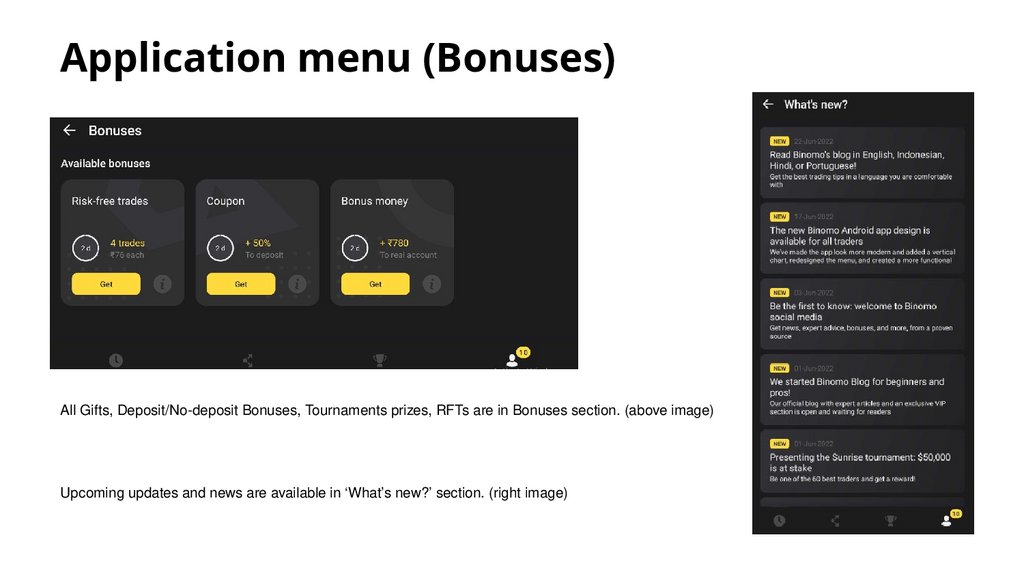
Application menu (Bonuses)All Gifts, Deposit/No-deposit Bonuses, Tournaments prizes, RFTs are in Bonuses section. (above image)
Upcoming updates and news are available in ‘What’s new?’ section. (right image)
55.
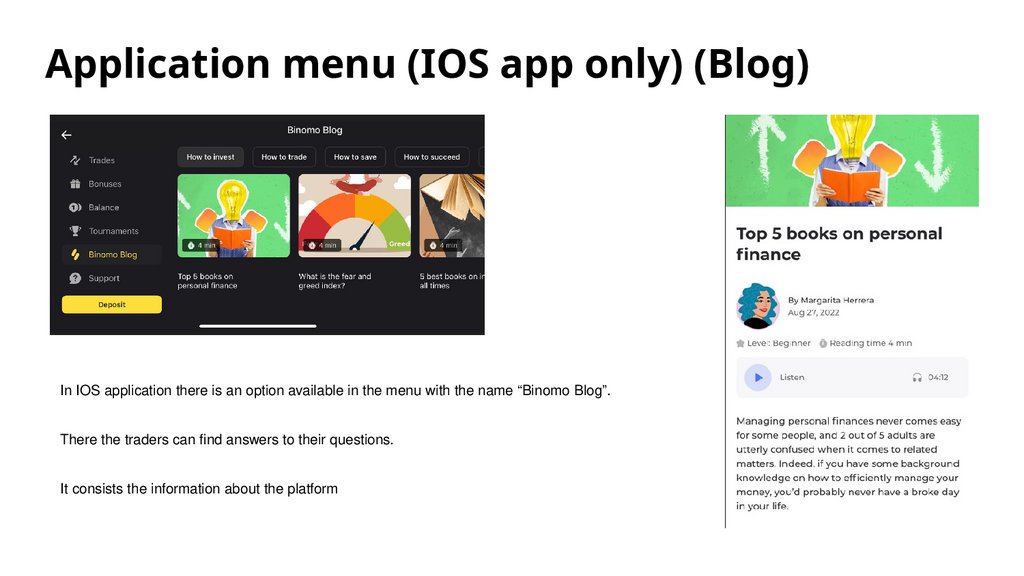
Application menu (IOS app only) (Blog)In IOS application there is an option available in the menu with the name “Binomo Blog”.
There the traders can find answers to their questions.
It consists the information about the platform
56.
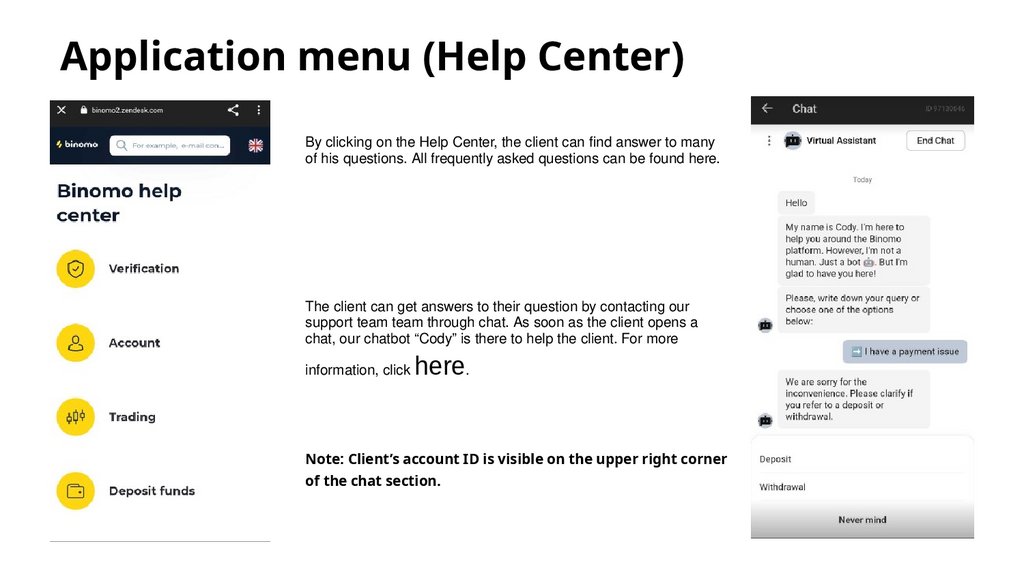
Application menu (Help Center)By clicking on the Help Center, the client can find answer to many
of his questions. All frequently asked questions can be found here.
The client can get answers to their question by contacting our
support team team through chat. As soon as the client opens a
chat, our chatbot “Cody” is there to help the client. For more
information, click
here.
Note: Client’s account ID is visible on the upper right corner
of the chat section.
57.
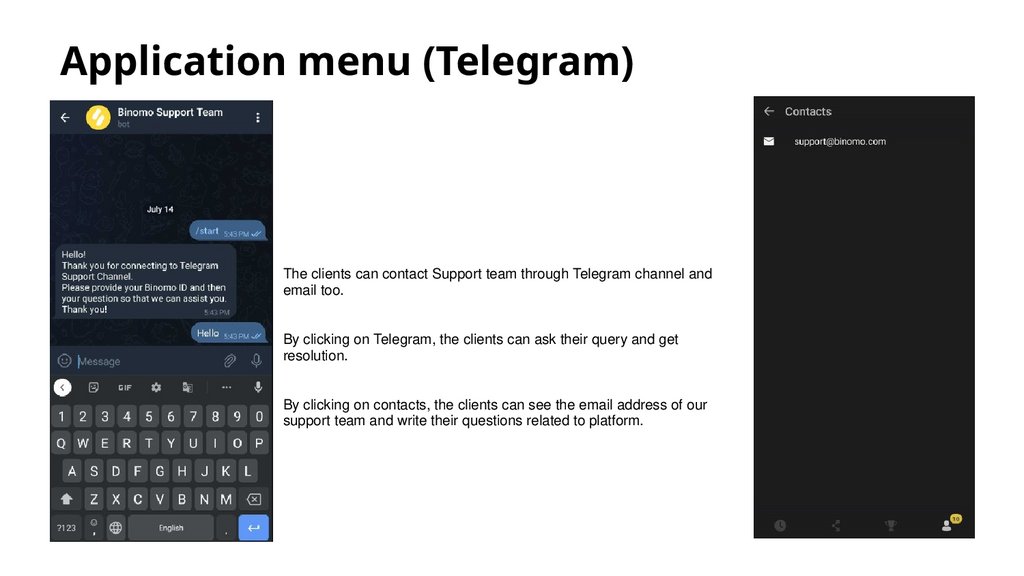
Application menu (Telegram)The clients can contact Support team through Telegram channel and
email too.
By clicking on Telegram, the clients can ask their query and get
resolution.
By clicking on contacts, the clients can see the email address of our
support team and write their questions related to platform.
58.
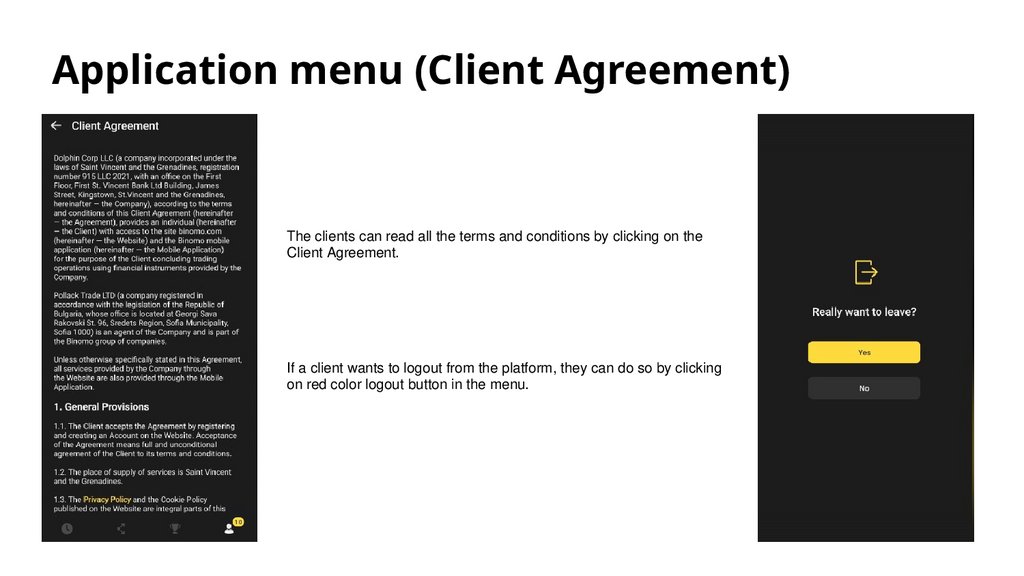
Application menu (Client Agreement)The clients can read all the terms and conditions by clicking on the
Client Agreement.
If a client wants to logout from the platform, they can do so by clicking
on red color logout button in the menu.
59.
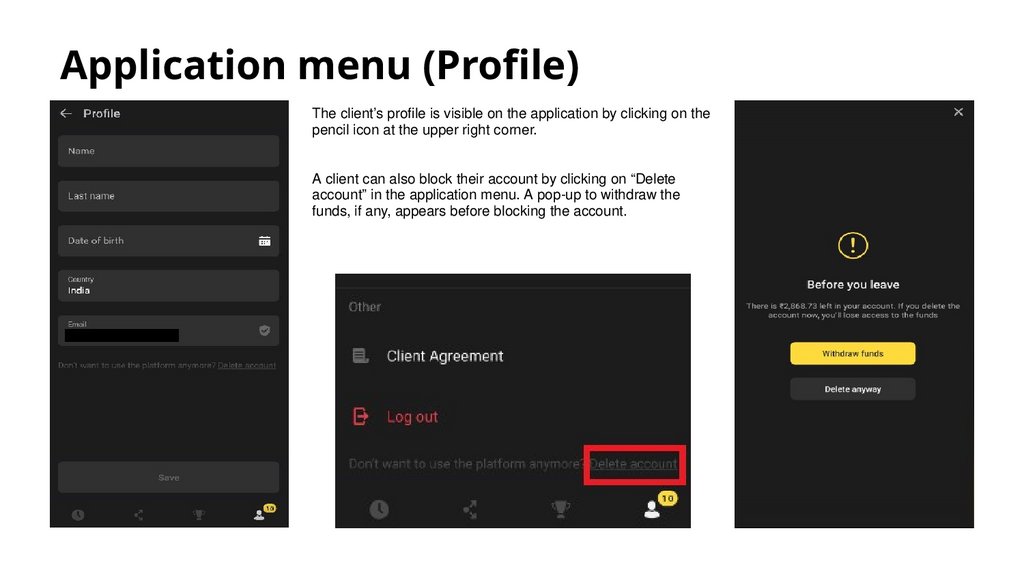
Application menu (Profile)The client’s profile is visible on the application by clicking on the
pencil icon at the upper right corner.
A client can also block their account by clicking on “Delete
account” in the application menu. A pop-up to withdraw the
funds, if any, appears before blocking the account.