

 software
Similar presentations:








PowerPoint template
1.
POWERPOINTTEMPLATE
Help Guide
By : TOKOMOO
2.
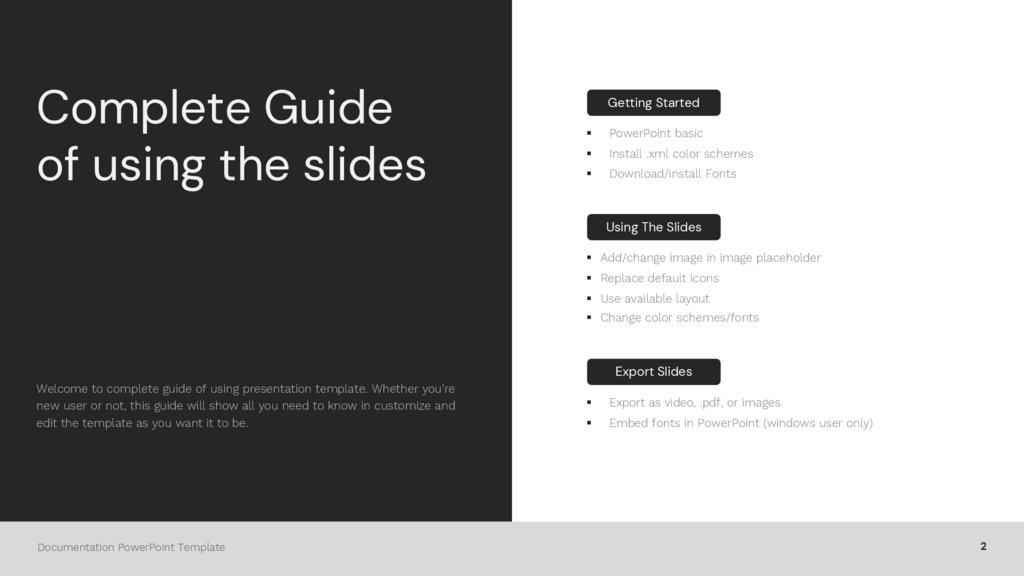
Complete Guideof using the slides
Getting Started
§
PowerPoint basic
§
Install .xml color schemes
§
Download/install Fonts
Using The Slides
§ Add/change image in image placeholder
§ Replace default icons
§ Use available layout
§ Change color schemes/fonts
Export Slides
Welcome to complete guide of using presentation template. Whether you’re
new user or not, this guide will show all you need to know in customize and
edit the template as you want it to be.
Documentation PowerPoint Template
§
Export as video, .pdf, or images
§
Embed fonts in PowerPoint (windows user only)
2
3.
Getting Started§
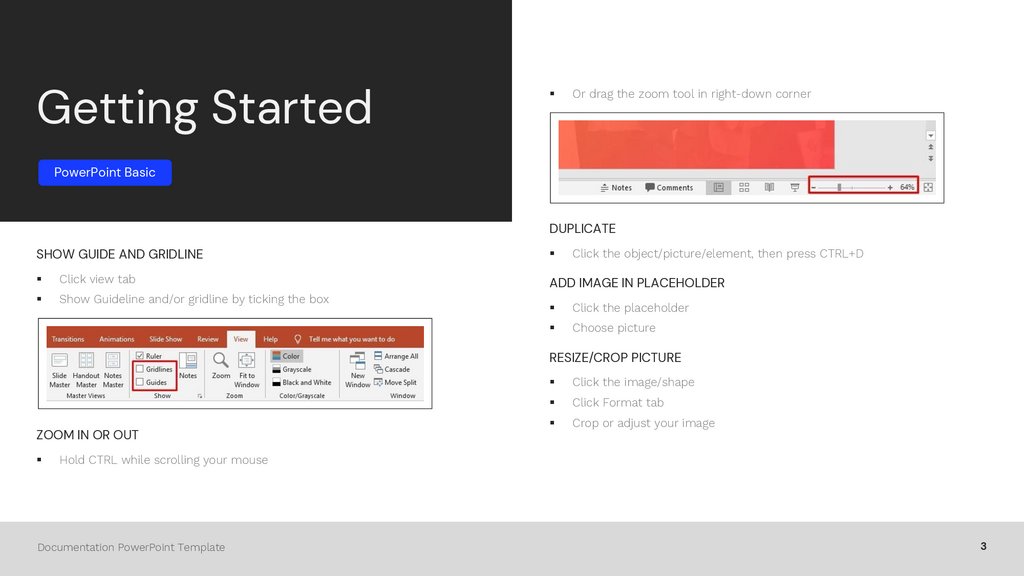
Or drag the zoom tool in right-down corner
PowerPoint Basic
DUPLICATE
SHOW GUIDE AND GRIDLINE
§
Click view tab
§
Show Guideline and/or gridline by ticking the box
§
Click the object/picture/element, then press CTRL+D
ADD IMAGE IN PLACEHOLDER
§
Click the placeholder
§
Choose picture
RESIZE/CROP PICTURE
ZOOM IN OR OUT
§
§
Click the image/shape
§
Click Format tab
§
Crop or adjust your image
Hold CTRL while scrolling your mouse
Documentation PowerPoint Template
3
4.
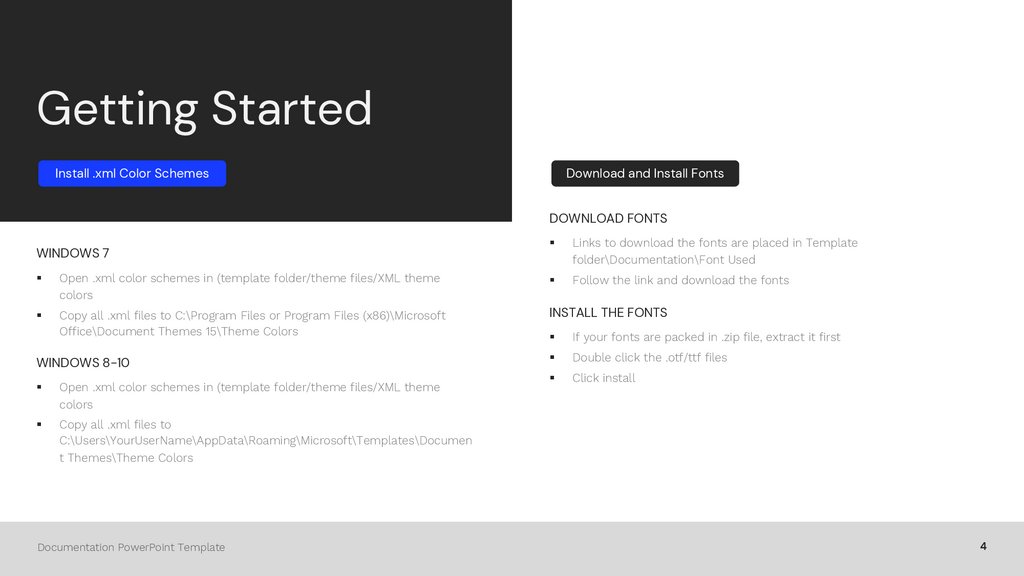
Getting StartedInstall .xml Color Schemes
Download and Install Fonts
DOWNLOAD FONTS
WINDOWS 7
§
Links to download the fonts are placed in Template
folder\Documentation\Font Used
Follow the link and download the fonts
§
Open .xml color schemes in (template folder/theme files/XML theme
colors
§
§
Copy all .xml files to C:\Program Files or Program Files (x86)\Microsoft
Office\Document Themes 15\Theme Colors
INSTALL THE FONTS
WINDOWS 8-10
§
Open .xml color schemes in (template folder/theme files/XML theme
colors
§
Copy all .xml files to
C:\Users\YourUserName\AppData\Roaming\Microsoft\Templates\Documen
t Themes\Theme Colors
Documentation PowerPoint Template
§
If your fonts are packed in .zip file, extract it first
§
Double click the .otf/ttf files
§
Click install
4
5.
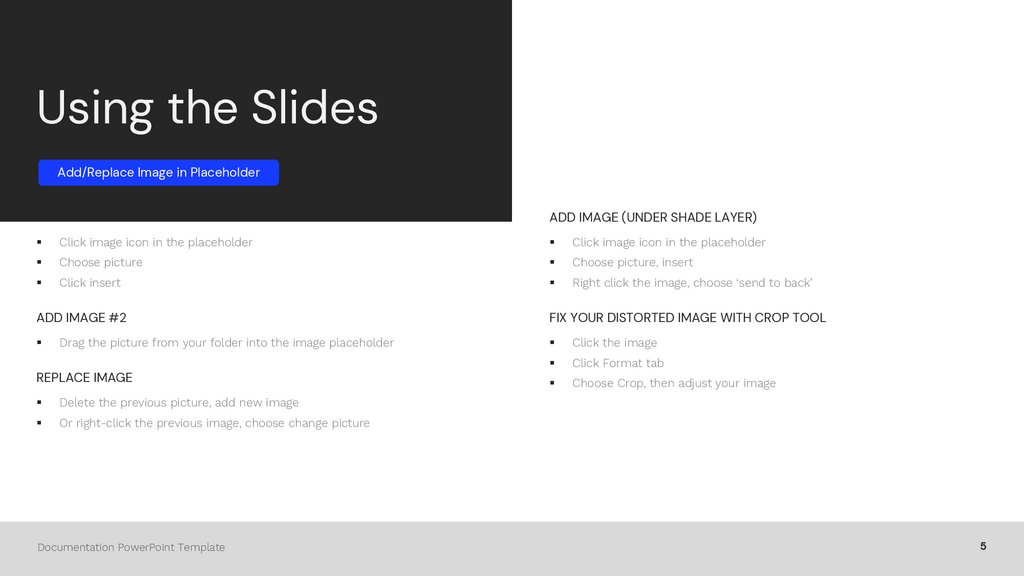
Using the SlidesAdd/Replace Image in Placeholder
ADD IMAGE #1
ADD IMAGE (UNDER SHADE LAYER)
§
Click image icon in the placeholder
§
Click image icon in the placeholder
§
Choose picture
§
Choose picture, insert
§
Click insert
§
Right click the image, choose ‘send to back’
ADD IMAGE #2
§
Drag the picture from your folder into the image placeholder
REPLACE IMAGE
§
Delete the previous picture, add new image
§
Or right-click the previous image, choose change picture
Documentation PowerPoint Template
FIX YOUR DISTORTED IMAGE WITH CROP TOOL
§
Click the image
§
Click Format tab
§
Choose Crop, then adjust your image
5
6.
Using the SlidesChange Default Icons
CHANGE ICONS
§
Open icon pack files in template folder/theme files/icon pack.ppt or .key
§
Select and Copy the icon you want
§
Go to your presentation template
§
Click icon you want to replace and delete it
§
Paste and adjust the icons to the place
CHANGE ICONS COLORS
Documentation PowerPoint Template
§
Click the icon>click format tab
§
Choose ‘shape fill’
§
Choose the color you want
6
7.
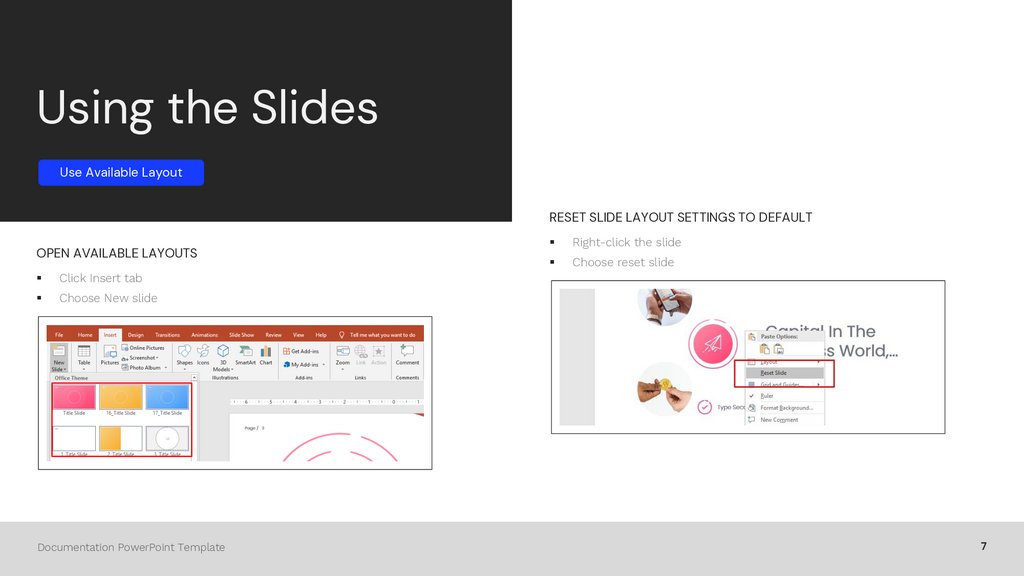
Using the SlidesUse Available Layout
RESET SLIDE LAYOUT SETTINGS TO DEFAULT
OPEN AVAILABLE LAYOUTS
§
Click Insert tab
§
Choose New slide
Documentation PowerPoint Template
§
Right-click the slide
§
Choose reset slide
7
8.
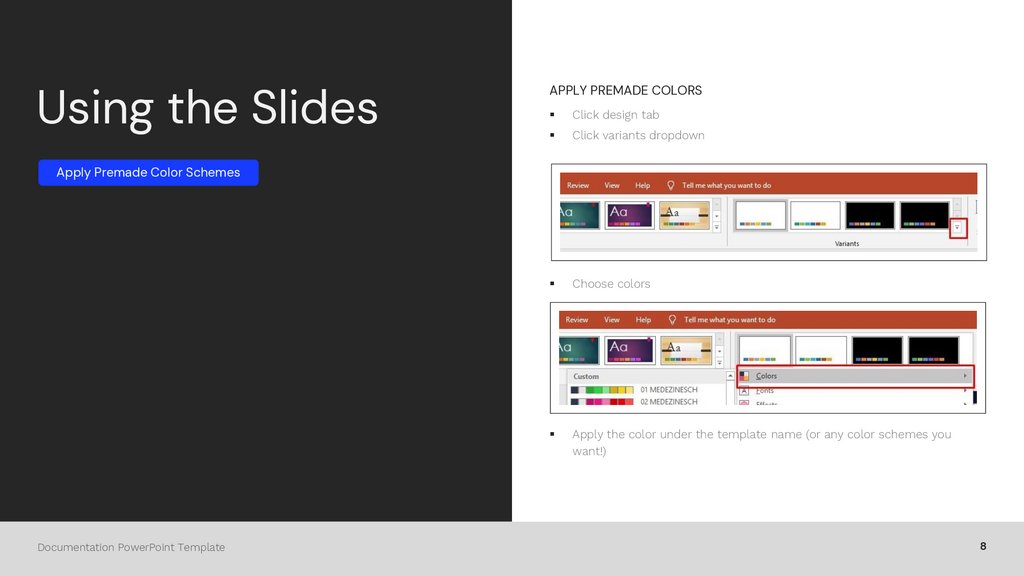
Using the SlidesAPPLY PREMADE COLORS
§
Click design tab
§
Click variants dropdown
§
Choose colors
§
Apply the color under the template name (or any color schemes you
want!)
Apply Premade Color Schemes
Documentation PowerPoint Template
8
9.
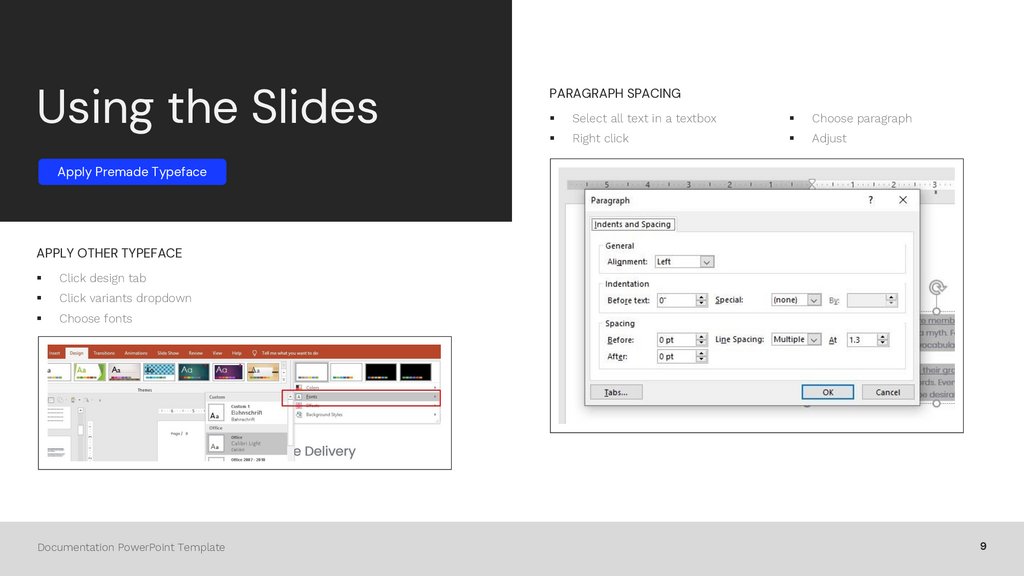
Using the SlidesPARAGRAPH SPACING
§
Select all text in a textbox
§
Choose paragraph
§
Right click
§
Adjust
Apply Premade Typeface
APPLY OTHER TYPEFACE
§
Click design tab
§
Click variants dropdown
§
Choose fonts
Documentation PowerPoint Template
9
10.
THANKYOU
By : TOKOMOO